Quick Start: Introducing DynaVox Series 4
Part # 400023
49
Open Page Behaviors - Select the Behavior Editor button in this group box to assign or edit the
behaviors that will be activated as soon as the popup is opened.
Close Page Behaviors - Select the Behavior Editor button in this group box to assign or edit the
behaviors that will be activated as soon as the popup is closed.
Keep Scanning Inside - If you are using the group scanning selection method, use the Keep
Scanning Inside pull-down menu to specify how the scan pattern should behave. If this feature is
turned on, the scan pattern will repeat inside the popup until a selection is made. If this feature
is turned off, the scan pattern will proceed through the entire scan pattern before repeating.
Audio Cue - Select the Audio Cue text box to add an audio cue or to edit an existing cue.
OK/Cancel - Select the OK button to accept new settings and close the Modify Popup menu.
Select the Cancel button to close the menu without accepting any new settings.
Note: To see step-by-step instructions for using any of the Modify Popup menu options, please refer
to the DynaVox Series 4 Searchable Help on the CD that came with your DV4/MT4.
Modifying the Message Window
Select the Modify button (it will turn red until you make another selection) and then select the Message
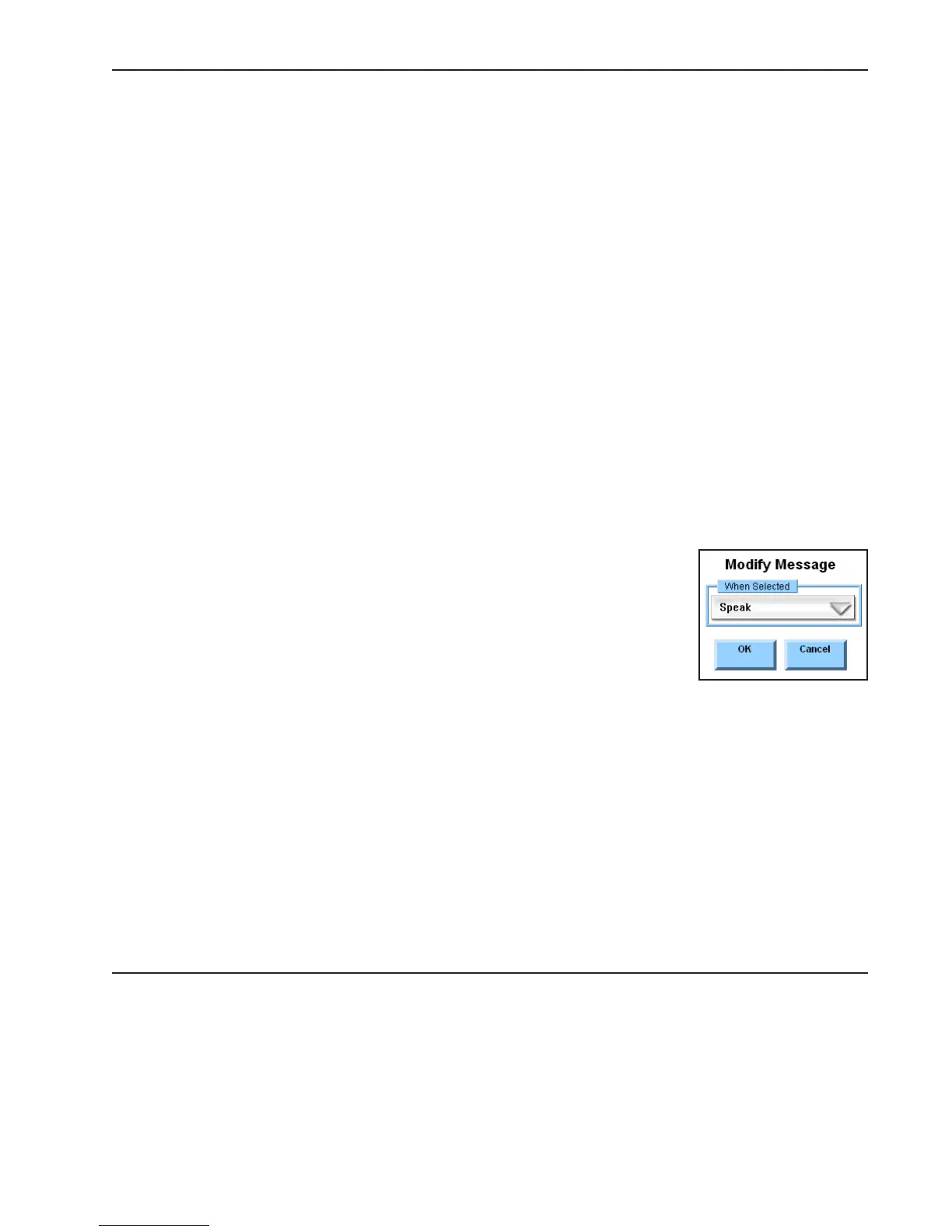
Window. The Modify Message menu will open to display tools for modifying the Message Window:
When Selected - Use the When Selected pull-down menu to specify
what should happen when the Message Window is selected. When
the Speak option is selected, the device will speak the text that is
displayed in the Message Window. When the Move Cursor option is
selected, the cursor will move to the place that is selected in the
Message Window.
OK/Cancel - Select the OK button to accept new settings and close
the Modify Message menu. Select the Cancel button to close the menu
without accepting any new settings.
Modifying Other Page Elements
You can also use the Modify button to change objects like boxes, dividers, tab panes, search boxes, active
areas, active labels and free-standing labels and symbols. For information on using the Modify button with
these objects, please refer to the DynaVox Series 4 Searchable Help on the CD that came with your
DV4/MT4.



 To Next Page