DynaVox Technologies
48
OK/Cancel - Select the OK button to accept new settings and close the Modify Page menu. Select
the Cancel button to close the menu without accepting any new settings.
Note: To see step-by-step instructions for using any of the Modify Page menu options, please refer
to the DynaVox Series 4 Searchable Help on the CD that came with your DV4/MT4.
Modifying a Popup
Select the Modify button (it will turn red until you make another selection) and then select the
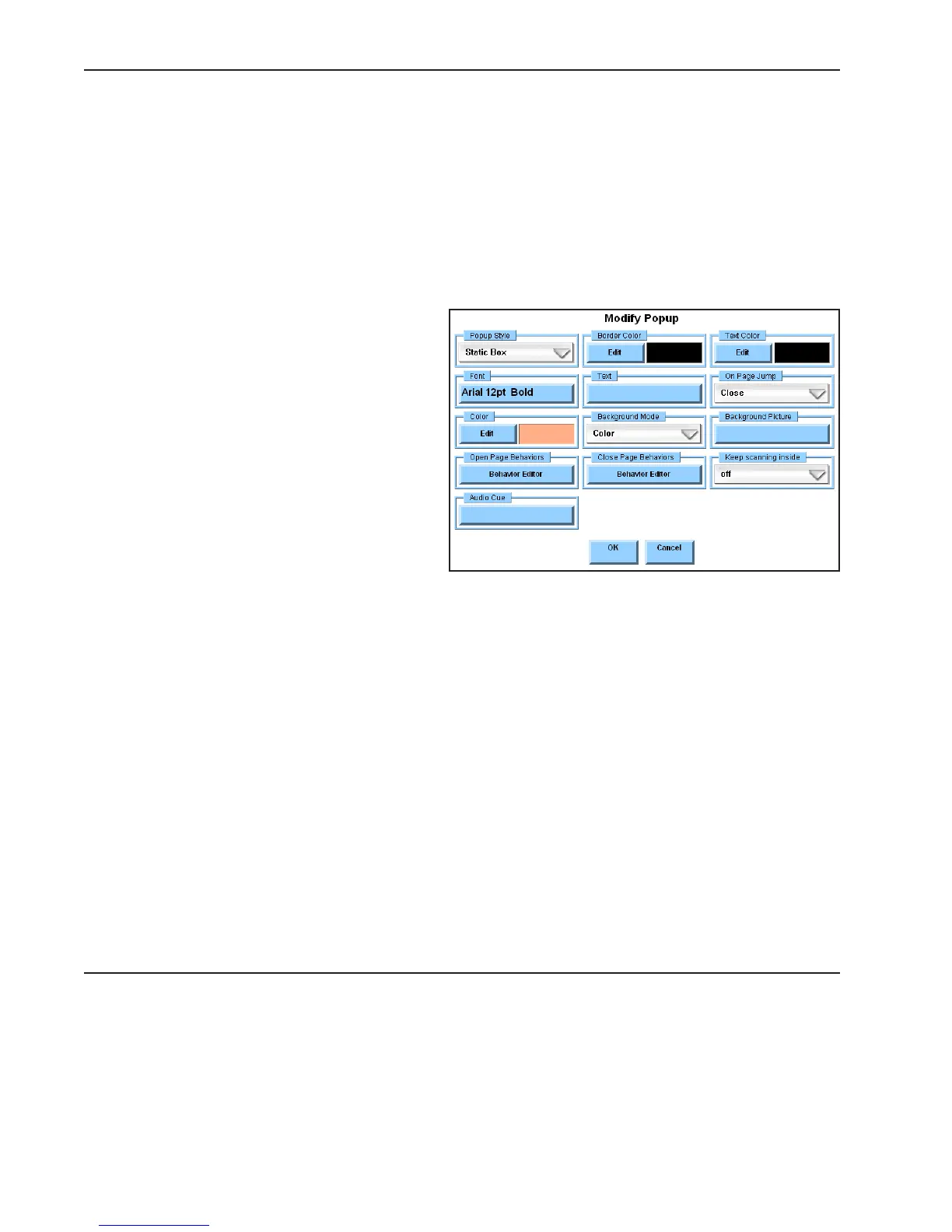
background of a popup. The Modify Popup menu will open to display tools for modifying a popup:
Popup Style - Select the Popup Style
pull-down menu to redefine the style
of the popup window.
Border Color - Select the Edit button
in the Border Color group box to
define the border color for the
selected popup. The display square
shows the current color selection.
Text Color - Select the Edit button in
the Text Color group box to define the
color of the text in the popup title.
The display square shows the current
color selection.
Font - Select the Font button to define the font, size and style of the text in the popup label. The
button shows the current font settings.
Text - Select the Text button to enter or edit the content of the popup’s text label. The button
shows the current label.
On Page Jump - Select the On Page Jump pull-down menu to specify how the popup will behave
when you select a page other than the page behind the popup.
Color - Select the Edit button in the Color group box to define the background color of the popup.
The display square shows the current color selection.
Background Mode - Select the Background Mode pull-down menu to specify the characteristics of
the popup’s background.
Background Picture - If you have chosen to use a picture as the background of the popup, select
the Background Picture button to choose the image file that will be used.



 To Next Page