Quick Start: Introducing DynaVox Series 4
Part # 400023
61
Page Wizard
The Page Wizard is another feature that can be used to simplify the creation of a new communication
page, popup or template. The windows of the Page Wizard walk you step-by-step through choosing the
characteristics of a new page. Tools in the Page Wizard can be used to choose an overall page layout and
page elements like the Message Window, buttons and tab controls. The visual characteristics and function
of each element can also be defined. When the customized page is complete, it can be saved as a
communication page or popup, or as a template that can be used for the creation of more pages.
To launch the Page Wizard, use the following steps:
Note: It is important to note that the new page or template you create using the Page Wizard will
be saved in the same directory as the page that is open when you launch the Page Wizard.
Consider this before opening the Page Wizard to ensure that the page or template you create
is saved in a directory that you will remember.
1. Select the pull-down menu button in the title bar at the top of the touch screen.
2. Select Page Editing in the main pull-down menu.
3. Select Page Wizard in the second pull-down menu.
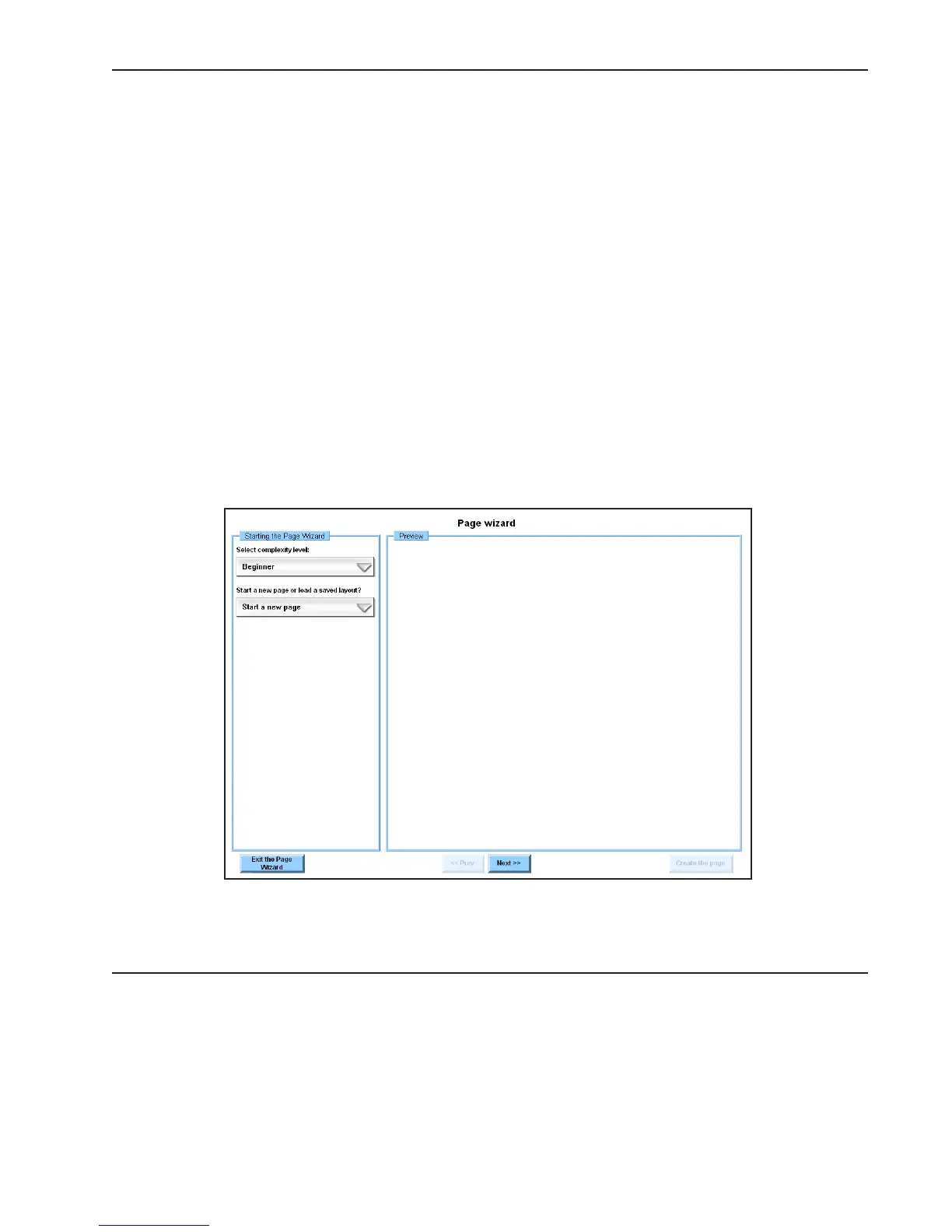
The Page Wizard windows are divided into two boxes. The tools in the box on the left can be used to
select page elements. The Preview box on the right displays a dynamic preview of the page.



 To Next Page