Quick Start: Introducing DynaVox Series 4
Part # 400023
43
The Modify Button
The Modify button is the square, green button in the title bar at the top of the DV4/MT4 touch screen.
This tool provides a simple way to define the characteristics of the elements of a page or popup,
including the page or popup itself. To use this feature, select the Modify button (the green button will
turn red when it is active) and then select the page element you want to modify. A menu will open to
present customization tools that are specific to the element that you selected.
Modifying a Button
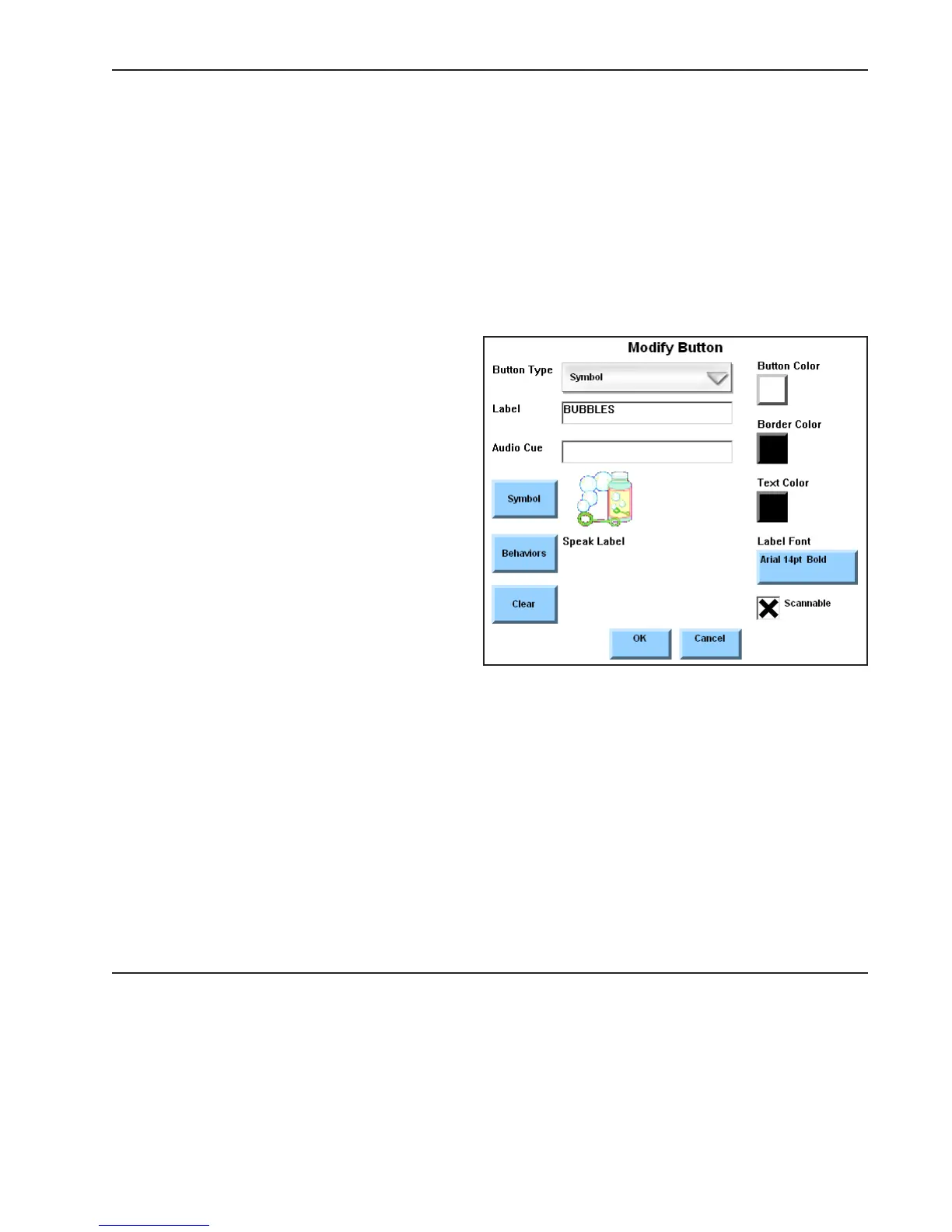
Select the Modify button (it will turn red until you make another selection) and then select a button. A
Modify Button menu will open to display the following tools for modifying a single button:
Button Type - Use the Button Type
pull-down menu to redefine the kind of
button that has been selected.
Label - Use the Label text box to add a
new label or to edit an existing one.
Audio Cues - Use the Audio Cue text
box to add an audio cue or to edit an
existing cue.
Symbol - Select the Symbol button to
open the Select a Symbol menu, where
you can add a new symbol or change
the existing symbol.
Behaviors - Select the Behaviors
button to open the Behavior Editor
menu that can be used to add a new
behavior or to make changes to the
existing behaviors.
Clear - Select the Clear button to erase all the button’s attributes.
Button Color - Select the Button Color button to open the Color Selector menu that can be used
to select a new color for the button’s background. The Button Color button will always display
the color that is currently selected.
Border Color - Select the Border Color button to open the Color Selector menu that can be used
to choose a new color for the button’s border. The Border Color button always displays the
current border color selection.



 To Next Page