Quick Start: Introducing DynaVox Series 4
Part # 400023
73
12. Select the OK button when the learning is successful.
13. To test your new IR command, point the the dark plastic section on the front of your device
at the appliance that the command will control. Select the Test button to send the command.
14. Select the OK button to close the IR Browser menu.
15. Select the OK button to close the Tools menu.
Your device has now learned an infrared remote
control command. Before you can use your
DV4/MT4 to send the command to the intended
appliance, you must add the command to a
button with an environmental control behavior.
Once the Perform IR Command behavior is added
to a button, you will only have to select the
button to send the infrared signal.
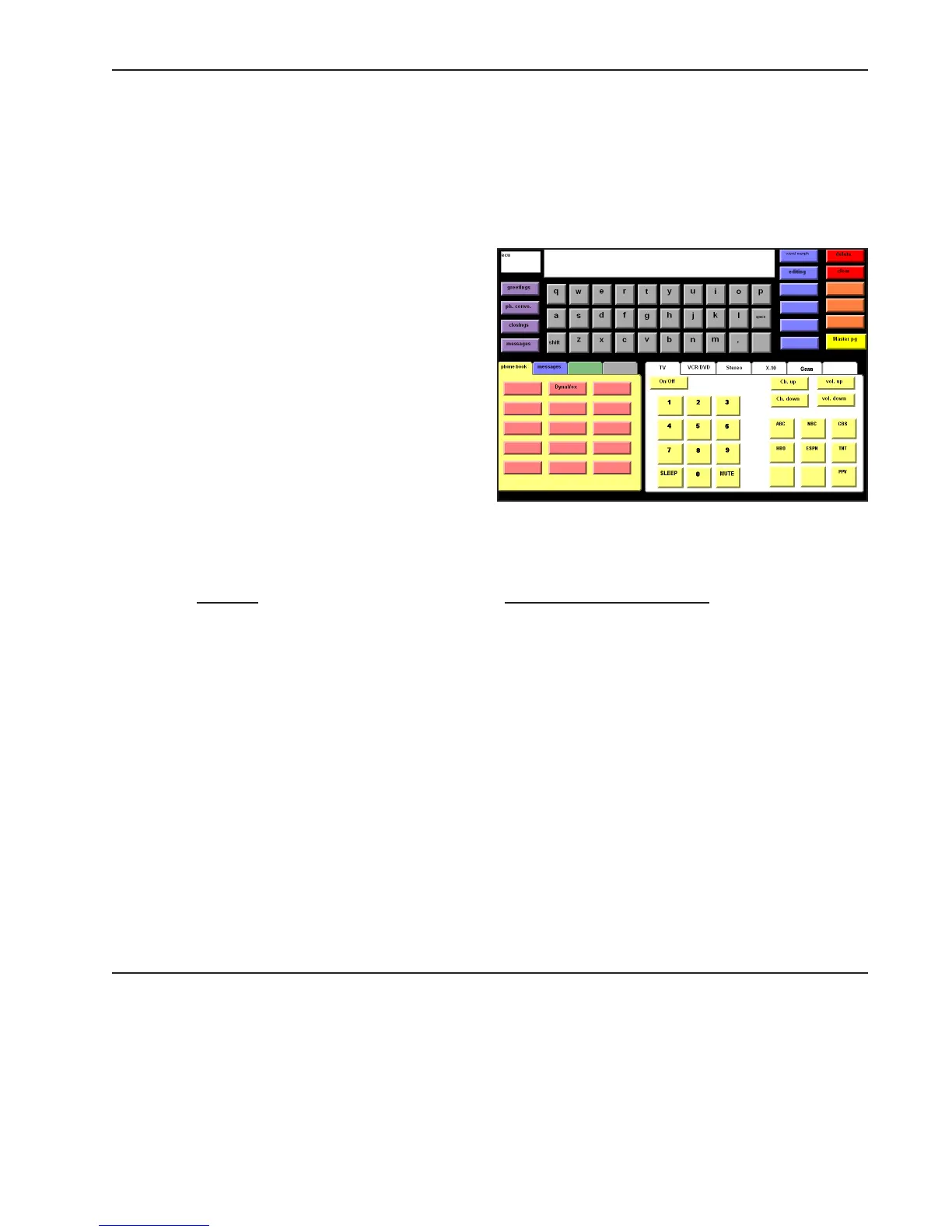
The DynaVox Series 4 Language Applications page
sets include pages that were designed to help
you use a DV4/MT4 device as an environmental
control unit (ECU). The following list includes the
main environmental control page for each page
set. Some of these pages can be used
independently, and some contain Go To buttons that
link to other pages with environmental control buttons.
P
age Set Environmental Control Page
8 Button Preschool 8 TV popup (preschool)
8 Button Auditory Scanning 08 remote controls
12 Button Adult 12 Adult Television
15 Button Auditory Scanning 15 as tv remote
15 Button Teen 15 ecu (teen)
30 Button Child 30 child ecu
40 Button Conversation 40 home tab (adult)
40 Button Symbol (skeleton pages) 40SymECU
Gateway 20 g20tab
Gateway 30 g30tab
Gateway 40 g40tabset
Gateway 60 g60tabs
Gateway Pro gpro ecu new
Page Name: gpro ecu new



 To Next Page