DynaVox Technologies
72
2. Select Setup in the main pull-down menu.
The Setup menu will open.
3. Select Tools Menu in the second pull-down
menu. The Tools menu will open.
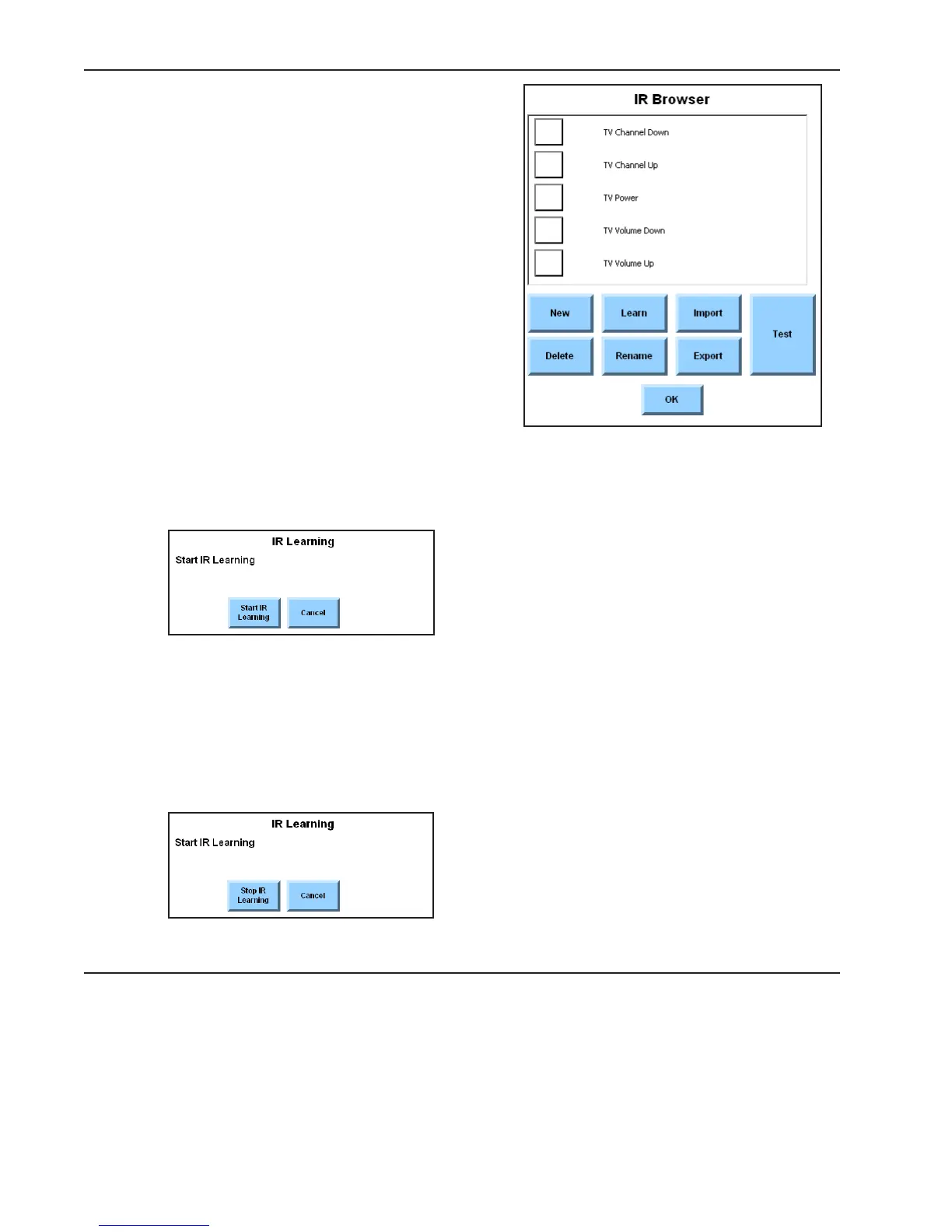
4. Select the IR Browser button. The IR Browser
menu will open.
5. Select the New button. An IR Command
Name system keyboard popup will open.
6. Use the system keyboard to enter a name for
the IR command (for example, TV on) and
then select the OK button to close the
system keyboard popup. The command name
you entered will be added to the viewport in
the IR Browser menu.
7. Select the check box to the left of the new
command name.
8. Select the Learn button. The IR Learning window will open.
9. Select the Start IR Learning button. Note that the button becomes a Stop IR Learning button
after it is selected.
10. Aim the remote control at the dark plastic panel on the front of the DynaVox device and
select the remote control button that you want the device to learn.
11. Once the command has been sent, select the Stop IR Learning button.



 To Next Page