DynaVox Technologies
58
10. If the label you entered has one associated symbol, the symbol will automatically be added to
the button with the new label. Another Enter Label window will be presented (if there is
another button to fill) and you can repeat steps 7 through 9.
If the label you entered is not associated with a symbol, only the label will be added to the
button. Another Enter Label window will be presented (if there is another button to fill) and
you can repeat steps 7 through 9.
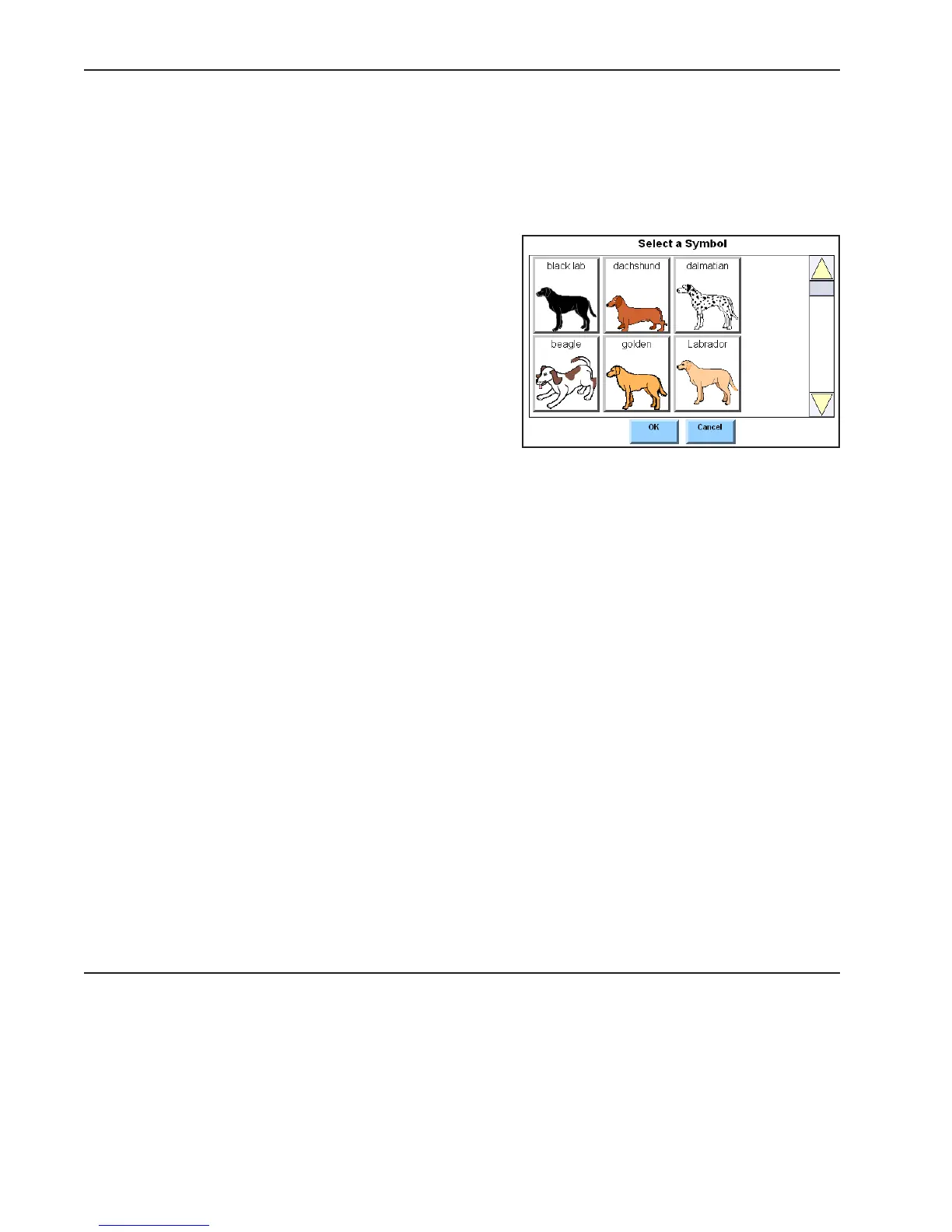
If the label you entered is associated with
more than one symbol, the Select a Symbol
menu will open. The viewport in the Select
a Symbol menu will display all the symbols
that are associated with the label you
entered. Select the symbol you want to use
and then select the OK button to close the
menu. Another Enter Label window will be
presented (if there is another button to fill)
and you can repeat steps 7 through 9.
The Quick Page feature provides three buttons to
provide flexibility as you are adding vocabulary to your
new page:
Next - Select the Next button to skip to the next button.
Prev - Select the Prev button to return to the previous button.
Stop Asking - Select the Stop Asking button if you want to stop adding vocabulary to the page.
Any remaining buttons will be left empty.
When you have finished adding labels and symbols, the page will be automatically saved under the name
you assigned to it. You may now use your new page to communicate.



 To Next Page