DynaVox Technologies
76
8. Select the OK button to exit the Setup menu.
Note: If you are using SerialKeys or AACKeys software with your computer, some additional computer
setup will be required. Follow the instructions for your software. Additional tips are included
in the DynaVox Series 4 Searchable Help on the CD that came with your DV4/MT4.
Computer Access Behaviors
The behaviors in the Computer Access
category enable your DV4/MT4 to
convert button selections into keyboard
and mouse inputs for the computer. You
can use the Modify button (as described
in Section 5: Customizing Pages in this
Quick Start) to add these behaviors to
buttons on any communication page.
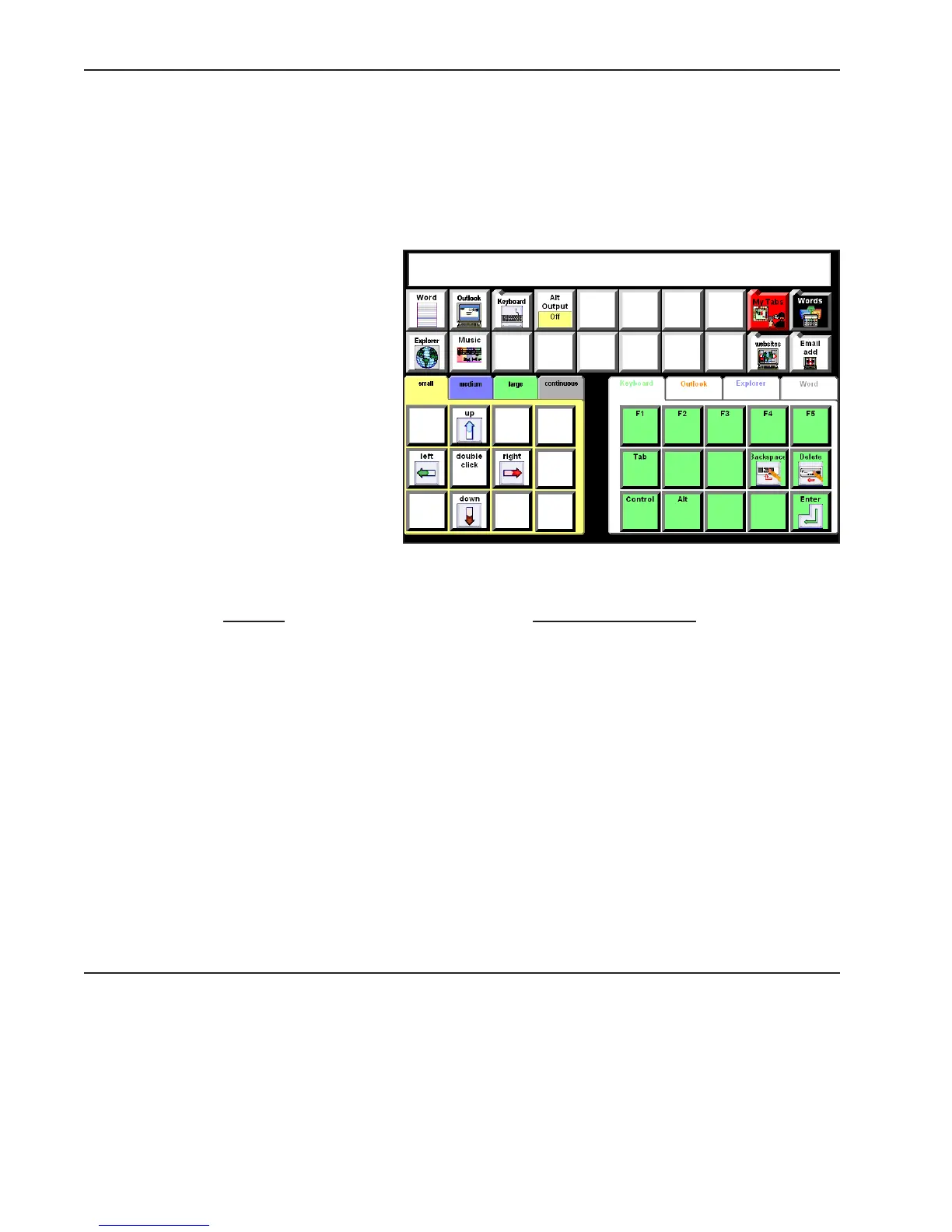
Many of the DynaVox Series 4 Language
Applications page sets provide computer
access pages with buttons that already
include the behaviors for sending
keystrokes, mouse moves and basic
computer commands. If you have
already followed the steps for setting
up computer access, these pages can be
used for computer access as soon as
they are opened.
P
age Set Computer Access Page
8 Button Preschool 8 computer popup (preschool)
8 Button Auditory Scanning 08 computer access
15 Button Auditory Scanning 15 as computer access home
15 Button Teen 15 computer (teen)
30 Button Child 30 Child computer commands
40 Button Conversation 40 home tab (adult)
Gateway 60 g60 computer access
Gateway Pro gpro computer access
Page Name: g60 computer access



 To Next Page