DynaVox Technologies
78
7. Select Message Window Operations from the pull-down menu. The pull-down menu will close
and the Message Window operations behaviors will be listed in the left viewport.
8. Select the Alternate Output behavior.
9. Select the Add button. The Alternate Output behavior will be added to the Steps viewport.
11. Select the OK button to close the Behavior Editor menu. The Alternate Output behavior will
now be listed next to the Behaviors button in the Modify Button menu.
11. Select the OK button to close the Modify Button menu.
When your Alternate Output button is complete, you are ready to try this method of computer access by
following these steps:
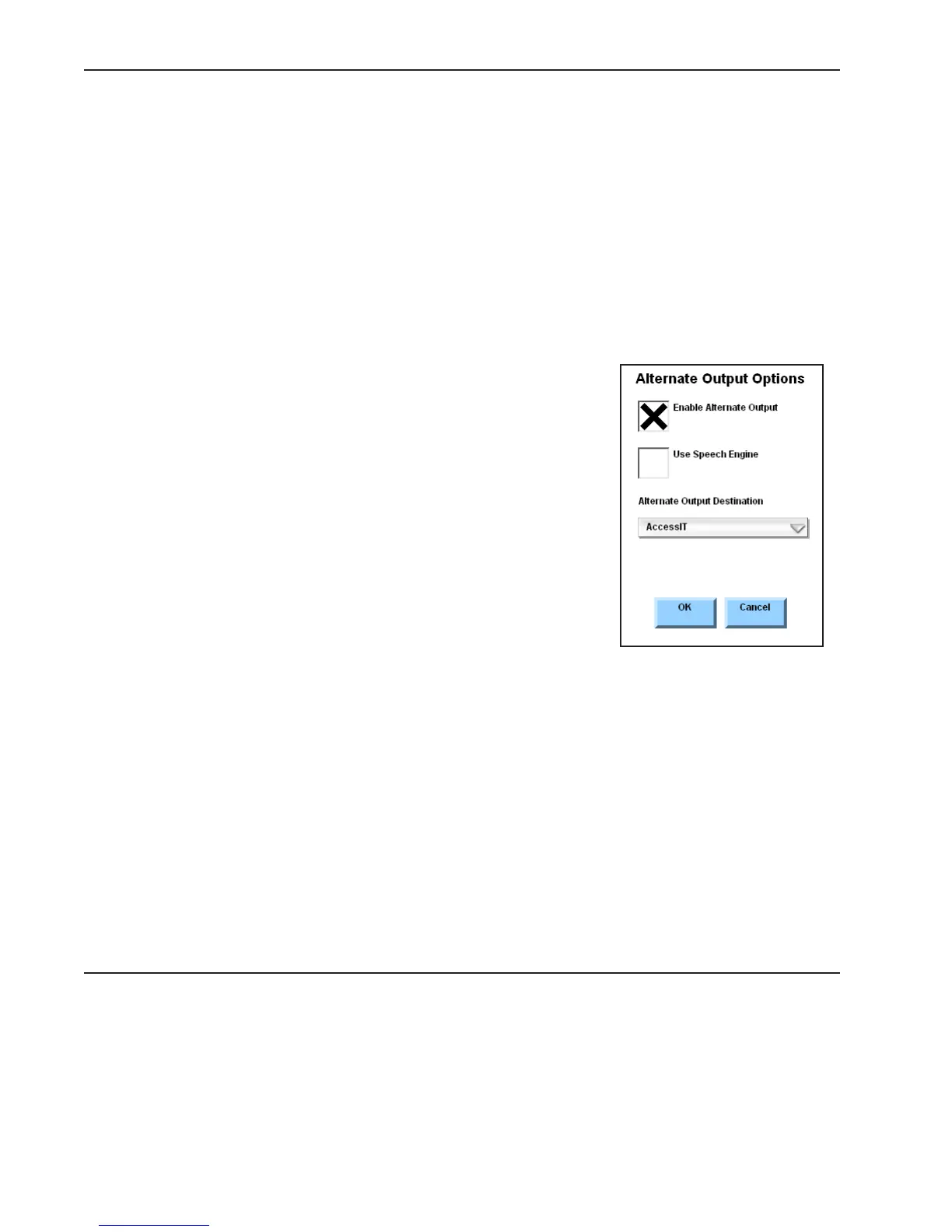
1. Select the Alternate Output button. The Alternate
Output Options menu will open.
2. Select the Enable Alternate Output check box.
3. If you want your device to speak words as it is sending
them to the computer, select the Use Speech Engine
check box.
4. Select the Alternate Output Destination pull-down menu
and then select one of the available options:
COM 1
Select this option if you have connected your DV4/MT4
device to the computer with a Serial cable.
AccessIT
Select this option if you are using an AccessIT infrared device.
5. Select the OK button to close the menu.
Your device is now in alternate output mode. Try composing some text in the Message Window. When you
select the Message Window, the text will be sent to the e-mail or word processing file that is open on
your computer.
When you have finished sending text to your computer, select the Alternate Output button again and
deselect the Enable Alternate Output check box. This will return your DV4/MT4 device to its normal
state.



 To Next Page