At the bottom of the screen, there is a Clear cache button. Click this to clear the cache on your
mobile device. The original snapshots and/or videos stored on either your SD card or your Storage
Device are not deleted when you click Clear Cache.
3.3 View a camera’s live video
To view a camera
’
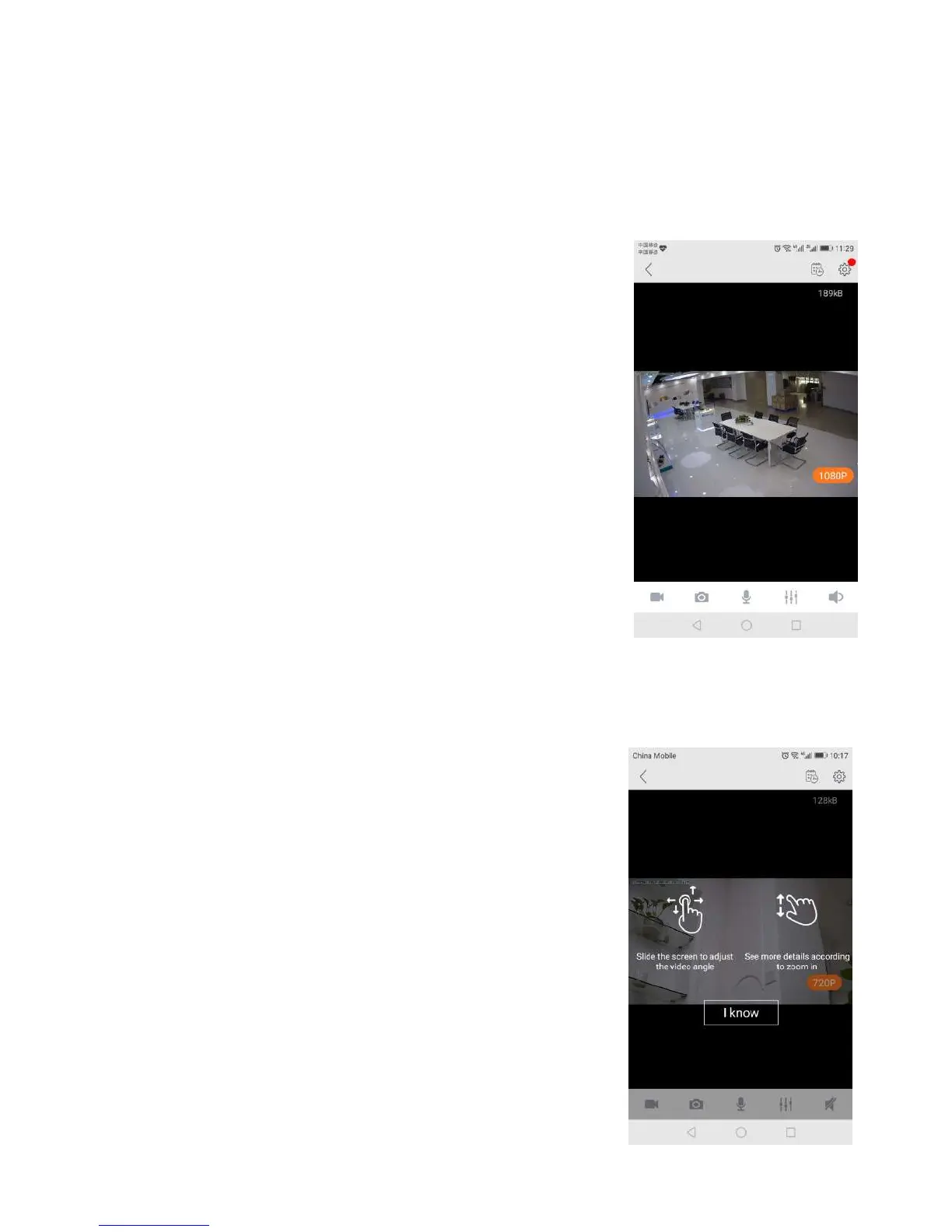
s live video, touch a preview picture. Initial display
will show a navigation bar with Buttons of record, snapshot,
microphone, speaker, and Image setting buttons.The navigation bar
will Disappear after two seconds.Touch anywhere on the live view to
The following icons are located on each video image on the screen:
Record (to initiate a live recording)
Snapshot (to create a snapshot image of the current view)
Microphone (to transmit your voice through the device)
Speaker (to transmit remote sounds)
Image setting (which enables you to set the mode for brightness,
contrast,saturation, etc.)
Resolution (user can choose the resolution of the images.)
History Access (which opens to the History page and a filter)
Device settings (which opens with a list of Settings tabs)
Pan: Touch and swipe to the left or right to rotate the camera
Tilt: Likewise, touch and swipe up or down to tilt the camera
Zoom : Zoom is accomplish two fingers touching the screen as if
to pinch.Move two touching fingers apart to zoom in;Move two
fingers together to zoom out.


 To Next Page