3.6.4 System
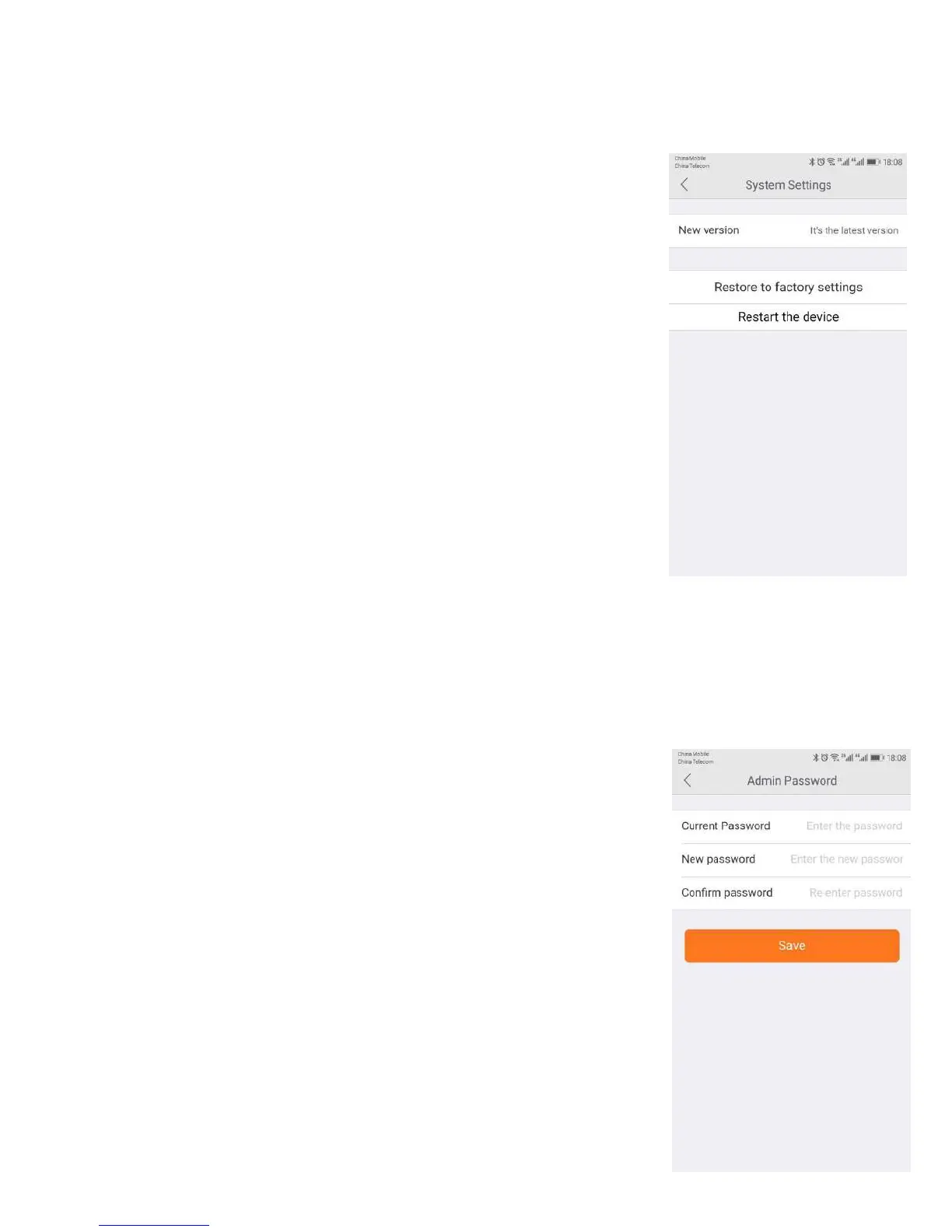
Under System, there are three sections under System, as detailed below:
Online upgrade displays the current version number and shows if there is a newer
version. You will see a red dot next to the Setting icon identifying that there is a new
upgrade available. To download and install the latest software version, click Update.
● Restore to factory settings
If you click Restore, it will restore the camera to the factory defaults, which can
restore to factory settings be helpful in case you have made changes to the camera
and want to cancel these changes.
Clicking Restart reboots the camera. It is the same as unplugging the camera and
plugging it back in again but is accomplished remotely.
Note: When the camera goes office, such as when using the Restart button, the snapshots are deleted if you do not
have storage.
3.6.5 Device Admin/Guest Password
Each camera can have an Admin password. You can choose to give a
person admin permissions on a single camera, but not all of the other
cameras in your system, when you change the password through this
If you wish to grant someone access to your camera, you can assign them
a device guest password, which can be disabled at any time. Guests can
view what the cameras are broadcasting and can move the cameras, but
they will not be able to make any changes in the settings or use the


 To Next Page