36
TV Guide
Customizing Receiver
Completing Setup
• After setup is complete, exit the Guide setup screen. To begin receiving
listings, be sure to turn off the Guide-enabled device when not in use.
• Within 24 hours, you will begin receiving TV show listings. It may take
up to six days to receive the full eight days of initial show listings.
• Show listings are updated several times per day. Be sure to leave your
DTVPal DVR powered on to have the most updated listings information.
It is normal for your DTVPal DVR to change channels while the Guide-
enabled device is powered off and is setting up or receiving new data.
Note: When you receive your new Guide listings, you will notice that
your channel numbers have changed. Refer to Tuning to Your New
Channel Numbers, below, or visit www.tvgos.com/support
for more
details.
Tuning to Your New Channel Numbers
After connecting your Guide-enabled TV or DVD recorder to your DTVPal
DVR or VCR, the channel numbers used in your Guide Listings will change.
Understanding Your New Channel Numbers
Your analog TV, DVD recorder, or VCR does not know how to tune to digital
channels. The channel number assigned to your channel lineup allows your
DTVPal DVR to find the correct digital channels.
Finding Channel Numbers
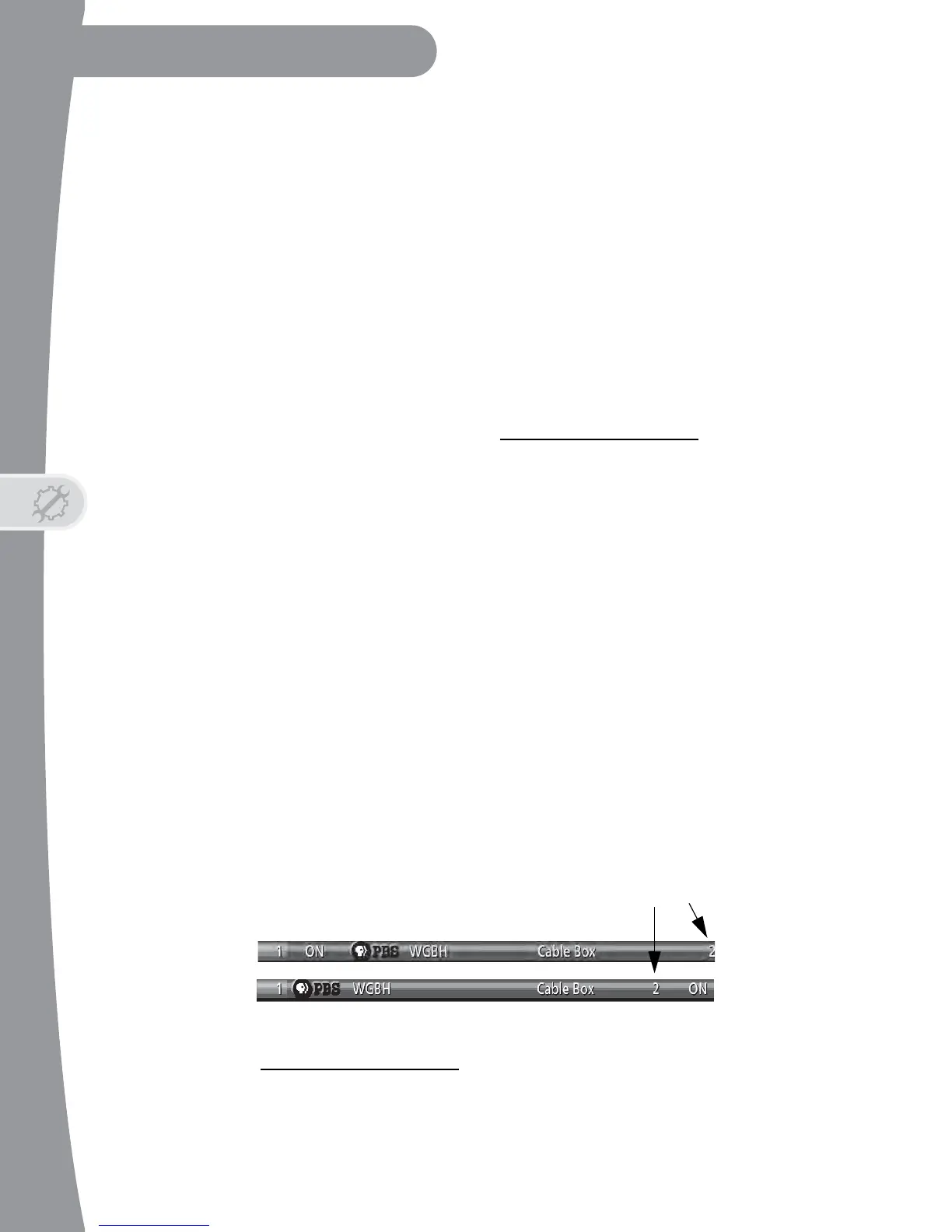
In any Guide version, you can identify the channel number using the Channel
Editor.
1. On the Service Bar, highlight Listings. Press MENU on the Guide-
enabled device’s remote control, then select Edit Channel.
2. The Channel Editor displays. Note the Guide channel number for each
channel.
Note: You need this channel number to go to a specific channel in the
Listings screen or if you are scheduling a manual reminder or recording.
Visit www.tvgos.com/support
for more information.


 To Next Page