TV Guide
35
Customizing Receiver
Updating TV Guide On Screen and Guide Plus Setup
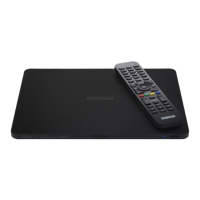
After connecting your DTVPal DVR to your TV Guide On Screen or Guide
Plus-enabled device, use these steps to complete the setup.
Note: The menu options on your Guide-enabled device may differ from the
ones described here.
1. Using the remote control for your Guide-enabled TV, DVD recorder, or
VCR, press GUIDE to open your Guide Listings screen.
2. On the Service Bar, select Setup, then Change System Settings.
3. If available, select No, repeat setup. Otherwise, follow the on-screen
prompts.
Entering Your Location
The Guide uses setup information to provide TV show listings and channel
lineups for your area.
1. Select USA as the country.
2. Use the remote control NUMBER PAD or the UP and DOWN ARROWS
to enter the Substitute ZIP Code for your area. See page 38 for the ZIP
code listing.
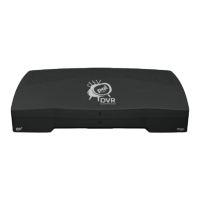
Set Up Your DTVPal DVR
For your Guide to communicate with your DTVPal DVR, the Guide must be
set up as though the DTVPal DVR is a cable box, even though you do not
have cable service. Use these steps to finish setting up your DTVPal DVR.
1. Select Cable with a Cable Box or Yes I have cable.
2. If asked, select the type of audio/video input you used to connect your
DTVPal DVR to your Guide-enabled device, then follow the on-screen
prompts.
3. If a connection diagram displays, verify the G-LINK cable is connected
as shown.
4. For brand of cable box, select Scientific Atlanta.
5. Follow the on-screen instructions and verify that your DTVPal DVR
changed channels.
6. When asked if the device has tuned to Channel 9, select Yes.
7. On the confirmation screen, select Yes, continue/finish setup
process. If you are asked about setting up a VCR, select the
appropriate answer for your installation.


 To Next Page