8
Introduction
1 Name of parts
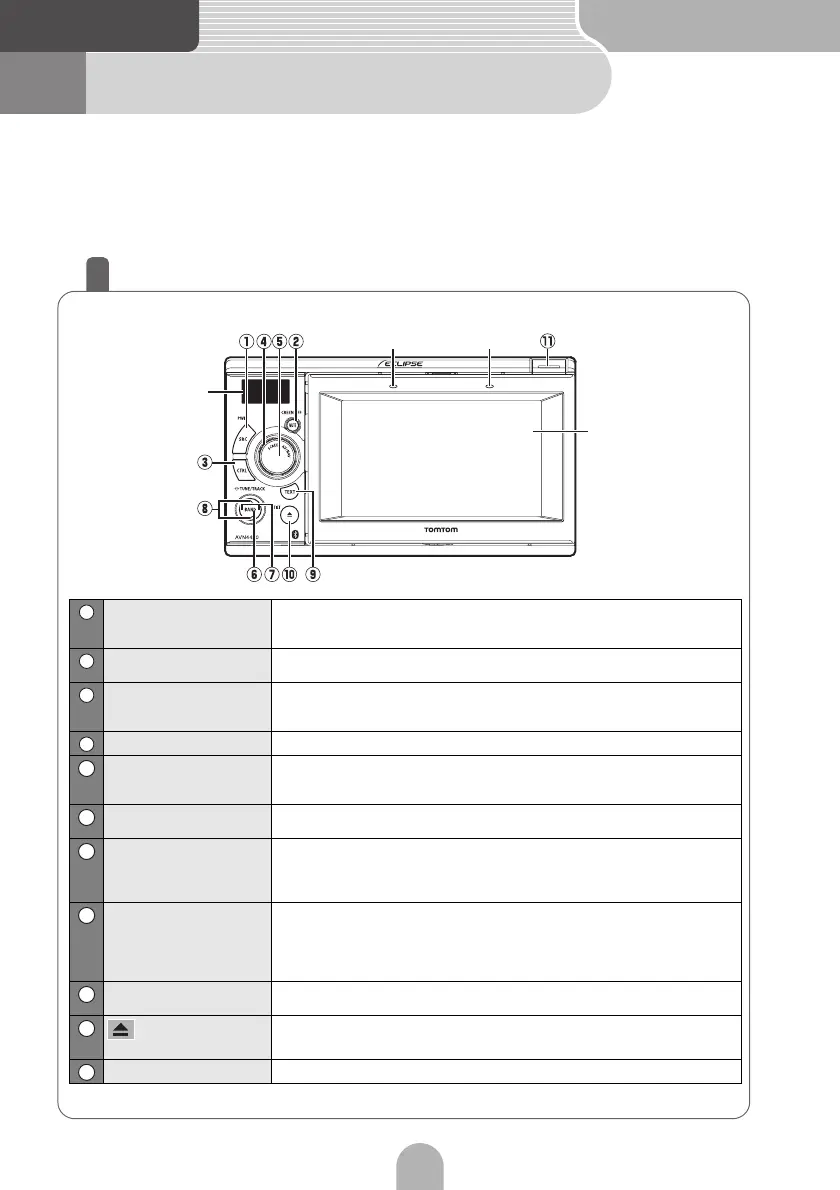
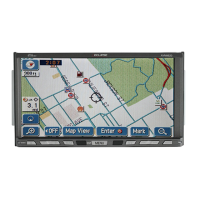
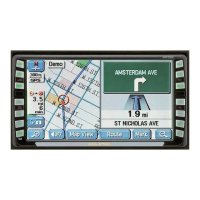
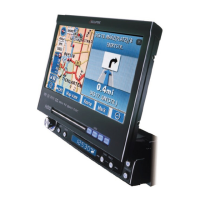
The main unit can be operated by pressing buttons on the frame of the
panel (panel buttons) and by touching buttons displayed on the screen
(touch switches).
* Operation procedures are explained for AVN4430. These procedures can also be applied
for AVN4400.
Panel buttons
Press the panel buttons to operate the device.
SRC button Short press: Switches SOURCE.
Long press (more than one second): Turns the audio mode OFF.
Long press (more than 5 seconds): Turns the power completely OFF.
MUTE button Short press: Turns MUTE on or off.
Long press: Turns PND screen off.
CTRL button Short press: Switches the audio controls.
Long press: Displays picture quality adjustment screen. Switches the
setting mode when the PND is connected and the power is OFF.
VOL rotary knob Adjusts volume.
SCREEN AV/NAV button Short press: Switches between the NAVI screen and AV screen.
When the PND screen is set to OFF, the PND screen is set to ON.
Long press: Displays the camera screen when a camera is connected.
BAND button Changes the bands, or switches the playback format between CD-DA and
MP3 (WMA).
SELECT (Right/Left)
button
Short press: Selects radio stations, CD songs, MP3/WMA files, iPod songs,
USB files, and DVD chapters.
Long press: Selects preset radio channels, and fast forwards/rewinds CD/
MP3/WMA tracks (files), iPod songs, USB files, and DVDs.
SELECT (Upper/Lower)
button
Short press: Selects radio stations by SEEK UP/DOWN, or changes folders
in the CD (MP3/WMA) mode.
Long press: Continues SEEK UP/DOWN of radio stations.
Long press (Lower): Returns to the route directory when MP3/WMAs are
being played.
TEXT button Short press: Switches the title or display when the PND is docked.*
Indicates current setting mode when the PND is undocked.
(OPEN/EJECT)
button
Short press: Ejects the disc or opens and closes the front panel.
Long press: Tilts the front panel step by step or forcibly ejects the disc.
Release button Removes the right side of the PND from the main unit.
*: The Sub-Display is usually not displayed when the PND is docked. Press the TEXT button to display information.
Microphone
Sub-display
Light sensor
PND display
1
2
3
4
5
6
7
8
9
10
11



 To Next Page