Chapter 5
| Switch Management
How to Connect to the Mgmt Port
– 39 –
How to Connect to the Mgmt Port
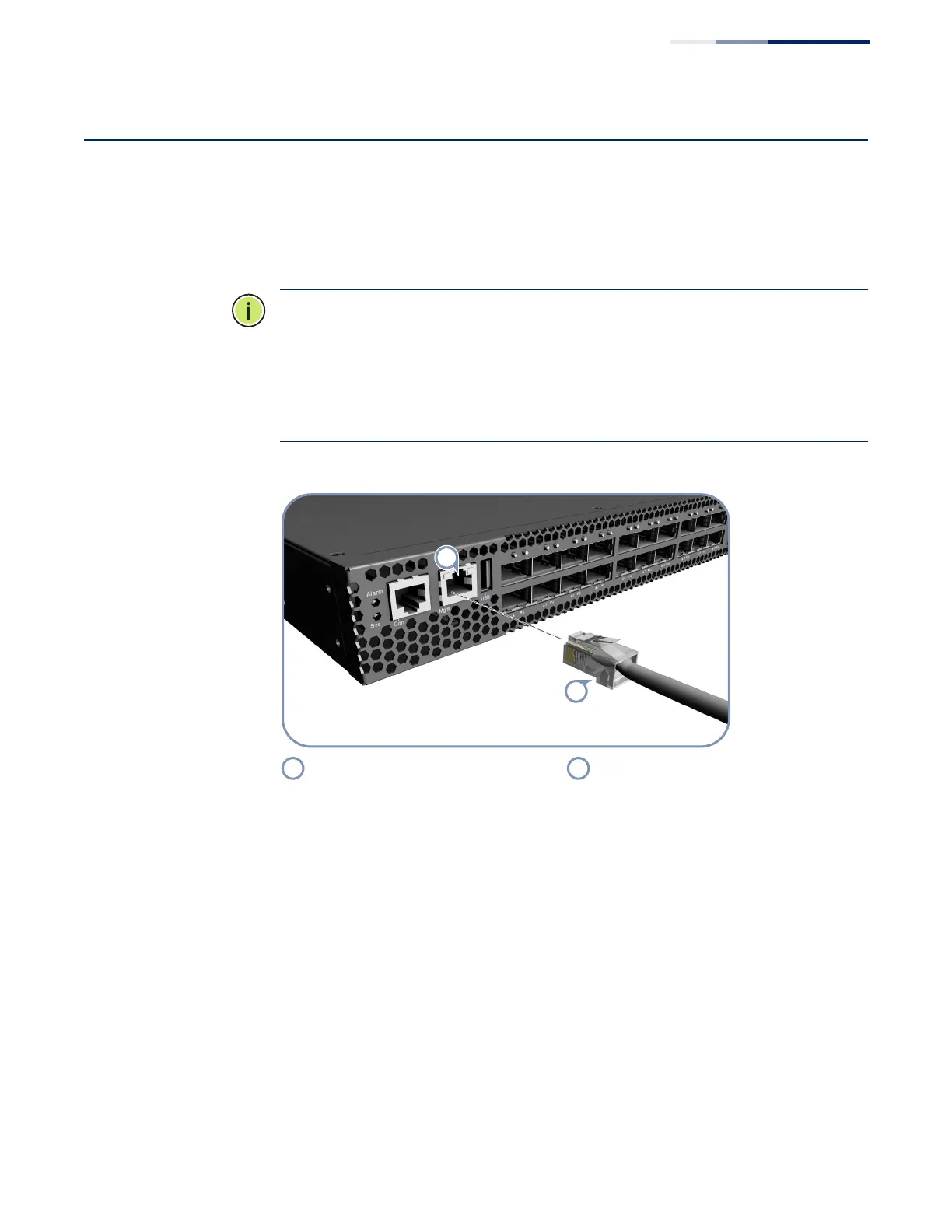
The port on the switch’s front panel labelled “Mgmt” provides an out-of-band
network connection to the management agent of the switch using TCP/IP over
Ethernet. You can access the switch from anywhere in the attached network using
Telnet, a web browser, or other network management tools.
Note:
The information in this section applies to switches running DCSS software.
For switches using ONIE, see “Performing the Initial System Boot for ONIE” on
page 40.
Note:
The management port provides direct TCP/IP over Ethernet access to the
switch’s configuration. To prevent unauthorized access, it is recommended that it
only be connected to a secure private network.
Figure 22: Management Port Connection
Follow these steps to obtain management access to the switch through the Mgmt
port:
1. Verify that the Mgmt port has a configured IP address -- see the Administrator’s
Guide.
2. Connect a management PC or network to the Mgmt port (for details, see “How
to Connect to Twisted-Pair Copper Ports” on page 45).
3. Use an appropriate software tool to access the switch management interface.
4. Log in using the default username and password.
For a detailed description of the switch’s management and software features, refer
to the Administrator’s Guide.
1000BASE-T RJ-45 Management Port Category 5, 5e or 6 Cable



 To Next Page
 Loading...