41
Chapter 4 Troubleshooting
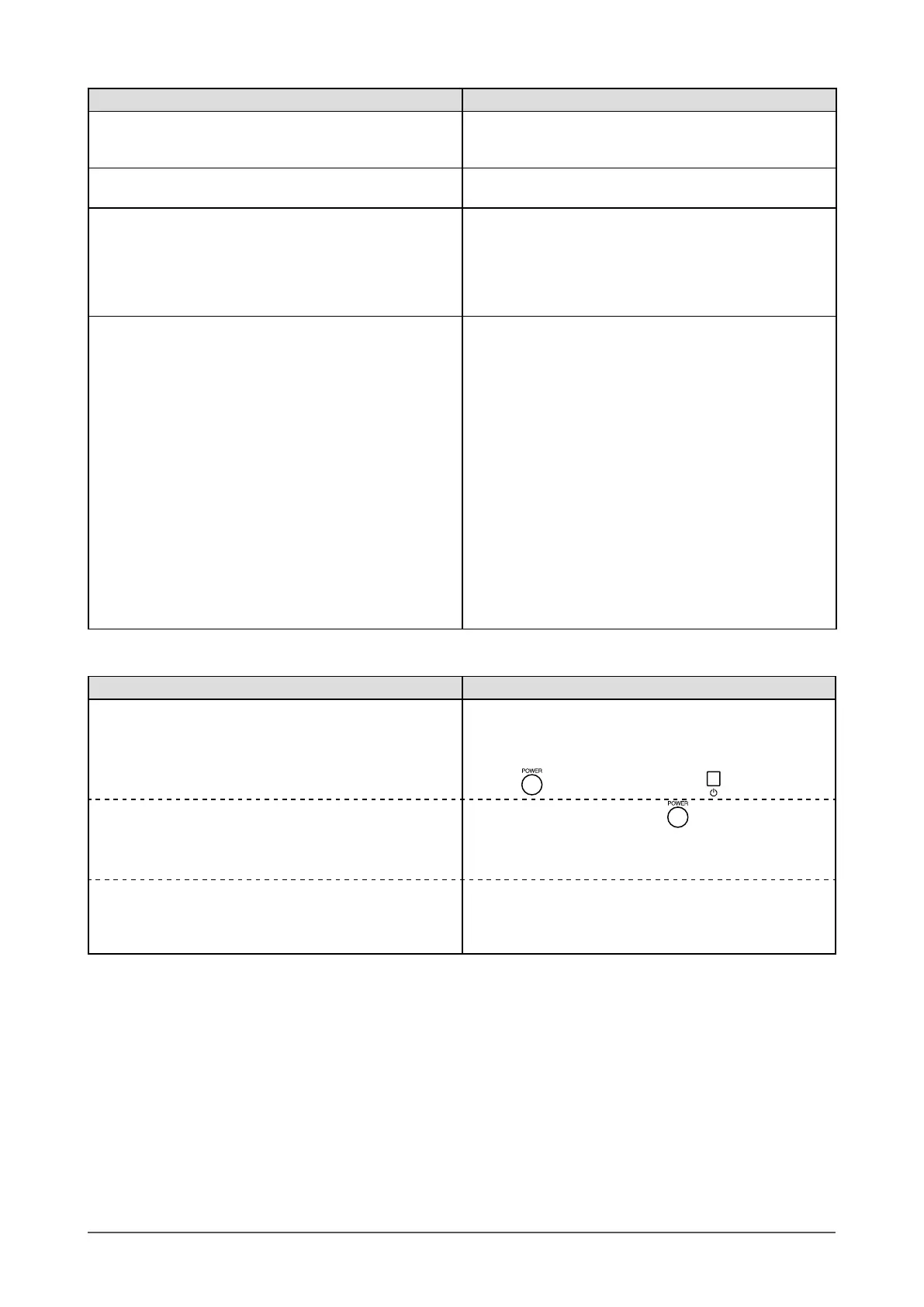
Problems Possible cause and remedy
10. Unselectable menu items • The selectable menu items differ depending on the input
signal. Please check the Setting menu list.
(Refer to “Setting menu list” on page 48.)
11. Buttons on the monitor do not operate. • Check whether the operation lock function works. (Refer
to page 38.)
12. Remote control does not work. • Check whether the remote control point at the detector.
• Check that there are not obstacles between the remote
control and the detector.
• Check whether the battery power is run out.
• Check whether the battery is installed in the right
direction.
13. ScreenManager Pro for LCD does not run. • Check whether the USB cable is connected correctly.
• Auto FineContrast, Color Adjustment and Screen
Adjustment run only on the PC connected to PC input
(PC1 or PC2), not the one connected to HDMI input.
The following functions run the PC connected to HDMI
input.
- Some Hotkeys
- Timer
- Sound
• Check the setting in [USB Selection] of [Monitor Settings]
menu. (Refer to page 14.)
- When it does not run on the PC connected to PC input
“Auto” or the port (
“PC1” or “PC2”) connected to the
PC with a USB cable is selected.
- When it does not run on the PC connected to HDMI
input
The port (“PC1” or “PC2”) connected to the PC with a
USB cable is selected.
(PC Input / HDMI (PC Signal) Input)
Problems Possible cause and remedy
1. No Picture
• Power indicator does not light.
• Check whether the power cord is correctly connected.
If
the problem persists, turn off the main power, and then
turn it on again a few minutes later.
• Turn the main power switch on.
• Press
on the remote control (or on the monitor).
• Power indicator lights orange.
• Press any buttons (except for
) on the remote
control.
• Operate the mouse or keyboard.
• Check whether the PC is turned on.
• Power indicator lights blue. • Check whether the PC is properly connected to the
monitor.
• Set each adjusting value in [Brightness], [Contrast] and
[Gain] to higher level. (Refer to page 28, 31.)




 To Next Page