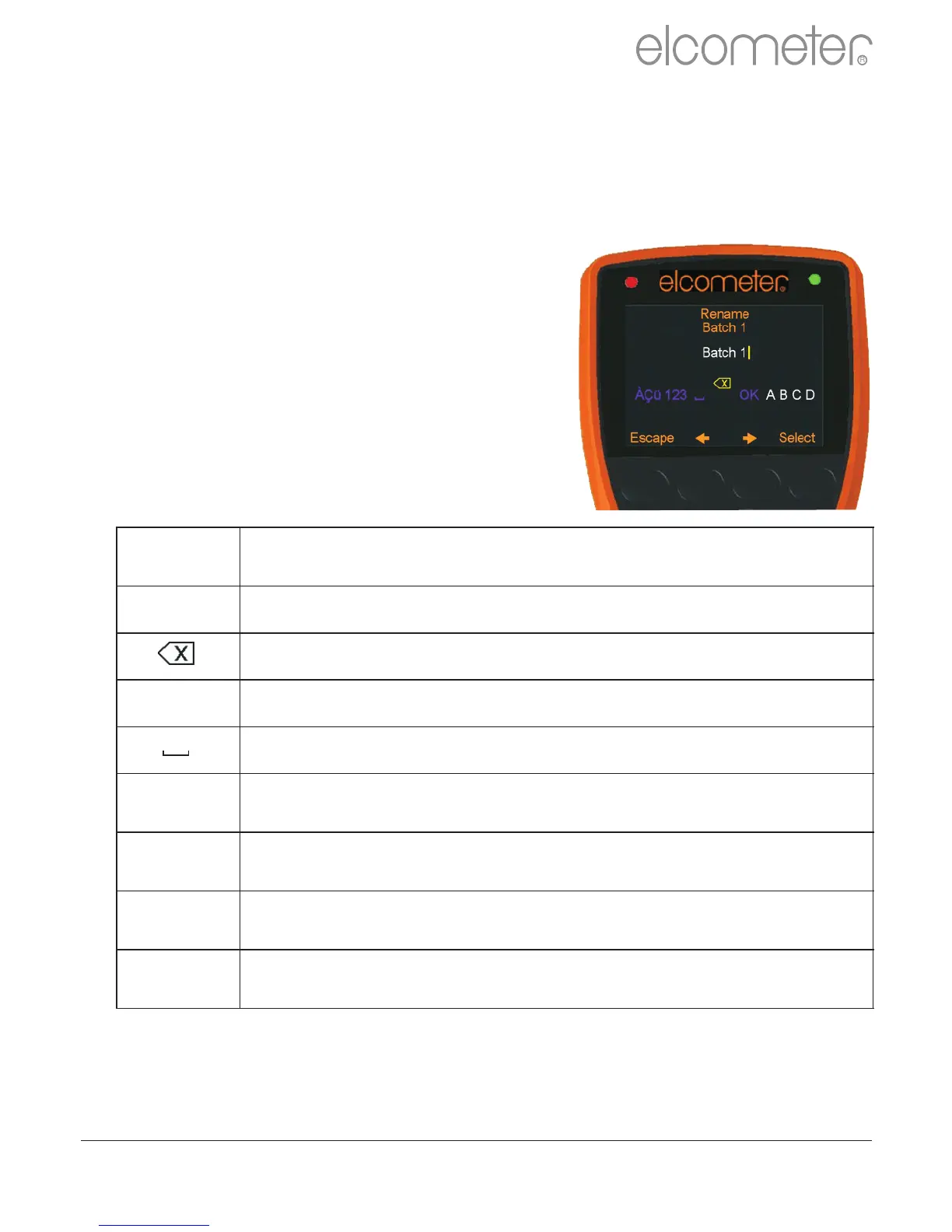
The current name of the batch is in white
in the middle of the display with a yellow
‘cursor’ icon to the right of the name.
Using the left arrow, right arrow and Select
softkeys, the user can rename the batch
as required.
The yellow, raised character or function is
the item that will be ‘chosen’ by pressing
the Select soft key.
Pressing the Esc softkey at any time cancels the whole operation
without making any changes to the original name.
To store the re-named ‘name’ highlight OK and press the Select
softkey.
Stores the name and returns the user to the previous screen
Deletes the last character of the name
Selects the character A, B or C, etc.
Changes the selection characters to:
1 2 3 4 5 6 7 8 9 0
Changes the selection characters to:
A B C D E F G H J K L M N O P Q R S T U V W X Y Z
Changes the selection characters to:
ÀÁÂÃÄÅÆÇÈÉÊËÌÍÎÏÐÑÒÓÔÕÖÙÚÛÜÝÞßµm
Changes the selection characters to:
! # ’ £ $ € % & * [ ] _ - + / \ < > : @ ; ”
To rename a batch either:
?when creating a new batch press Batch/New Batch/Rename
Batch 1; or
?press Batch/Edit Batch/Rename Batch and select the Batch to be
renamed from the list of existing batches
www.elcometer.com 20
R
en



 To Next Page