By selecting the ‘View Action Tab’, users can instantly see their data.
The ‘View Action Tab’ can be broken down into 6 distinct areas:
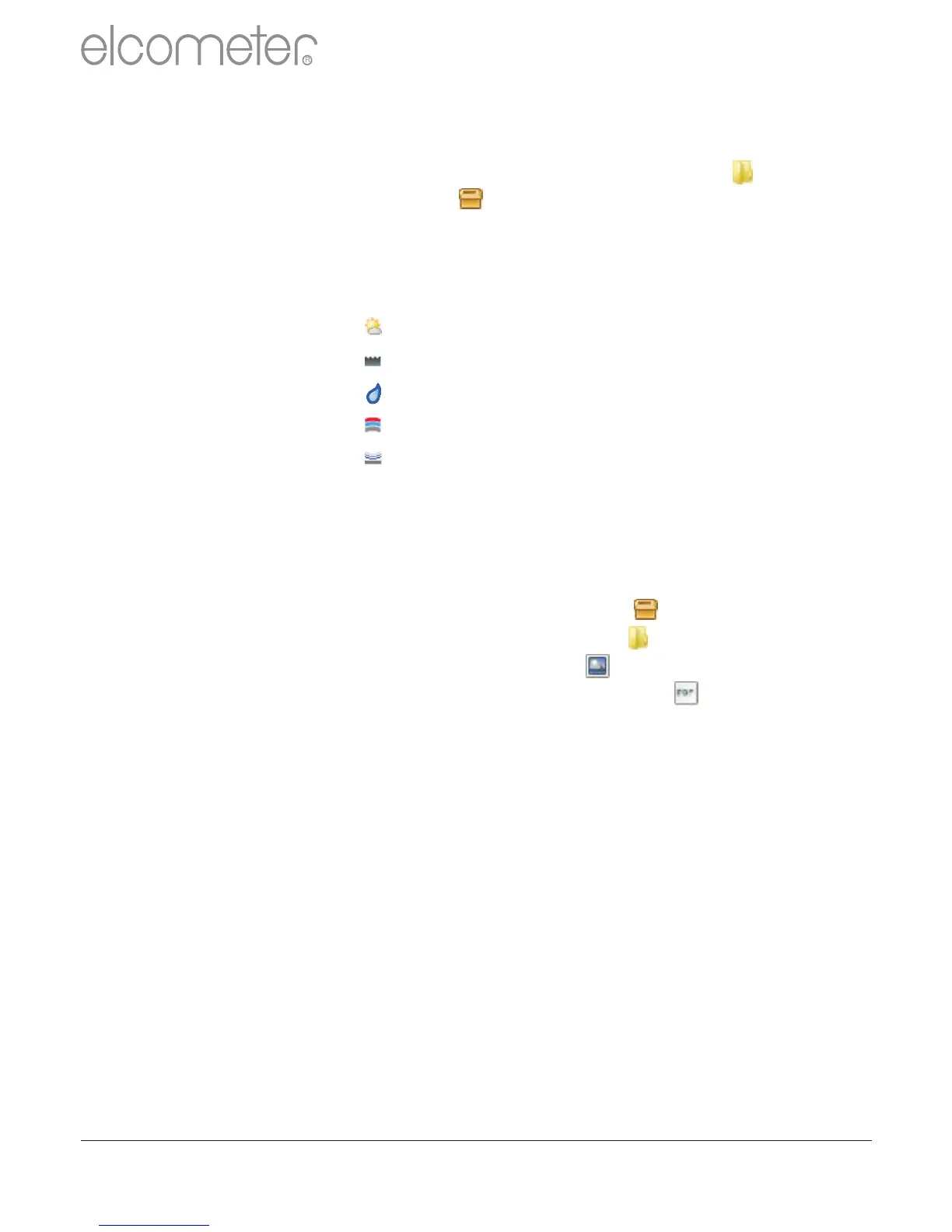
?Data Tree Batches can be stored within folders ( ) in unique
Project files ( ).
By clicking on the Project filename, users can then
complete unique project tags and batch tags as required.
Each batch of data is identified by the type of inspection:
Climate Batch
Surface Profile Batch
Surface Cleanliness Batch
Dry Film Thickness Batch
Material / Ultrasonic NDT Batch
Clicking the computer mouse’s right button over a file
or folder provides the user with the following functions:
?New:
Allows users to:
?create a new Project ( )
?create a new Folder ( )
?import an Image ( )
?import a PDF Document ( )
?create a new batch type
?Cut, Copy & Paste:
Cut, copy & paste inspection files and folders
into other files or folders within the data tree.
?Delete, rename & move to:
Allows delete, rename or move a file
?Combine & Split:
Combine batches of the same type or split a
batch into equal sizes or by type
?Archive & Restore:
Archive and restore inspection data
?Print, PDF, E-mail & Export:
Print, generate a PDF, e-mail or export to Excel or a
tab separated text file; the selected batch report
www.elcometer.com
39
en
R



 To Next Page