20
Audio Effects
If you have stereo headphones or stereo external
speakers, you can take advantage of the KX3’s DSP
audio effects (AFX). These create an illusion of
greater acoustic “space,” resulting in a less-
fatiguing receiver sound and in some cases better
copy of weak signals.
MENU:AFX MD is used to select the desired AFX
setting. Available selections include OFF , DEL A Y
(simulated stereo), and PIT C H (which “maps”
signals from left to right according to pitch).
Dual Watch
Dual watch allows you to listen to both VFO A and
VFO B frequencies at the same time, as if you had
two receivers.
The use of stereo headphones or external
speakers is required with dual watch. You’ll hear
VFO A’s signal in the left ear, and VFO B’s in the
right.
Dual watch has various uses. For example, you
might be waiting for one station at VFO B’s
frequency to complete a QSO, while using VFO A
to look for other stations. You can tap A / B to
alternate between the two. Dual watch is also ideal
for working DX stations who are listening at some
offset from their transmit frequency. You can listen
to the DX station on VFO B, then use VFO A to
listen for a clear spot in which to transmit.
To turn on dual watch: Set MENU:DUAL RX to
AU T O. This turns on the SU B (“sub receiver”)
icon. If you turn dual watch on/off frequently, you
may wish to assign it to PF 1 or P F 2 (see pg. 19).
Dual Watch Limitations:
The distance between VFOs is limited to 15
kHz. If you exceed this with DUAL RX set to
AU T O, the SUB flashes slowly as a reminder.
A wider roofing filter than normal will be
selected automatically, if required, based on the
frequency span between VFO A and B.
Dual watch overrides the normal audio effects
mode (AFX MD).
Headphones or external speakers must be used.
Receive Audio Equalization (RX EQ)
The KX3 provides 8 bands of receive audio
equalization via the RX EQ menu entry. RX EQ
can compensate for physical acoustics (of the room,
headphones, internal speaker, external speaker),
tailoring the audio to your personal preference.
Two receive EQ setups are provided: one for CW
mode, and the other for all voice modes. RX EQ
does not apply to DATA modes.
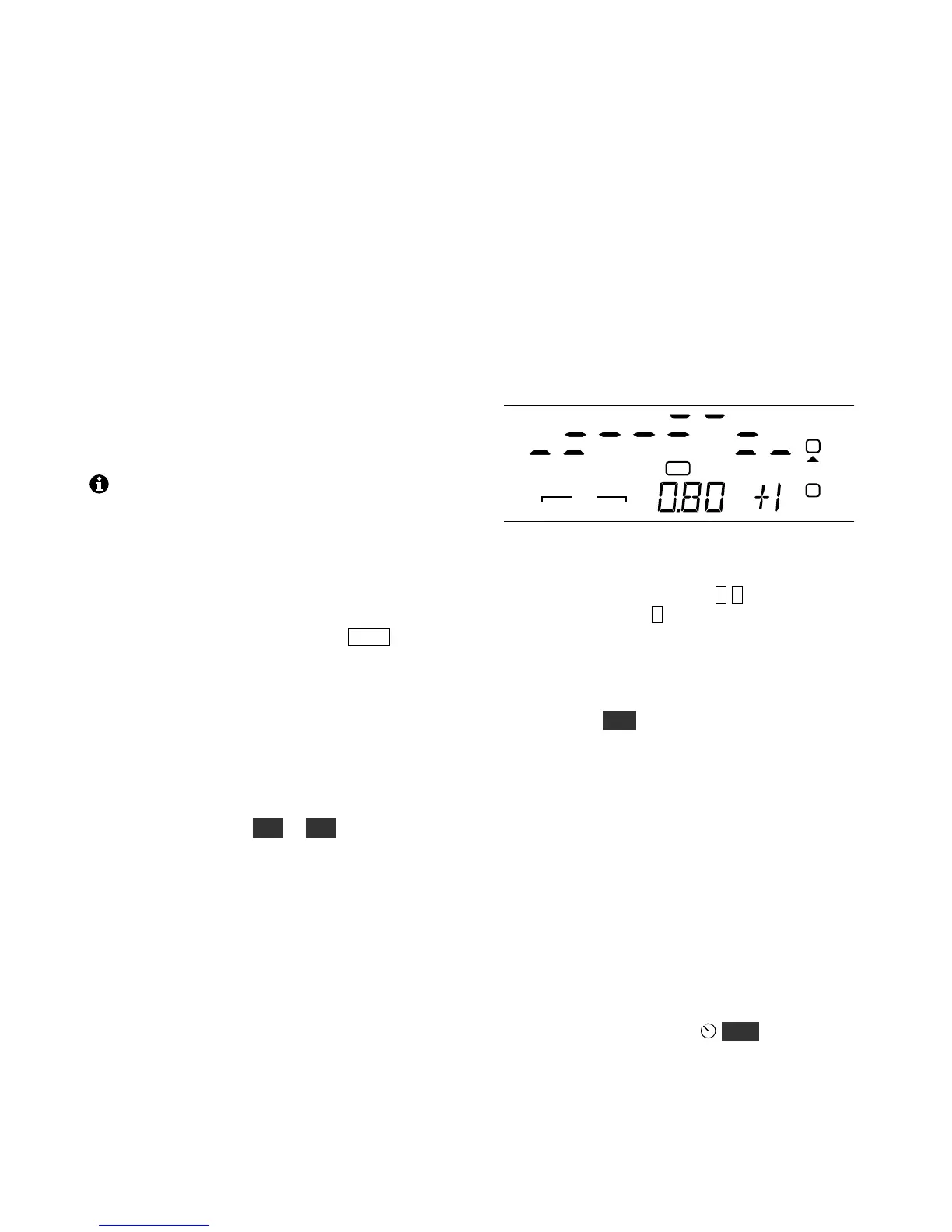
In the RX EQ menu entry, the VFO A display
shows 8 individual vertical bar graphs. The example
below shows various amounts of EQ for each band.
The center frequencies of the 8 audio EQ bands are
50, 100, 200, 400, 800, 1600, 2400, and 3200 Hz.
To select a band to change, tap 1 -8 on the keypad.
For example, tapping 1 selects the 50-Hz band.
Next, rotate VFO A to specify boost or cut (+/- 16
dB). The illustration above shows the 800 Hz EQ
band (0.80 kHz) being set to +1 dB of boost.
You can hold CL R to reset all of the RX EQ bands
to 0 dB (no cut or boost).
Transmit Audio Equalization (TX EQ)
Transmit audio equalization can compensate for
microphone and voice variations. MENU:TX EQ
works exactly the same as RX EQ, and can be used
during transmit.
Two transmit EQ setups are provided: one for SSB,
the other for wideband voice modes (ESSB, AM,
FM). TX EQ is not applicable to CW or DATA
modes.
While adjusting TX EQ, you can monitor your
voice using headphones (use M ON to set the
level), or listen to your transmitted signal on
another receiver.


 To Next Page