14
Page
Step 17
Using device turn off fireplace.
Turn off WiFi connection to home network and to appliance if
connected.
Close app.
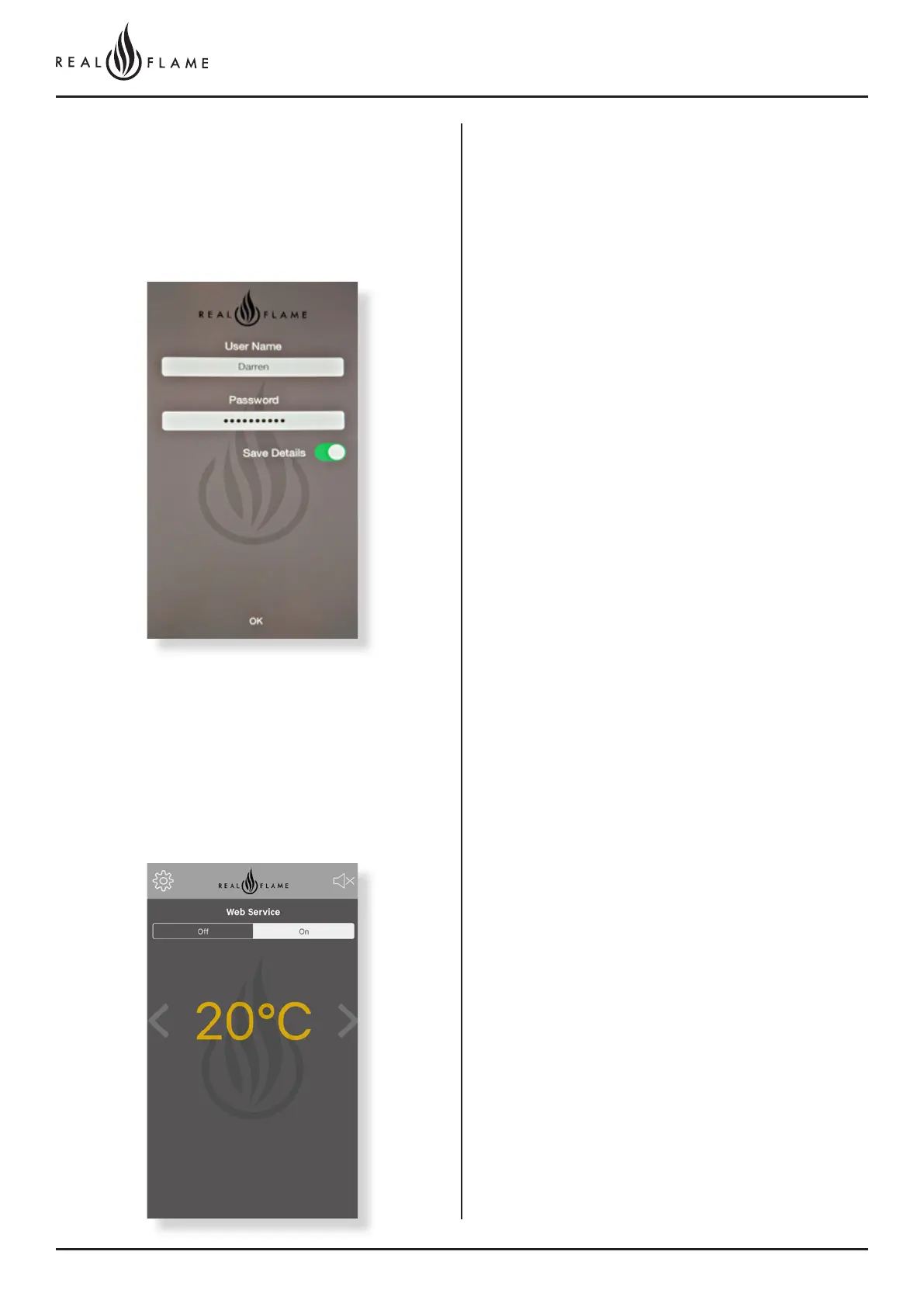
Turn on app and select OK
Step 18
Sit back, relax and enjoy the warmth from your fireplace. (Note -
web service appears on screen)
Fireplace may take upto 30seconds to receive signal from device.
Pushing the Fireplace to a different
home or local network after initial
setup
Pushing the Fireplace to a different home or local network
after it has previously been set up, is done at Fireplace
power on, when the fireplace is powered off at the Main
switch, upon being powered on, the Fireplace will show
its Access point (Realflame_XXXXXX) for 30 seconds. If
you join the access point with your mobile device, you will
be able to change the network the Fireplace is currently
connected with via the mobile App. If you do not join the
Access point the Fireplace will join the network that is has
settings saved for or if there are no settings, it will stay in
Access Point mode.
Note: If you join the access point by accident on power
on, you can simply power off the Fireplace and power
on again, after the 30 seconds the Fireplace will join the
network with its saved settings
Note: If not connected to WiFi you can still control the fire
via 4G or 5G network.



 To Next Page