EasyManua.ls Logo

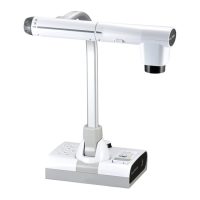
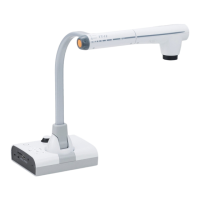
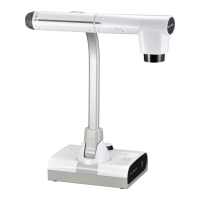
Elmo TT-12 - User Manual

Elmo TT-12
87 pages
Print Icon
To Next Page IconTo Next Page
Loading...
BUNDLED
ITEMS
ADVANCED
OPERATIONS
BASIC
OPERATIONS
TROUBLE
SHOOTING
SPECIFICA-
TIONS
English
Document Camera
INSTRUCTION MANUAL
Please read this instruction manual carefully before
using this product and keep it for future reference.

Table of Contents

Other manuals for Elmo TT-12

Questions and Answers

  • D
    David AnthonyAug 17, 2025
    Why is my Elmo TT-12 remote control not working?
    • M
      Michaela BriggsAug 17, 2025
      If the remote control for your Elmo Document Camera isn't working, the batteries may be low. Try replacing them with new ones. Also, ensure you are using the remote control that was supplied with the unit.
  • J
    jesuswilsonAug 19, 2025
    What to do if my Elmo TT-12 shows no image?
    • S
      Sharon LawrenceAug 20, 2025
      If your Elmo Document Camera displays no image, several issues could be the cause. Ensure the AC adapter is correctly connected to the wall outlet and the document camera's power supply socket. Also, verify that the power is turned on (indicated by a blue light). Check the RGB/HDMI/VIDEO switch setting. If the unit doesn't start after being recently turned off, wait a few seconds before turning it back on. Finally, adjust the zoom setting if it's set to the TELE side.
  • C
    Cynthia JohnsonAug 22, 2025
    How to display image from USB on Elmo TT-12?
    • T
      Timothy JacksonAug 22, 2025
      To display an image from the USB on your Elmo Document Camera, switch the USB mode from Mass Storage to Application by referring to the 'Function Setting Menu'. When using Play mode, change the output image to Camera image.
  • S
    Shirley TuckerAug 25, 2025
    How to fix out of focus image on Elmo TT-12 Document Camera?
    • M
      Mark GilesAug 26, 2025
      If the image from your Elmo Document Camera is out of focus, the object may be too close to the lens. Try moving the object slightly away from the lens. If that doesn't work, manually focus the image.
  • R
    Robin ColemanAug 27, 2025
    What to do if Elmo Document Camera does not display images from SD card/USB flash drive?
    • G
      Gina WilliamsAug 27, 2025
      If images on the SD card or USB flash drive are not displayed on your Elmo Document Camera, remove the SD card or USB flash drive, wait a few seconds, and then reinsert it.
  • T
    Troy Delgado IIIAug 29, 2025
    How to brighten the image on Elmo Document Camera?
    • C
      coopertraceyAug 29, 2025
      If the image from your Elmo Document Camera is too dark, press the [] button on the operating panel or the [] button on the remote control to adjust the brightness.
  • V
    vanessa55Sep 1, 2025
    Why is the video output image scrambled on my Elmo Document Camera?
    • P
      Phillip DanielsSep 1, 2025
      If the video output image from your Elmo Document Camera is scrambled or unclear, the video output may be set to [NTSC]. Set the video output system to PAL.
  • L
    Leah DanielSep 4, 2025
    What to do if Elmo Document Camera doesn't perform operations after inserting SD card/USB flash drive?
    • M
      Mallory WardSep 4, 2025
      If, after inserting the SD card or USB flash drive into your Elmo Document Camera, operations cannot be performed, the SD card or USB flash drive may not be reading correctly. Format the SD card or USB flash drive twice and then try again.
  • H
    howardhartSep 6, 2025
    Why does Elmo Document Camera output image resolution change automatically?
    • D
      Diana WilliamsSep 7, 2025
      If the output image (resolution) of your Elmo Document Camera changes automatically, it is because when an HDMI monitor is connected, the output image (resolution) is automatically changed based on information from the connected monitor.
  • C
    Carlos GonzalezSep 9, 2025
    How to fix striped image on Elmo Document Camera?
    • L
      Laura EvansSep 9, 2025
      If the image from your Elmo Document Camera is striped, changing the shooting range may help. If vertical stripes appear on an LCD projector image, manually adjusting the dot clock at the projector side may help.

Summary

Important Safeguards and Precautions

Bundled Items

Basic Operations Guide

Document Camera Part Names

Identifies physical components and their functions on the main unit.

Operating Panel Overview

Details the buttons and indicators on the main unit's control panel.

Rear Panel and Cable Connections

Explains input/output ports and how to connect cables.

Side Panel Controls

Describes the switches and slots located on the side of the unit.

Document Camera Articulation

Illustrates how the various parts of the document camera can be moved.

Remote Control Operations

Explains how to prepare and use the remote control for basic functions.

Supplied Accessories Overview

Lists and briefly describes included items like the stage, dust cover, and software CDs.

Initial Setup and Power Connection

Steps for positioning the unit and connecting the power supply.

Video Cable Connection and Power

Instructions for connecting video cables and turning the device on/off.

Adjusting Image Size and Brightness

Covers zoom, brightness, and illumination adjustments for optimal display.

Image Selection and Display Control

How to switch between sources and pause the displayed image.

Menu Navigation and Settings

How to access and change device configurations via the on-screen menu.

Advanced Image Functions

Details special image effects like Highlight, Mask, PIP, and Mosaic.

Advanced Operations

Using SD Card and USB Flash Drive

Instructions for inserting and using SD cards and USB flash drives.

Saving and Managing Media Files

Capturing, storing, and displaying pictures and movies from media.

Transferring Data to a PC via USB

Steps to transfer image data from the device to a computer using a USB cable.

PC Presentation Software Usage

Using the 'Image Mate' software for presentations and device control.

Wireless Slate;Tablet Integration

Connecting and using the wireless pen tablet for annotations and controls.

Microscope Image Display

Instructions for connecting and viewing microscopic images.

Trouble Shooting Guide

Product Specifications

General Product Specifications

Provides overall physical and connection specifications for the device.

Main Camera Specifications

Details camera performance metrics like lens, resolution, and zoom.

Illumination Device Specifications

Information specific to the built-in LED illumination.

Trademarks and Licensing Information

Lists trademarks and licensing details related to the product.

Elmo TT-12 Specifications

General IconGeneral
Optical Zoom12x
Digital Zoom8x
Frame Rate30 fps
FocusAuto/Manual
ApertureF3.2
InterfaceUSB 2.0
CompatibilityWindows, macOS
OutputHDMI, USB
LightingLED
Resolution1920 x 1080 (Full HD)

Related product manuals