EasyManua.ls Logo

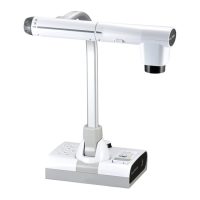
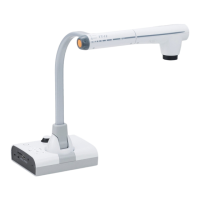
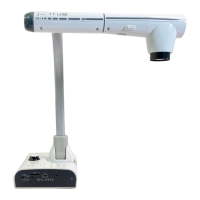
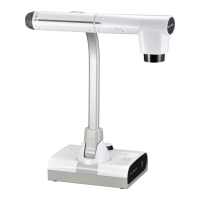
Elmo TT-02RX - User Manual

Elmo TT-02RX
70 pages
Print Icon
To Next Page IconTo Next Page
Loading...
INSTRUCTION MANUAL
Please read this instruction manual carefully before using
this product and keep it for future reference.
MODE D'EMPLOI
Lire attentvement ce mode d'emploi avant de mettre le Présentateur
Visuel en service. Le conserver á titre de référence permanente.
MANUAL DE INSTRUCCIONES
Antes de utilizar este producto, lea atentamente este manual de
instrucciones y guárdelo para consultas futuras.
Spanish P141~211 Français P69~139 English P1~68
Printed in Thailand
6X1VHSA05 R1-Xa
OVERSEAS SUBSIDIARY COMPANIES
U.S.A. ELMO USA CORP.
Headquarters
1478 Old Country Road
Plainview, NY 11803-5034, U.S.A
Tel:(516) 501-1400 Fax:(516) 501-0429
E-mail: elmo@elmousa.com
Web: http://www.elmousa.com
West Coast Branch
Cypress Pointe Business Park
5676 Corporate Avenue
Cypress, CA 90630, U.S.A
Tel:(714) 828-8457 Fax:(714) 828-8429
Germany ELMO (Europe) G.m.b.H
Neanderstr. 18
40233 Düsseldorf, Germany
Tel:(0211) 386470 Fax:(0211) 376630
E-mail: info@elmoeurope.com
Web: http://www.elmoeurope.com/
6-14, Meizen-cho, Mizuho-ku, Nagoya,
467-8567, Japan
WARNING
Unauthorized recording of copyrighted slide films,
materials, photographs, etc. may infringe on the rights of
copyright owners and be contrary to copyright laws.
AVERTISSEMENT
La copie de film / document / photographie protégé est
interdite sans autorisation expresse des détenteurs
des droits de reproduction (Loi sur le Copyright). Ce
Présentateur Visuel est conçu pour son emploi dans
l'environnement industriel et commercial. Son emploi dans
une zone résidentielle est susceptible de provoquer des
interférences radioélectriques nuisibles pour le voisinage
(récepteurs radio et téléviseurs).
ADVERTENCIA
La grabación no autorizada de diapositivas, materiales,
fotografías, etc. sujetos a derechos de autor puede infringir
los derechos de los propietarios y las leyes de propiedad
intelectual.

Table of Contents

Other manuals for Elmo TT-02RX

Questions and Answers

  • R
    richardmorganAug 18, 2025
    Why is the remote control not working for my Elmo TT-02RX?
    • G
      gabriellekingAug 18, 2025
      If the remote control for your Elmo Document Camera isn't working, replace the batteries with new ones. Ensure you are using the remote control that was supplied with the unit.
  • S
    Sarah HoltAug 20, 2025
    How to fix Elmo TT-02RX when no image is displayed?
    • F
      fthompsonAug 21, 2025
      If your Elmo Document Camera isn't displaying an image, several factors could be the cause. First, ensure the cable is correctly connected. Check that the AC adapter is properly connected to both the wall outlet and the document camera's power supply socket. Also, verify that the power is turned on (look for the blue lamp). If the zoom is set to the TELE side, adjust the zoom settings. If you recently turned the power off and back on, wait a few seconds before turning it on again. Finally, ensure the slide switch is set to the correct image output (RGB/VIDEO).
  • S
    Stephen CombsAug 23, 2025
    What to do if Elmo TT-02RX displays no image from USB?
    • C
      christopher20Aug 23, 2025
      If your Elmo Document Camera isn't displaying an image via USB, it might be due to the USB mode setting. If the camera is in USB Mode (Mass Storage) or SD Mode, no image will output from USB. Switch the USB mode from Mass Storage to Application. Also, when using SD mode, ensure you change the output image to Camera image.
  • B
    brian49Aug 26, 2025
    How to fix no image displayed on Elmo TT-02RX?
    • K
      Kara CisnerosAug 26, 2025
      If no image is displayed on your Elmo Document Camera, first check the cable connections. Then, ensure the AC adapter is properly connected to both the wall outlet and the document camera's power supply socket. Also, verify that the power is turned on. Check the zoom settings, as it might be focused on a white or black part of the document. If you've just turned the power off and on, wait a few seconds before turning it back on. Finally, make sure the slide switch is correctly set to the appropriate image output (RGB/VIDEO).
  • S
    Stephanie TaylorAug 27, 2025
    What to do if no image is displayed from the USB on Elmo TT-02RX Document Camera?
    • M
      Matthew HernandezAug 28, 2025
      If the image from the USB on your Elmo Document Camera is not displaying, ensure it is not in Mass Storage or SD mode. If it is, switch the USB mode from Mass Storage to Application. If using SD mode, change the output image to Camera image.
  • M
    mkellyAug 30, 2025
    How to fix out of focus image on Elmo TT-02RX Document Camera?
    • M
      Mrs. Sheila McdonaldAug 30, 2025
      If the image on your Elmo Document Camera is out of focus, adjust the distance between the document and the lens. If you're zoomed in (TELE side), focus to its maximum limit at the TELE side. If auto focus is difficult, try focusing manually.
  • T
    Tina VillegasSep 1, 2025
    What to do if images on the SD card are not displayed on Elmo TT-02RX?
    • C
      connorhallSep 1, 2025
      If images on the SD card are not displayed on your Elmo Document Camera, remove the SD card and then reinsert it after a few seconds.
  • A
    Anthony DunnSep 4, 2025
    Why is the image too dark on my Elmo TT-02RX?
    • G
      Gary CruzSep 4, 2025
      If the image on your Elmo Document Camera is too dark, press the [BRIGHTNESS] button on the operating panel or the remote control to adjust the brightness.
  • E
    Eric TapiaSep 6, 2025
    Why is the video output image disarrayed on my Elmo TT-02RX Document Camera?
    • J
      Jeremiah ThomasSep 6, 2025
      If the video output image from your Elmo Document Camera is disarrayed, check if the video output system is set to PAL.
  • R
    Rachel MartinSep 8, 2025
    How to resolve striped image on Elmo TT-02RX?
    • B
      brenda34Sep 8, 2025
      If the image on your Elmo Document Camera is striped, try changing the projection range. If vertical stripes appear on an LCD projector image, manually adjust the dot clock on the projector.

Summary

Important Safeguards

Symbols Used in this Manual

Explains the meaning of various symbols used throughout the manual for user guidance and warnings.

Product Safety Warnings

Lists critical warnings regarding smoke, liquid, electrical hazards, and potential product damage during operation.

Usage Precautions

Details safety guidelines for product placement, handling, and environmental factors to prevent injury or damage.

Before You Use

Initial Usage Guidelines

Covers power, storage, environment, cleaning, and handling precautions before first use.

Battery and Strap Safety

Provides precautions for handling batteries and the remote control strap to ensure safety.

Part Names and Functions

Part Identification

Identifies physical parts of the camera with diagrams and labels for user reference.

Operating Panel Functions

Details the purpose of each button on the camera's main control panel.

Rear Panel Connectivity

Lists and explains the various input/output terminals on the rear of the unit.

Side Panel Access

Describes the SD card slot and RGB/VIDEO switch located on the side panel.

Remote Control Features

Provides an overview of the remote control and its button functions.

OSD Menu Navigation

Guides the user on basic operations and menu structure of the On-Screen Display.

Camera Mode OSD Settings

Explains menus for camera image settings like brightness, focus, and white balance.

Function Setting Menu Options

Details advanced settings like USB mode, flicker correction, and video format.

SD Mode OSD Settings

Covers options for managing SD card content and slide shows.

Setting Up

Camera Unit Setup

Provides instructions for positioning and adjusting the camera column and head.

Electrical and Video Connections

Details steps to connect the AC adapter and video output cables.

Analog RGB Terminal Specifications

Lists technical specifications for analog RGB signal input and output.

Storing

Proper Storage Procedure

Outlines steps to safely power down and fold the document camera for storage.

Operation Procedure

Presentation with Printed Materials

Using the stage and adjusting settings for presenting documents.

Presentation using SD Card

Loading and displaying images from a commercially available SD card.

Transferring Images via USB

Steps to connect to a PC and transfer image data from the SD card.

Using Supplied PC Software

Instructions for installing and using the 'Image Mate' software.

Microscope Presentation Setup

Guide to attaching and using the microscope attachment.

Shooting 3-D Objects

How to position the camera and adjust settings for 3D subjects.

Shooting Flat Surfaces and Distances

Techniques for capturing walls or distant views, including image rotation.

Various Functions and Operations

Zoom and Magnification Control

Details how to use the zoom dial and buttons for image magnification.

Focus Adjustment Methods

Explains automatic and manual focus techniques for clear images.

Illumination Lamp Usage

Provides instructions for turning the LED illumination lamp on/off and its properties.

Image Brightness Adjustment

Covers adjusting image brightness using automatic or manual modes.

Image Source Selection

Guides on switching between camera, RGB IN, and SD card image inputs.

White Balance Settings

Details adjusting color temperature using Auto, One-Push, or Manual modes.

Saving and Recalling Settings

Outlines procedures for saving and loading unit configurations.

Highlight Functionality

Explains emphasizing image sections by adjusting darkness and size.

Mask Functionality

Describes the process of masking specific areas of the output image.

Scroll Functionality

Details how to scroll enlarged images using digital zoom.

Picture-in-Picture (PinP) Mode

Explains displaying a small still image alongside the live camera view.

Desktop Recorder Operation

Provides instructions for connecting and operating an optional desktop recorder.

Trouble Shooting

Common Issues and Solutions

Identifies common symptoms and provides possible causes and countermeasures.

Specifications

General Product Specifications

Lists overall technical details like power, dimensions, and interfaces.

Main Camera Technical Details

Specifies camera lens, sensor, and image output technical details.

Illumination Device Details

Provides specific information on the LED illumination lamp.

Included Accessories List

Lists all items provided in the product package.

Elmo TT-02RX Specifications

General IconGeneral
Camera TypeDocument Camera
Max Resolution1920 x 1080
Frame Rate30 fps
FocusAuto/Manual
Light SourceLED
Output TerminalsHDMI, USB
USB StandardUSB 2.0
Shutter Speed1/30 to 1/10000 sec
White BalanceAuto/Manual
ConnectivityUSB, HDMI
CompatibilityWindows, Mac
Image Sensor1/2.7 inch CMOS
Zoom8x Digital Zoom
Shooting AreaA4
Output Resolution1920 x 1080
Image Rotation0°, 180°
Input TerminalsUSB
Power SourceDC 5V (USB Powered)

Related product manuals