53
VARIOUS
FUNCTIONS AND
OPERATIONS
English
Adjusting the brightness
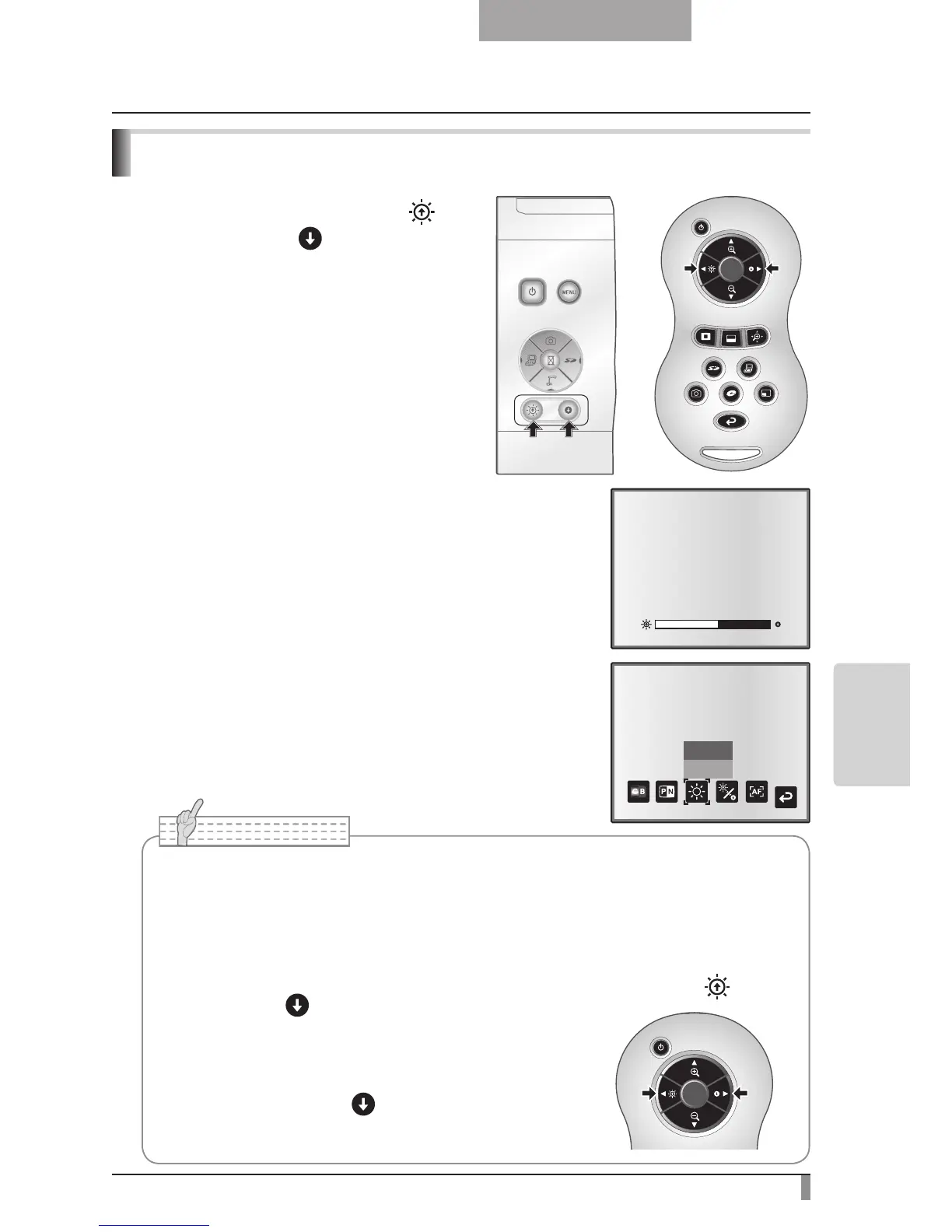
P r e s s th e [ B R I G H T N E S S ] o r
[BRIGHTNESS
] buttons on the
operating panel or on the remote control to
adjust image brightness.The following two
adjustment modes can be set by selecting
[Brightness] from the OSD menu.
Automatic brightness adjustment
([Brightness] → [Auto] in the OSD) The brightness of the
image changes automatically according to the brightness of
the object.
Manual brightness adjustment
([Brightness] → [Manual] in the OSD)
The brightness of the image is fixed to the specified level.
■
■
•
Factory setting is set to [Auto].
•
Manual adjustment fixes the brightness and does not adjust to changes in
brightness of the object.
•
When the brightness becomes dark, the frame rate slows, and the image may
become hard to see.
•
By setting [Guide] to [On] in the OSD menu, the setting details are displayed on the screen.
•
To go back to the factory settings, press the [BRIGHTNESS ] and
[BRIGHTNESS
] buttons on the operating panel at the
same time, or set [Reset Brightness] from the OSD menu.
•
In places where the object is exposed to bright sunlight
(e.g. near a window), or extremely bright lights, the
brightness of the screen may not dim sufficiently, even
when the [BRIGHTNESS
] button is pressed.
In such cases, adjust the amount of light by closing the
curtains or moving the source of the light.



 To Next Page