EasyManua.ls Logo

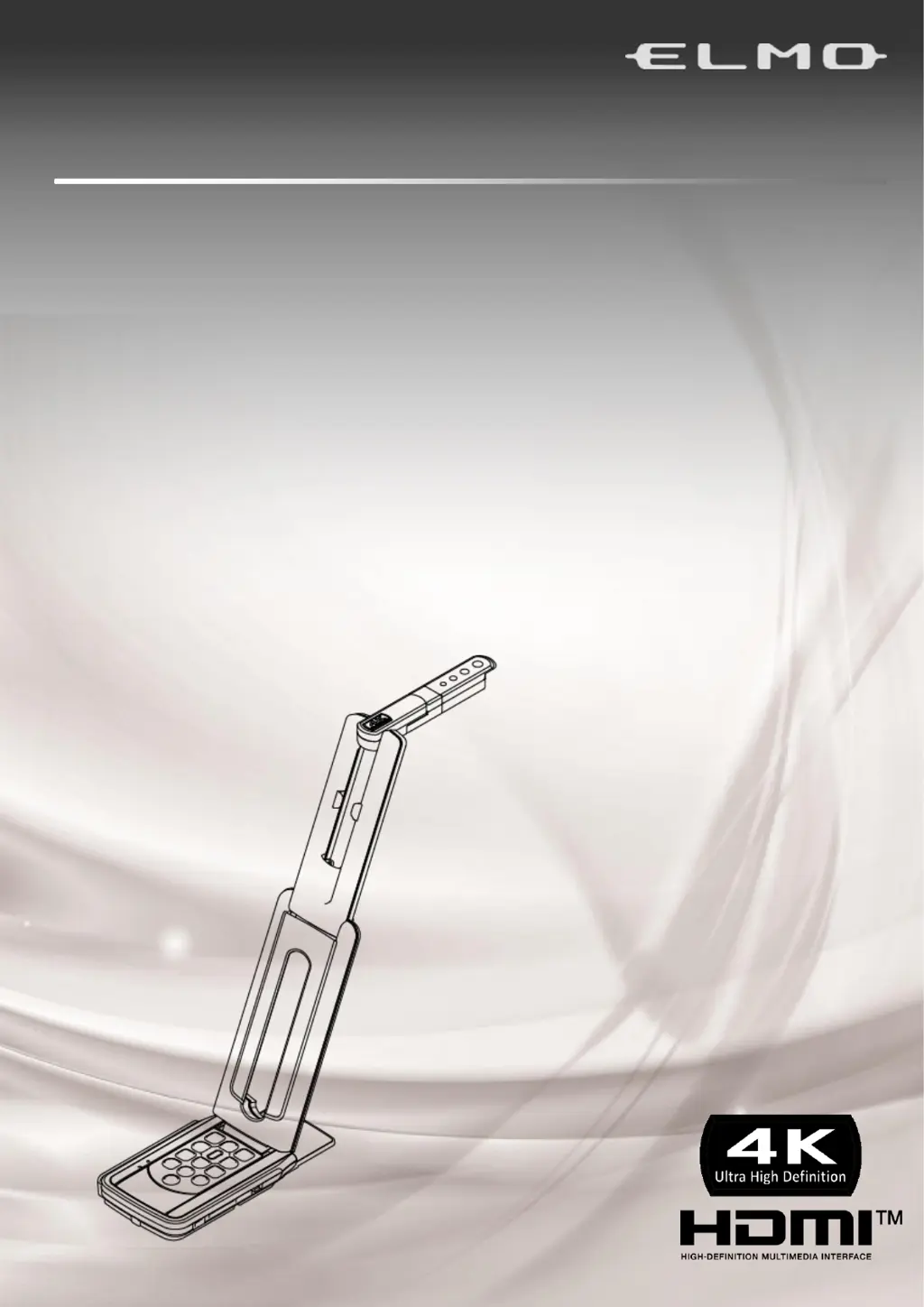
Elmo MX-P3 - User Manual

Elmo MX-P3
36 pages
Print Icon
To Next Page IconTo Next Page
Loading...
M-P3
VISUAL PRESENTER
I
I
N
N
S
S
T
T
R
R
U
U
C
C
T
T
I
I
O
O
N
N
M
M
A
A
N
N
U
U
A
A
L
L

Other manuals for Elmo MX-P3

Questions and Answers

  • D
    Dr. Kevin NelsonAug 18, 2025
    How to fix no image displayed on my Elmo MX-P3?
    • J
      Jessica CarlsonAug 18, 2025
      If no image is displayed on your Elmo Document Camera, first check that all cables are correctly connected, including the DC power cord to the product and the AC adapter to the outlet. Ensure the monitor is turned on and set to the correct input source. If using software, restart it and select the product in the settings. Also, verify that the zoom is not in the TELE position, and if you recently turned the power off and on, wait a few seconds before turning it back on. If you are using a USB connection, ensure the USB cable is properly connected and that the output setting matches the connected cable.
  • E
    Elizabeth FieldsAug 20, 2025
    How to focus my Elmo Document Camera?
    • N
      noah57Aug 20, 2025
      To fix an out-of-focus image on your Elmo Document Camera, try moving the document slightly away from the lens. You can also press the One-push AF button on the operating panel.
  • Q
    qwatkinsAug 23, 2025
    What to do if the UVC image fails to be output from my Elmo Document Camera?
    • R
      Rodney MartinezAug 23, 2025
      If the UVC image fails to be output on your Elmo Document Camera, try disconnecting the USB cable, restarting the software, and then reconnecting the USB cable.
  • M
    Mitchell ReyesAug 26, 2025
    Why is the image too dark on my Elmo Document Camera?
    • M
      morrisryanAug 26, 2025
      If the image on your Elmo Document Camera appears too dark, try pressing the button on the operating panel to adjust the brightness. Additionally, press the button to turn on the LED lighting.
  • V
    Victoria AdamsAug 28, 2025
    What to do if the image does not move on my Elmo MX-P3?
    • D
      Dustin WilsonAug 28, 2025
      If the image on your Elmo Document Camera is not moving, it might be paused. Check if the [ ] button on the operating panel has been pressed; if so, press it again to restart the image. Also, check the viewer software for a selected Freeze function and release it. If neither of these solutions work, try reconnecting all the cables.
  • S
    Susan RiosAug 30, 2025
    Why is the image striped on my Elmo Document Camera?
    • A
      Aaron TrujilloAug 30, 2025
      To address a striped image on your Elmo Document Camera, try changing the shooting range, as this may help with interference fringes. If you are shooting a monitor screen, note that live video may cause distortion. If vertical stripes appear on an LCD projector image, manually adjust the dot clock on the projector. If the environment is dark, brightening it may reduce vertical stripes.
  • J
    jessica57Sep 2, 2025
    How to fix a software error message on my Elmo MX-P3?
    • K
      Kenneth ThomasSep 2, 2025
      To resolve a software error message and the absence of a UVC image on your Elmo Document Camera, restart the product, reconnect it to the computer, and then start the software. This issue may occur if the image output preparation takes too long.
  • J
    Jennifer ChambersSep 4, 2025
    Why does the UVC image contain other images on my Elmo MX-P3?
    • D
      Daniel AyersSep 4, 2025
      If the displayed UVC image on your Elmo Document Camera contains images other than the camera image, try reconnecting the product or restarting the software. The software, OS, or connection status may be causing breakthrough images.
  • J
    James OlsenSep 7, 2025
    Why does the UVC video stream sometimes freeze on my Elmo MX-P3 Document Camera?
    • M
      Megan WaltonSep 7, 2025
      If the UVC video stream on your Elmo Document Camera sometimes freezes, try adjusting the brightness manually. This issue may occur when the object moves quickly.
  • C
    Christopher RomeroSep 9, 2025
    How to correct upside down UVC video stream on my Elmo Document Camera?
    • F
      Fernando KochSep 9, 2025
      To correct an upside-down UVC video stream on your Elmo Document Camera, check that the graphics driver and other device drivers on your computer are updated.

Summary

Important Safeguards

General Safety Guidelines

Covers reading, retaining, heeding, and following instructions for safe operation.

Usage and Environmental Safety

Guidelines for cleaning, attachments, water, placement, and ventilation.

Power and Electrical Safety Precautions

Safety measures for power sources, grounding, polarization, and cord protection.

Hazard Protection and Servicing Procedures

Warnings for lightning, overloading, liquid entry, and instructions for servicing.

Damage, Service, and Replacement Parts

Conditions requiring service and proper procedures for replacement parts.

Operational Safety and Heat Precautions

Importance of safety checks post-service and heat precautions.

Before Use

Cable and Power Cord Usage Guidelines

Instructions on using supplied cables, power cords, and AC adapters correctly.

Operating Environment Conditions

Recommended temperature, humidity, and avoiding unsuitable locations.

Product Handling, Care, and Component Notes

Guidelines for cleaning, avoiding direct sun, LED light caution, and component care.

Component-Specific Precautions

Notes on CMOS sensors, magnets, and microphone compatibility for safe use.

Handling Precautions

Installation and Setup Safety

Advice on placing the product securely and setting it up carefully to avoid damage.

Safe Carrying and Magnetic Base Precautions

How to carry the product safely and precautions regarding magnets on the base.

Preparation

Package Contents and Inclusions

Lists all items included in the product package for user verification.

AC Adapter Connection and Cable Safety

Instructions for connecting AC adapter plugs and a caution about cable wrapping.

Basic Operations

Visual Presenter Part Identification

Identifies and names the various physical parts of the visual presenter.

Camera Operations and Button Functions

Explains the functions of buttons like Power, Zoom, Focus, Brightness, and LED lighting.

OSD Menu Navigation and Operations

How to navigate and use the On-Screen Display (OSD) menu for settings.

Status LED and Audio Indicator Meanings

Details the meaning and behavior of Status LEDs and Audio Status LEDs.

Cable Connections and Setting Switch Usage

Guides for connecting cables (HDMI, RGB, USB) and using the setting switch.

USB Connection Resolution and Frame Rate

Table showing output resolution and frame rates when connected via USB.

Image Output Size and Aspect Ratio Settings

Explains how resolution, aspect ratio, and output modes affect image size.

Anti-Theft Lock Hole Functionality

Information on securing the product using a security wire.

Preparation and Connection

Product Setup and Arm Adjustment

Step-by-step guide for raising, adjusting, and orienting the product.

Flexible Part Movement and Adjustments

Illustrates how to move and adjust various flexible parts of the presenter.

Connecting to Projectors and Monitors

Instructions for connecting to projectors or monitors via HDMI or RGB cables.

Connecting the Presenter to a Computer via USB

Guide for establishing a USB connection for image transfer and control.

Simultaneous Display and Computer Connection

How to connect to both a projector/monitor and a computer simultaneously.

Using the Product

Adjusting Image Size (Zoom) and Focus

How to use zoom controls and auto-focus for optimal image display.

Adjusting Image Brightness and Initialization

Steps for adjusting brightness levels and initializing settings.

Image Control: Pause, Rotate, Mirror, LED, Audio

Explains pausing, rotating, mirroring images, and controlling LED lighting and audio output.

Setting Camera to Standby Mode

How to set the camera to standby mode when using DC power.

Recording Camera Images

Video Recording to SD Card

Instructions for recording video clips to an SD card.

Still Image Capture to SD Card

Instructions for capturing still images to an SD card.

Configuring the Settings

Accessing and Navigating the Settings Menu

Procedure to enter the settings menu and navigate options.

Configuring Resolution and Viewing Angle

Details on configuring output resolution and viewing angle.

Setting Video Recording Quality

How to select the desired quality for video recordings.

Language Selection and Formatting Options

Options for changing display language and formatting the device or SD card.

Firmware Update Procedure

Firmware Update Procedure and Steps

Step-by-step guide to download and install firmware updates for the product.

About Viewer Software

Image Mate +C Web App Usage

Information on using the Image Mate +C web application for computer control.

Image Mate 4 Software Installation and Use

Details about installing and using the Image Mate 4 software.

EIT Software for Interactive Whiteboard

Information on the EIT software for interactive whiteboard functionality.

Viewer Software Installation and Cautions

Instructions and cautions for installing viewer software on a computer.

Trouble Shooting

Troubleshooting: Common Symptoms and Remedies

Lists common issues like no image, wrong focus, dark image, and their remedies.

Troubleshooting: Image Distortion and UVC Issues

Solutions for striped images, upside-down UVC streams, and software errors.

Specification

Main Camera Technical Specifications

Technical details of the camera, including power, dimensions, lens, and resolution.

Functional Specifications and Adjustments

Details on adjustable functions like brightness, rotation, focus, zoom, and resolution.

Illumination, Recording, and System Specs

Information on LED lighting, recording, USB, audio, operating temp, and humidity.

Trademarks and Licenses

Usage Attention, Copyright, and Policies

Notes on copyright, environmental use, repair parts, and privacy of images.

Elmo MX-P3 Specifications

General IconGeneral
BrandElmo
ModelMX-P3
CategoryDocument Camera
LanguageEnglish

Related product manuals