25
➏ CONFIGURING THE SETTINGS
Each setting of the product can be configured through the menu displayed on the screen
(HDMI/RGB/USB).
◆HOW TO CONFIGURE THE SETTINGS
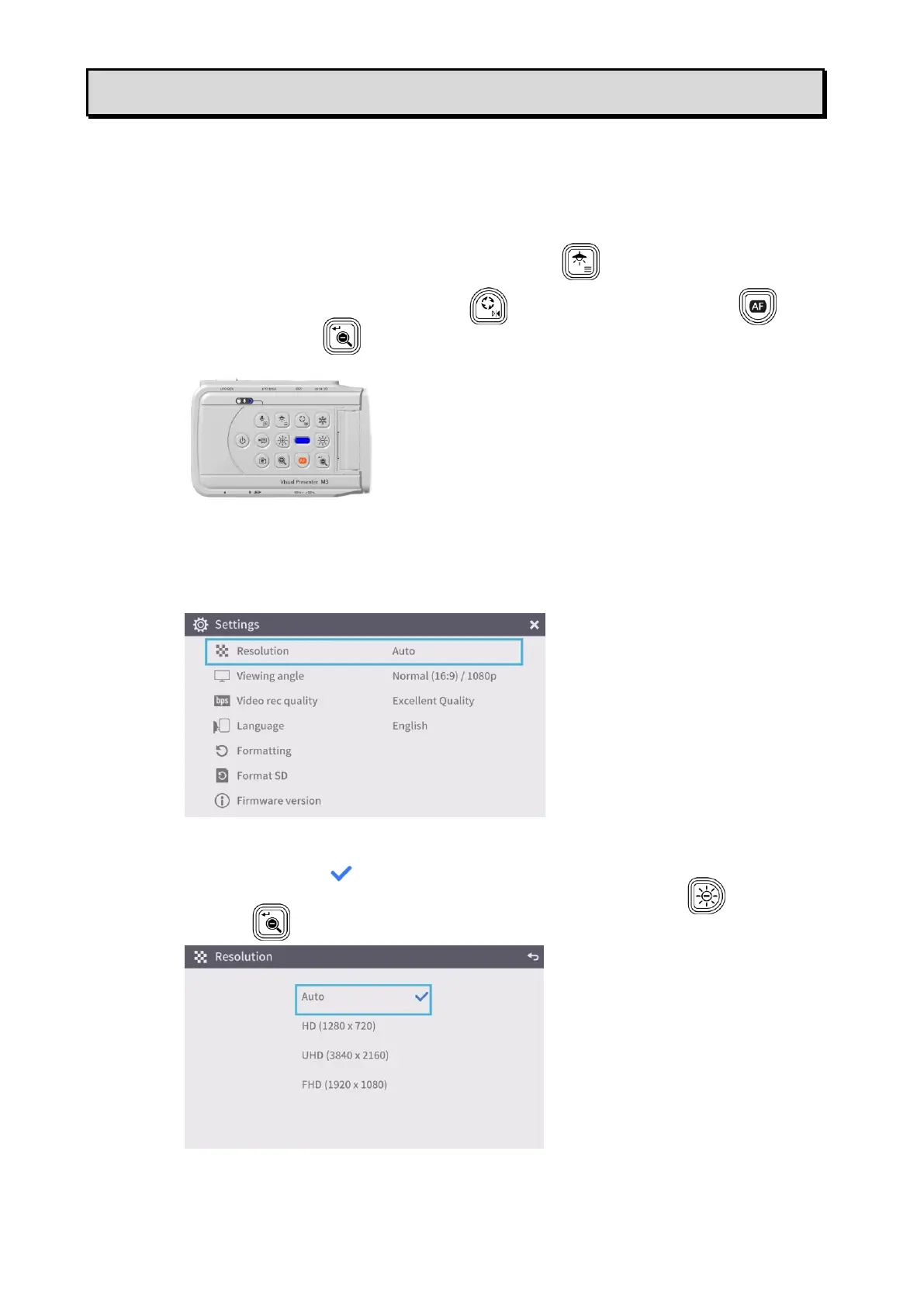
1. Long press (for about 2 seconds) the Lighting/MENU button [ ] on the operating panel to
display the Settings menu.
2. Move the cursor with the Image rotation button[ ]and the One-push AF button [ ]. Then
press the ZOOM-OUT button [ ] to confirm.
◆SETTINGS MENU
The following Settings menu appears on the screen. The items in the blue frame are items currently
selected with the cursor.
1. Resolution(HDMI)
(The one with the check mark [ ] is the currently selected item.)
(The resolution setting can also be changed by pressing the Brightness – button [ ] and the
ZOOM-OUT button [ ] on the operating panel at the same time.)
※The resolution setting cannot be configured when the product is connected to a running
computer via the USB cable.



 To Next Page