www.emachines.com
9
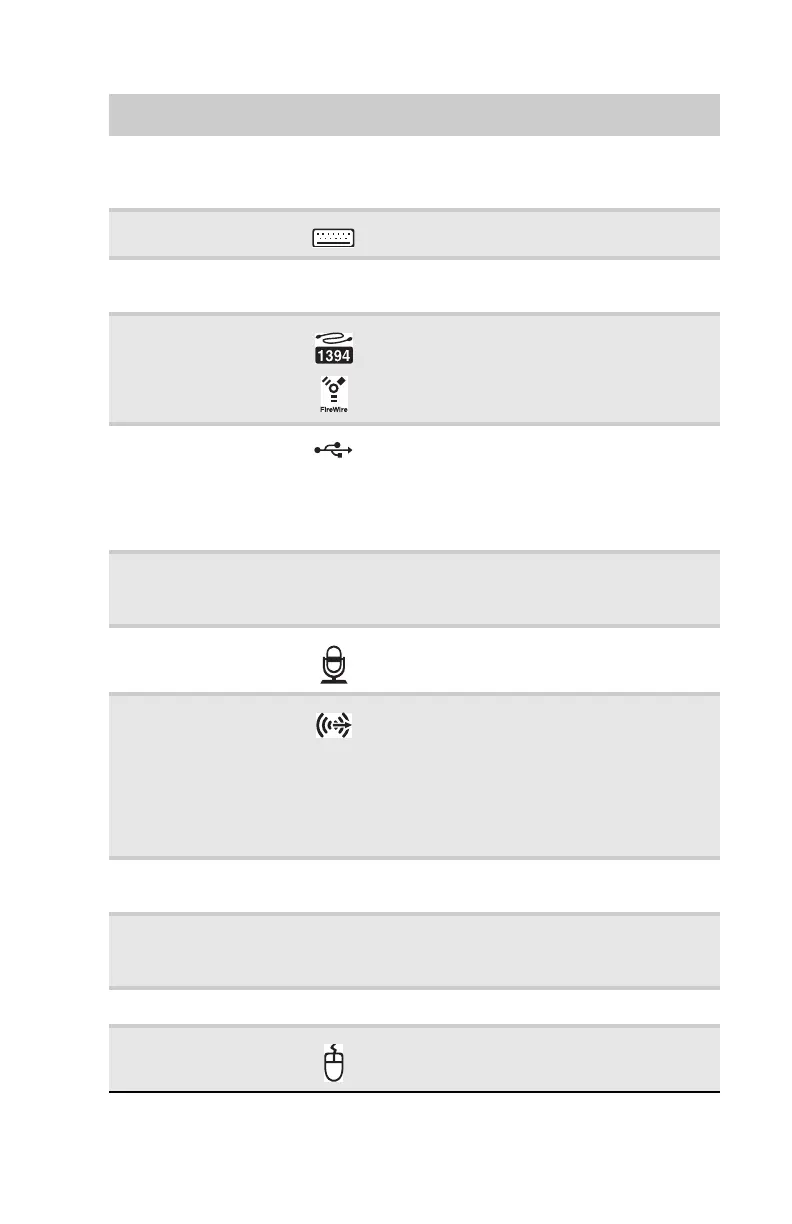
Power connector Plug the power cord into this connector. For
more information on connecting power, see
“Preparing power connections” on page 14.
PS/2 keyboard port Plug a PS/2 keyboard into this port.
Monitor (VGA) port Plug a VGA (blue connector) monitor cable
into this port.
IEEE 1394/ FireWire™
port
Plug IEEE1394 (also known as Firewire
™
)
devices (such as a digital camcorder) into
this 6-pin IEEE 1394 port. For more
information, see “Installing a printer,
scanner, or other device” on page 27.
USB ports Plug USB (UniversalSerial Bus) devices
(such as a USB Iomega™ Zip™ drive, printer,
scanner, camera, keyboard, or mouse) into
these ports. For more information, see
“Installing a printer, scanner, or other
device” on page 27.
S/PDIF output jack
(optional)
Plug an optical cable from an amplifier or
entertainment system into this jack for
digital sound.
Microphone jack
(pink plug)
Plug a microphone into this jack.
Headphone/analog
speakers jack (green
plug)
-OR-
Front speakers jack
This jack is user configurable for one of the
following:
Headphone: Plug headphones or amplified
speakers into this jack (Default).
Stereo out: Plug your front left and right
speakers into this jack.
For more information, see “Configuring the
audio jacks” on page 26.
TV tuner (optional) Plug a video tuner or antenna into this
optional jack.
Wireless network
antenna (optional)
and connectors
Connect this antenna to your wireless
network antenna card (optional).
Case thumbscrew Remove this screw before opening the case.
PS/2 mouse port Plug a PS/2 mouse into this port.
Component Icon Description
8512635.book Page 9 Friday, July 27, 2007 11:21 AM



 To Next Page