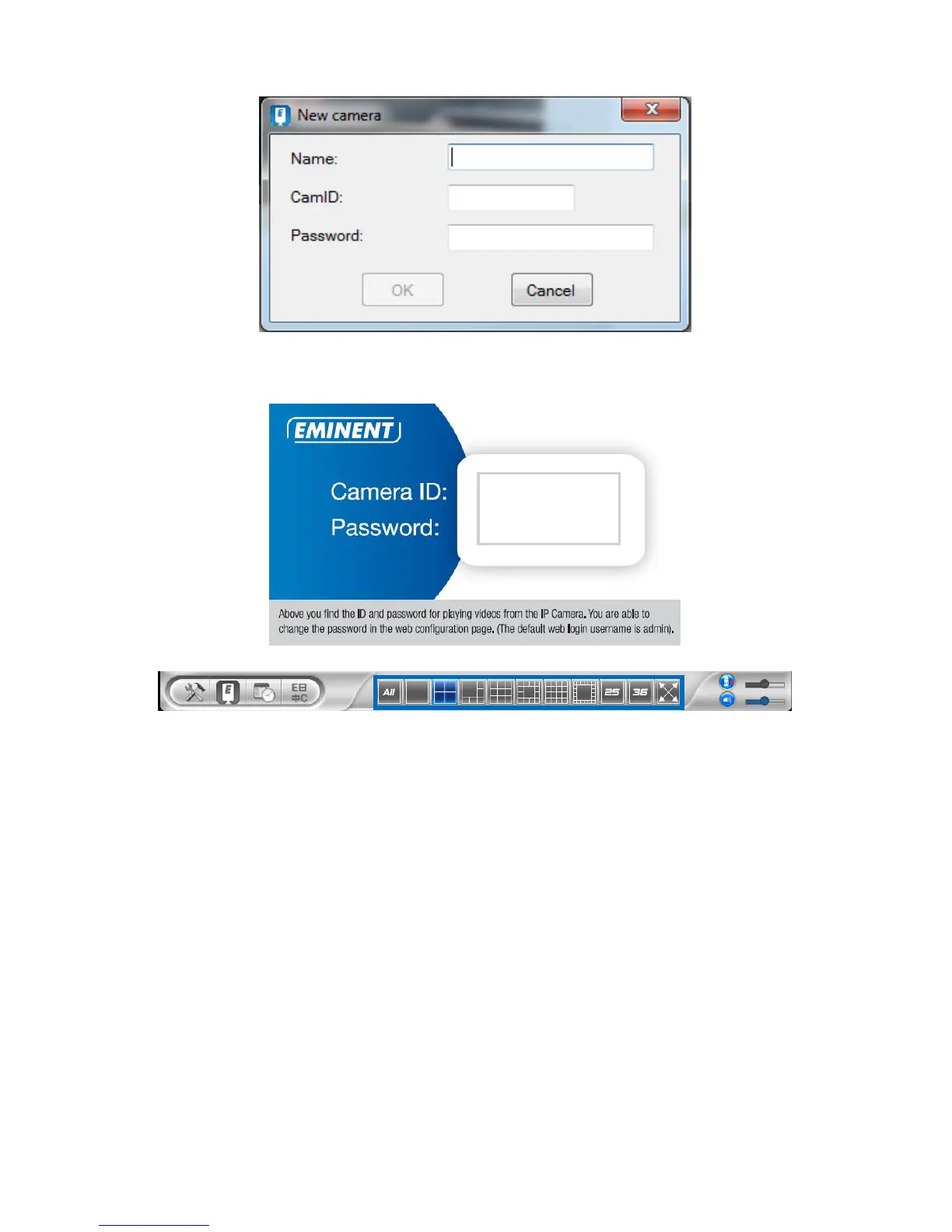
8. Camera name: Enter a description of the camera (example: front door)
9. CamID: Enter the ID provided on the ID/Password card.
10. Password: Enter the 4 digit password provided on the ID/Password card.
11. Select “OK” to add the camera.
With the toolbar you can select how and the amount of video feeds you would like to
view on your monitor from 1 to 36 screens.
2.6 Installing the software and camera on a MAC.
Before you can view the video of the camera, you need to install the software” Easy
Pro View” from the CD-ROM.
1. Insert the installation CD-ROM in the CD- or DVD-ROM drive, or download the
driver from our website.
2. Open Finder.
3. Go to the CD-ROM.
4. Open the folder ‘software/MAC’.
5. Launch the .dmg file.
6. the following “DISK IMAGE” virtual disk will be appeared on the Desktop of your
Mac OSX system. (This “DISK IMAGE” virtual disk will be auto-removed after
rebooting Mac OSX system.)
10000000



 To Next Page