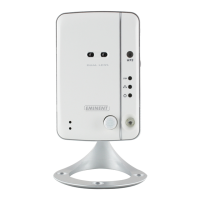
EM6260 – Easy Pro View HD outdoor IP
camera
Table of contents
1.0 Introduction ........................................................................................................... 4
1.1 Update information ............................................................................................ 4
1.2 Packaging contents ........................................................................................... 4
1.3 Requirements to access the camera. ................................................................. 5
1.4 Major hardware components. ............................................................................ 5
2.0 Installing the camera ............................................................................................. 6
2.1 Connecting the camera to your network using a network cable .......................... 7
2.1.1 Option 1 Power adapter is plugged near the EM6260. ................................ 7
2.1.2 Option 2 Power adapter is plugged near the router/modem/switch.............. 8
2.2 Which App should I install? ................................................................................ 9
2.3 Installing the Easy Pro View App on an Android device ..................................... 9
2.4 Installing the Easy Pro View App on an Apple device ...................................... 10
2.5 Installing the software and camera on a PC or notebook (Windows). ............... 12
2.6 Installing the software and camera on a MAC. ................................................. 13
2.7 Adding the camera to a wireless network ......................................................... 17
2.7.1 Connecting to Wi-Fi using the WiFi QR code scanner ................................18
2.7.2 Connecting to Wi-Fi using the WPS button. ...............................................18
2.7.3 Connecting to Wi-Fi using the App. ............................................................19
2.7.4 Connecting to Wi-Fi using the PC (windows). ............................................19
2.7.5 Connecting to Wi-Fi using the (MAC). ........................................................20
2.8 Mounting the camera on the wall or ceiling ...................................................... 21
3.0 Viewing images ................................................................................................... 22
3.1 On your smartphone/tablet (Android, iPhone, iPad) ......................................... 22
3.2 On your PC (Windows) in a remote location. ................................................... 22
3.3 Alarm-notification recording (micro SD-Card) ................................................... 22
3.4 Via the Internet using the web portal ................................................................ 23
4.0 Easy Pro View for iPhone/iPad/Android ............................................................... 24
4.1 The Layout of Easy Pro View ........................................................................... 24
4.2 See the live video ............................................................................................ 25
4.3 Delete camera ................................................................................................. 27
4.4 Camera adjustment ......................................................................................... 28
4.5 Alarm notification ............................................................................................. 29
4.6 Stream settings................................................................................................ 31
4.7 Video settings .................................................................................................. 33
4.7.1 Video .........................................................................................................33
4.7.2 Control .......................................................................................................35
4.7.3 Night mode control ....................................................................................36
4.7.4 Camera info ...............................................................................................38
4.8 Camera Settings .............................................................................................. 39
4.8.1 Information ................................................................................................40



 To Next Page