16
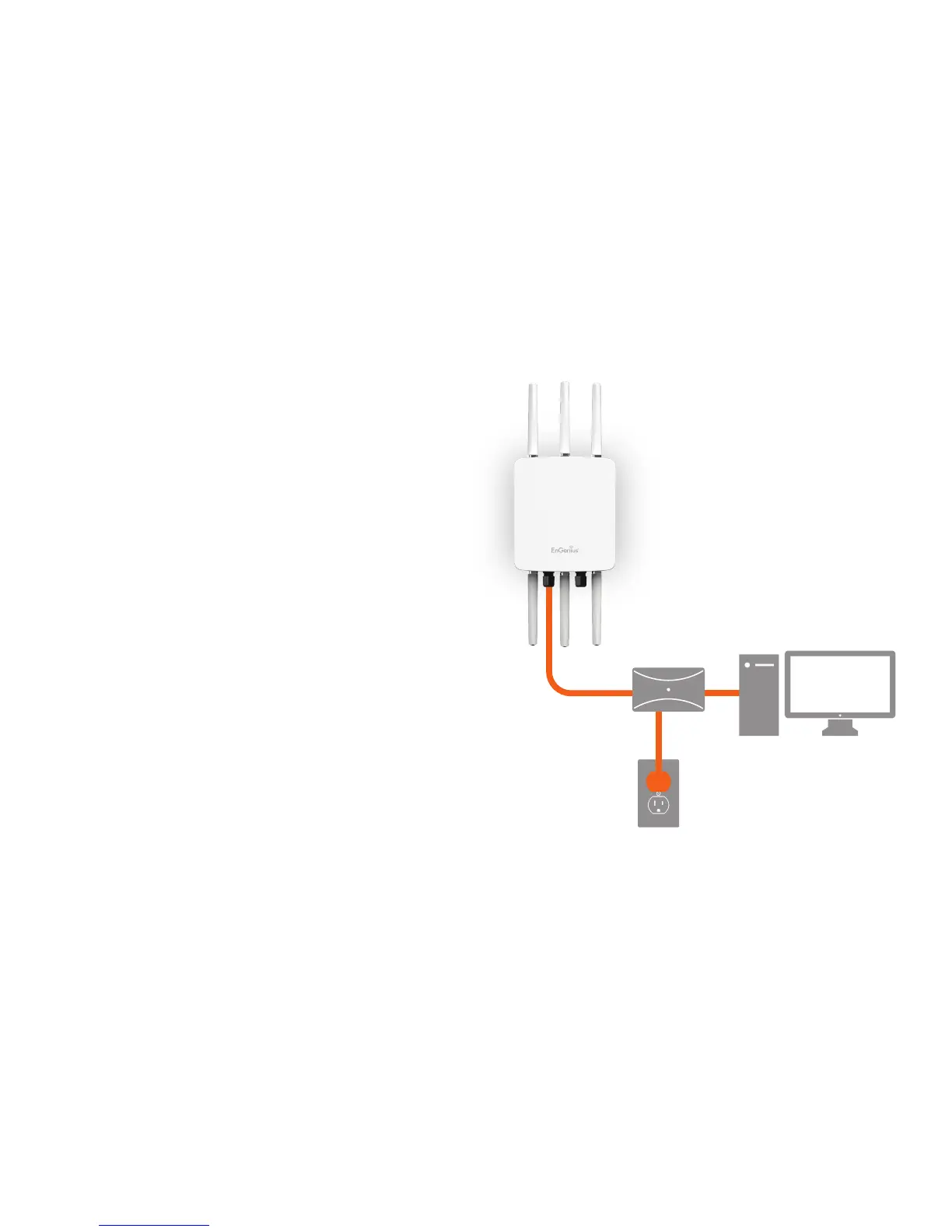
1. Connect one end of the Ethernet cable into the main
LAN port (PoE) of the Access Point and the other end to
theAPEthernetportonthePoEinjector.
2. Connect the Power Adapter to the DC-IN port of the
PoEinjectorand plugtheotherendin toanelectrical
outlet.
3. Connect the second Ethernet cable into the LAN port of
thePoEinjectorandtheotherendtotheEthernetport
on the computer.
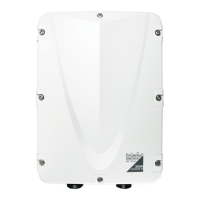
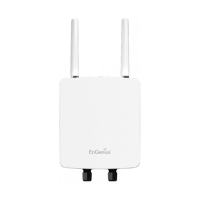
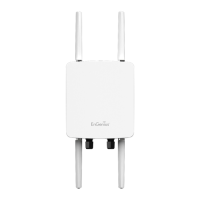
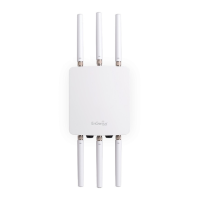
4. Screw on the provided antennas to the device. Once
both connections are secure, verify the following:
a) Ensure that the POWER light is on (it will be green).
b) Ensure that the 2.4 GHz/5 GHz WLAN light is on (it will
be green for both 5 GHz and 2.4 GHz).
c) Ensure that the LAN (Computer/ENH900EXT
Connection) light is on (it will be green).
d) Once all three lights are on, proceed to set up the
Access Point using the computer.
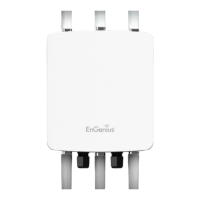
Thisdiagramdepictsthehardwareconguration.
Note: TheAccessPointsupportsbothIEEE802.3atPoE
(Power over Ethernet) or the included power injector.
You may use either one as the power source. Do NOT
use both at the same time.
Hardware Installation
Ethernet
PC
Power
Outlet
PoE Injector/
PoE Swtich


 To Next Page