Printing to the Epilog Job Manager
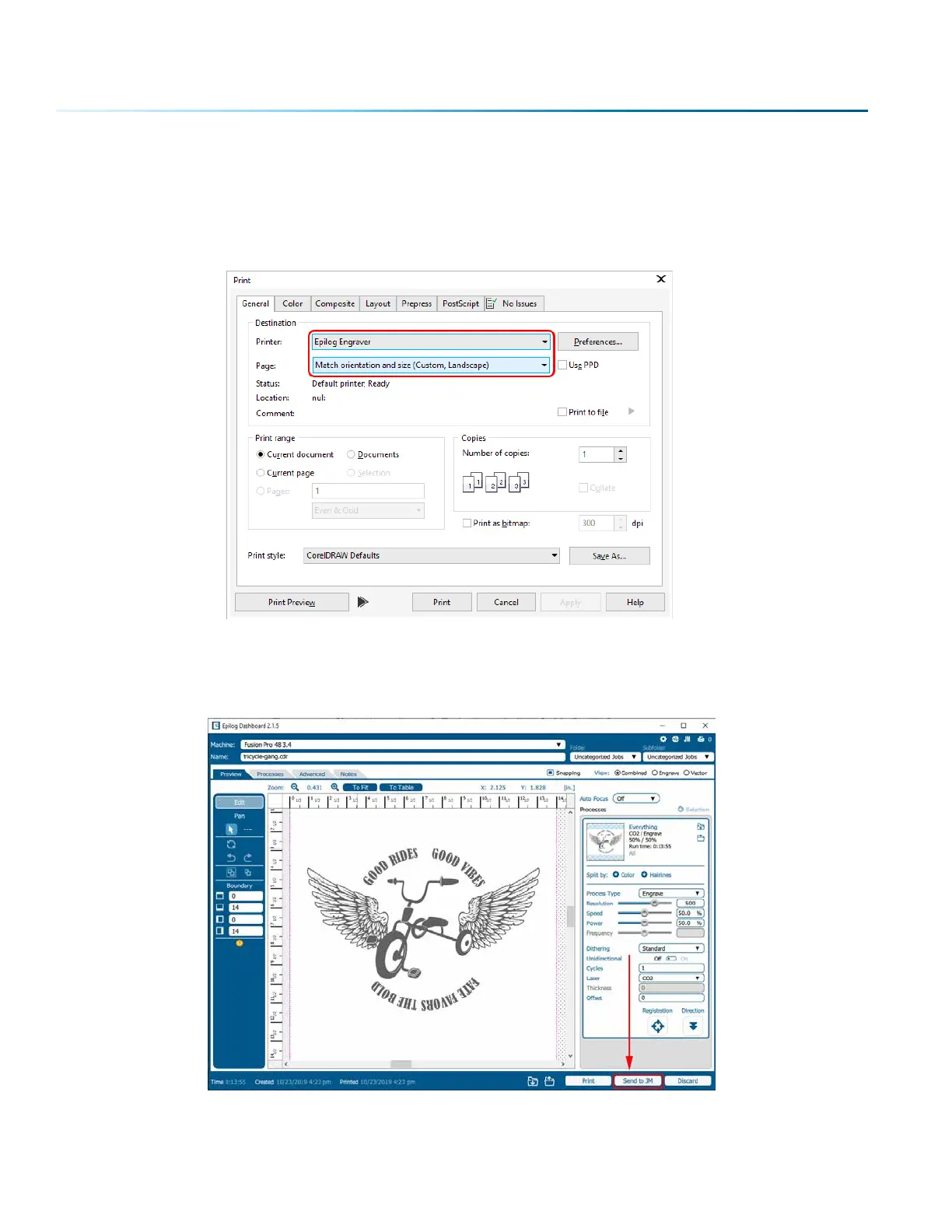
Create a file in your graphic soware and select Print. When the print dialog opens up, make sure you
select Epilog Engraver as your printer and set the Page to Match Orientation and Size. Once your desired
settings are selected, click Print again.
The file will open in the Epilog Dashboard first. To send it to the Job Manager, click the “Send to JM”
button. The Job Manager window will open and the Dashboard window will close.
- 36 -
SECTION 4: THE JOB MANAGER


 To Next Page
 Loading...