Setting Up CorelDRAW for the Laser
If you are using CorelDRAW, first make this quick, one time change to the settings.
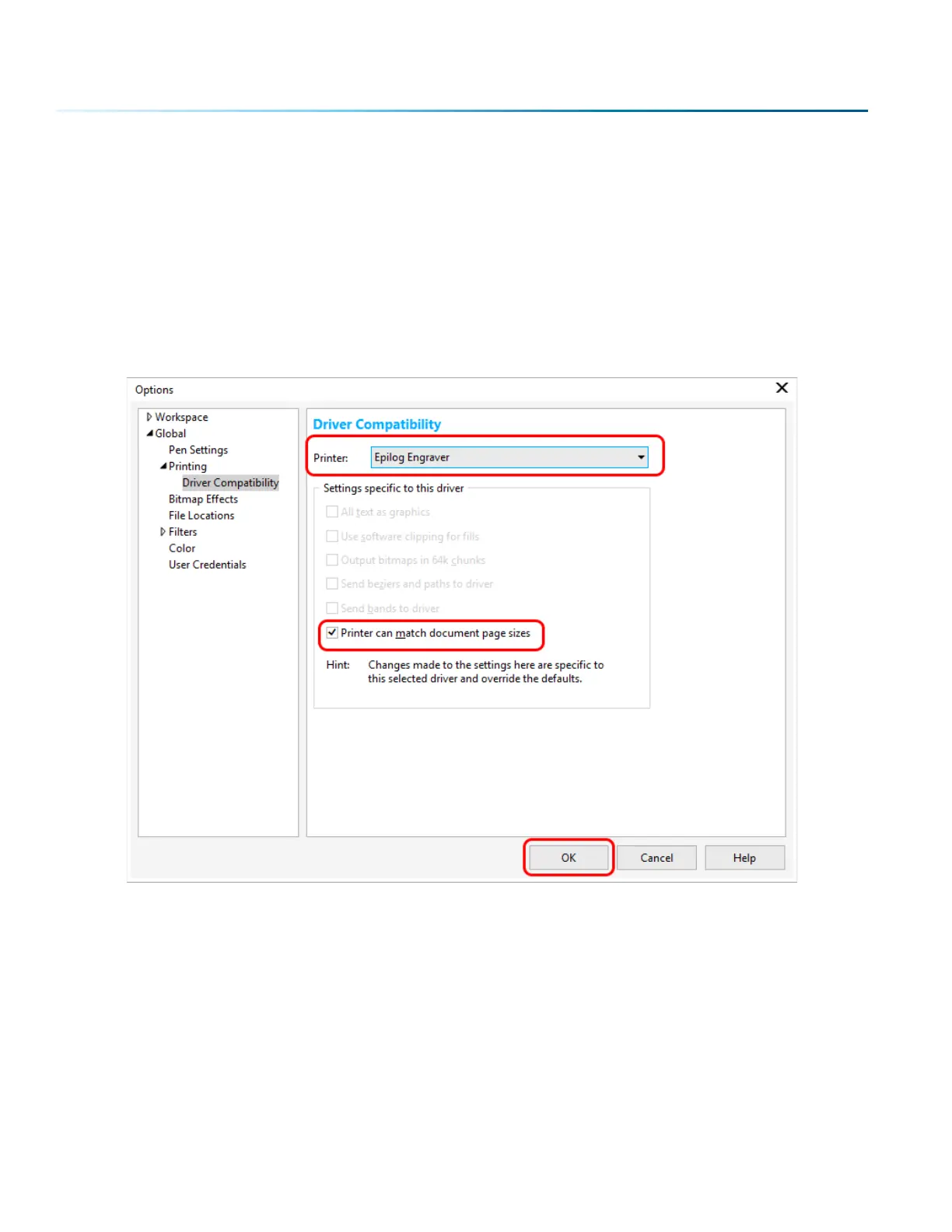
1. Go to Tools > Options > Global > Printing > Driver Compatibility.
2. Select Epilog Engraver from the drop-down list.
3. Select “Printer can match document page sizes”, and click OK. You’re ready to go!
Note: If you cannot check this box, see “Troubleshooting the Laser Dashboard” on page 88.
- 56 -
SECTION 5: THE LASER DASHBOARD



 To Next Page
 Loading...