Ext. Control: USB
C
ONTROLLING THE DEVICE VIA BROWSER
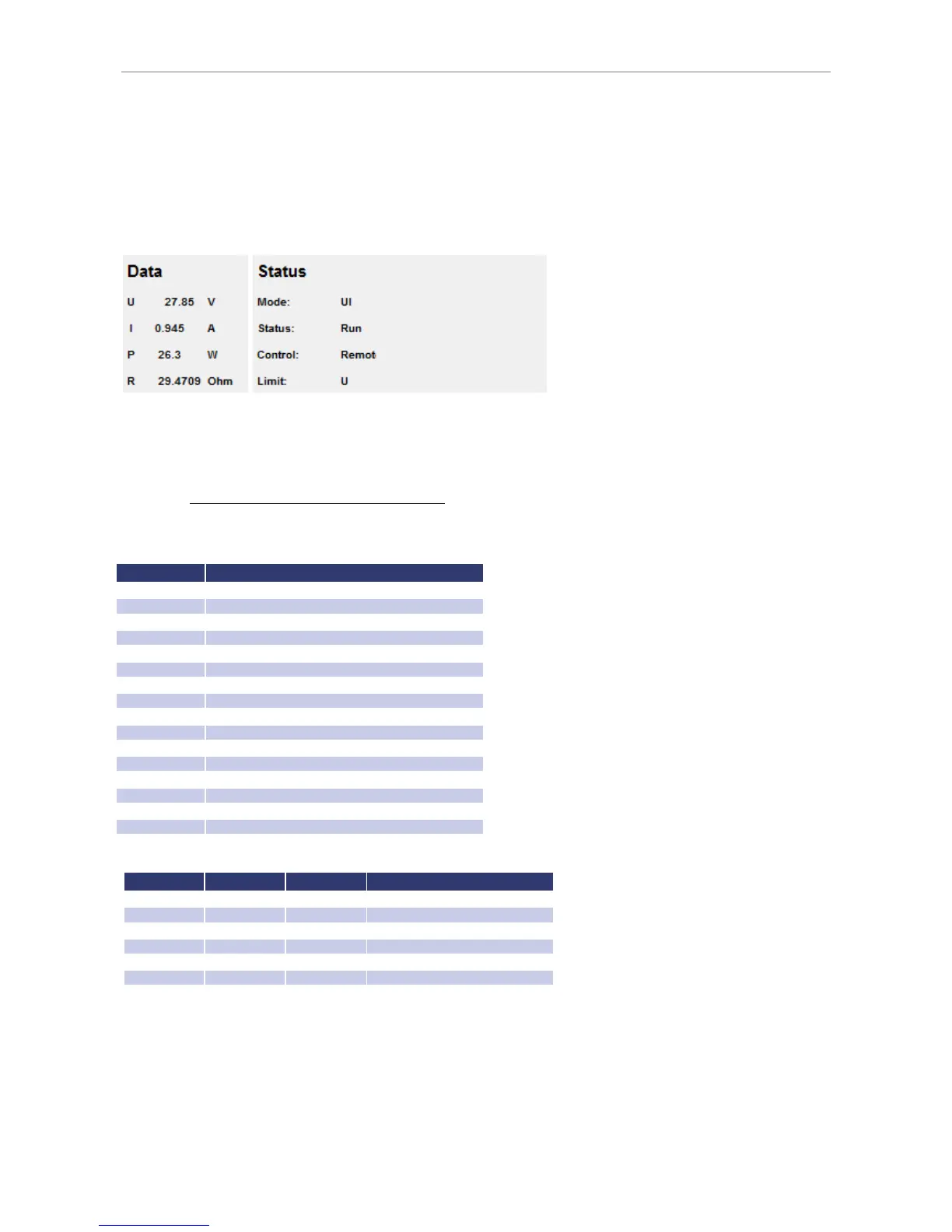
The user interface can be opened via IP address: http://xxx.xxx.xxx.xxx. The menu ‚Display‘ opens the monitoring of
the unit. Java must be supported by your browser to control the device. Displayed are all present measurement
values, which are updated every 2 seconds. When using the monitoring function, automatic toggle to remote
operation when receiving a command should be deactivated (command
<GTR,0>
).
EXT. CONTROL: USB
The USB interface provides a virtual COM port for the PC. Via this port, the unit can be controlled as with a normal
RS232 interface, e. g. with a terminal program. Corresponding drivers for all current operating systems are available as
download: http://www.ftdichip.com/Drivers/VCP.htm.
The status word can be read with the command
<STB>
or
<*STB?>
.
Bit Function
used internally, can be 1 or 0
Software handshake (XON/XOFF)
Parity mode (1 = odd, 0 = even)
Stop bit (1 = 2 Stop bits; 0 = 1 Stop bit)
Data format (1 = 8 bit; 0 = 7 bit)
used internally, can be 1 or 0
Table: Error messages
D2 D1 D0 Error
The defined character for XON is 0 x 11 and for XOFF it is 0 x 13.
Interface parameters are adjusted by software with the command
<PCx>
and afterwards they can be saved with the
command
<SS>
.
I
NTERFACE
R
ECONFIGURATION
In case, the user has forgotten the active setup, there are two ways of reconfiguring the interface:



 To Next Page