4.
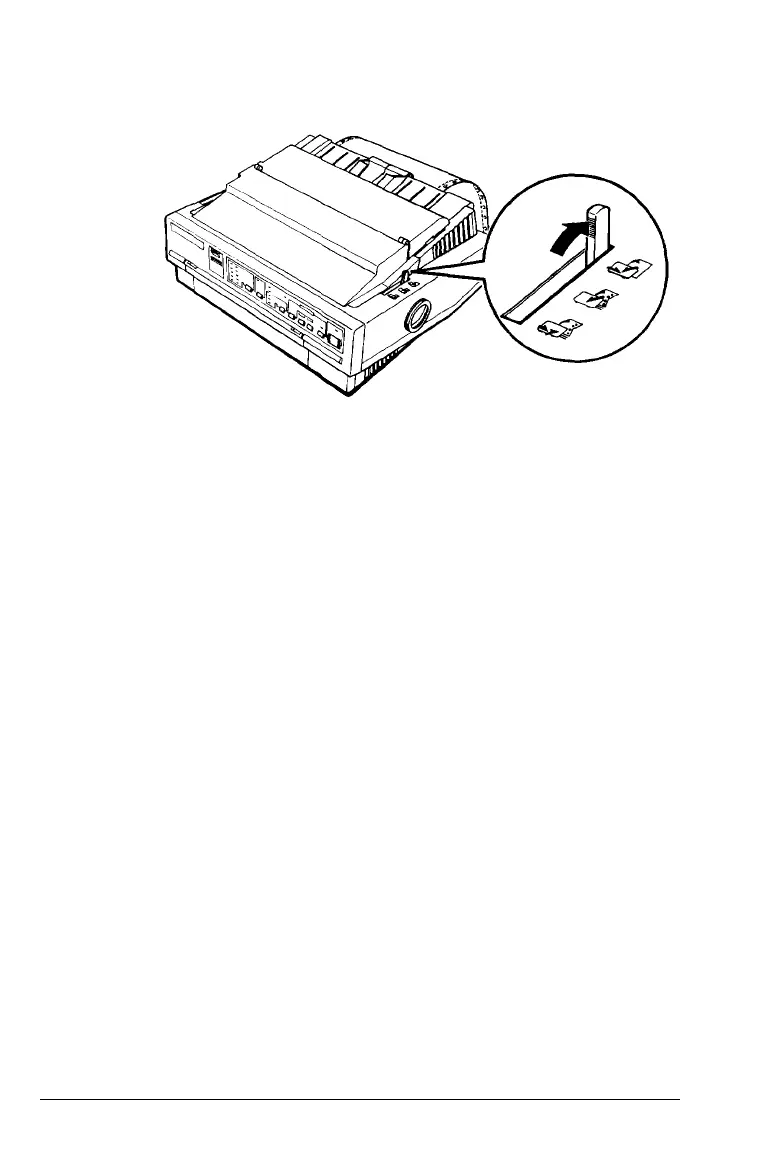
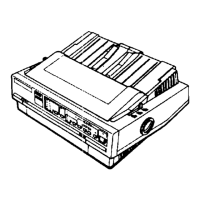
Move the paper-release lever to the single-sheet position.
5. Lift the paper guide until it stops in the upright position.
6. Adjust the edge guides to match the width of your paper.
You can now load single sheets as described in “Using Single
Sheets” in this chapter.
Switching to continuous paper
To switch from single sheets back to continuous paper in the
push tractor, follow the steps below.
1.
2.
3.
If a single sheet is in the paper path, press the
LOAD/EJECT
button to eject it.
Slightly lift the paper guide and then lower it until it rests on
the printer.
Slide both edge guides to the middle of the paper guide.
2-22 Paper Handling



 To Next Page