EasyManua.ls Logo

Epson DLQ-3500II - User Manual

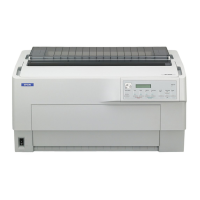
Epson DLQ-3500II
147 pages
Print Icon
To Next Page IconTo Next Page
Loading...
User’s Guide
NPD6247-01 EN

Table of Contents

Questions and Answers

  • P
    Patrick ScottAug 20, 2025
    What to do if Epson Printer is on but it doesn't print?
    • M
      Mr. Jose FrenchAug 20, 2025
      If your Epson Printer is on but not printing, consider the following: * Check the interface cable: Ensure it's not broken or twisted. If possible, replace it to see if that resolves the issue. * Direct connection: Make sure the printer is directly connected to your computer without any intermediary devices. * Printer driver: Verify that the printer driver is correctly installed. Reinstall if necessary. * Paper jam: Turn the printer off, open the cover, and remove any jammed paper or obstructions. * Printer hang-up: Turn the printer off, wait a moment, and then turn it back on.
  • C
    Christine SmithAug 21, 2025
    Why Epson DLQ-3500II Printer does not print when the computer sends data?
    • J
      Jennifer VaughnAug 21, 2025
      If your Epson Printer isn't printing when data is sent from your computer, consider these potential causes: * The printer may be paused: Press the Pause button to deactivate the Pause light. * Interface cable: Ensure both ends of the cable connecting the printer and computer are securely plugged in. If the connection is correct, perform a self-test. * Software setup: Confirm that your software is properly configured for your printer. Select your printer in Windows or your application, and reinstall the printer driver software if needed.
  • T
    Tammie GillAug 25, 2025
    What to do if Epson DLQ-3500II makes noise, but nothing prints or printing stops abruptly?
    • D
      Deborah MolinaAug 25, 2025
      If your Epson Printer is making noise but not printing, or if printing stops suddenly, consider these issues: * Head gap: Adjust the head gap to match the thickness of your paper. * Ribbon issues: Remove any slack in the ribbon by turning the ribbon-tightening knob, or reinstall the ribbon cartridge.
  • A
    Andre WashingtonAug 26, 2025
    What to do if Epson Printer does not feed continuous paper to the standby position?
    • E
      Eddie TaylorAug 26, 2025
      If your Epson Printer does not feed continuous paper to the standby position, tear off the printed pages at the perforation. Then press the Load/Eject button to feed the paper backward to the standby position.
  • J
    John PriceAug 28, 2025
    Why Epson Printer does not print when using a network?
    • W
      Willie JonesAug 28, 2025
      If your Epson Printer does not print when using a network, check whether print jobs from other computers are being printed through the network. If the print job is executed, the printer or your computer may have a problem. Check the connection between the printer and your computer, settings on the printer driver, and settings of your computer. If the print job is not executed, network settings may be incorrect.
  • D
    dgilbertAug 30, 2025
    What to do if Epson DLQ-3500II shows printer error?
    • J
      John GrantAug 30, 2025
      If an unknown printer error has occurred with your Epson Printer, turn it off and leave it off for several minutes; then turn it on again.
  • T
    Terry HollowaySep 1, 2025
    Why is the printout faint on my Epson DLQ-3500II?
    • A
      Amanda ParksSep 1, 2025
      If the printout from your Epson Printer is faint, here are a couple of things to check: * Head Gap Setting: Ensure that the Head Gap setting is set to AUTO or an appropriate value for your paper. * Ribbon condition: The ribbon may be worn out. Replace the ribbon cartridge.
  • D
    Debra Lynch DDSSep 3, 2025
    Why is the printout pale on my Epson DLQ-3500II?
    • R
      Rodney NelsonSep 3, 2025
      If the printout from your Epson Printer is pale, the ribbon may be worn out. Replace the ribbon cartridge.
  • E
    Erin WoodSep 5, 2025
    Why does my Epson DLQ-3500II printing appear too high or low on the page?
    • D
      daviskennethSep 5, 2025
      If your Epson Printer is printing too high or low on the page, check the following: * Paper size setting: Ensure the paper size setting in your application software or printer driver matches the paper you are using. * Page length setting: Verify that the printer’s page length setting for the front or rear tractor matches the size of the continuous paper you are using.
  • A
    Alexis PaulSep 6, 2025
    What causes missing parts or dots in random positions on Epson Printer printouts?
    • M
      Michael JordanSep 7, 2025
      If parts of the printout are missing, or dots are missing in random positions when using your Epson Printer, consider these solutions: * Ribbon slack or loose ribbon: Remove any slack in the ribbon by turning the ribbon-tightening knob, or reinstall the ribbon cartridge. * Worn-out ribbon: Replace the ribbon cartridge.

Summary

Chapter 1 Printer Basics

Printer Parts

Identifies physical components of the printer, such as cover, edge guide, and paper support.

Control Panel

Details the printer's operation panel, including its layout and primary controls.

Buttons and Lights

Explains the function of each button and indicator light on the printer's control panel.

Guide to the LCD Screens

Provides an overview of menus and controls displayed on the printer's LCD screen.

Chapter 2 Menu Options for Settings

Menu Options for Basic Settings

Describes how to access and configure basic printer settings like Paper Source, Font, Pitch, and Language.

Basic Settings

Covers fundamental printer configurations including Paper Source, Font, Pitch, and Language selection.

Menu Options for Printer Settings

Details settings related to printer configuration, including print area, character spacing, and print control.

Print All Settings

Instructions for printing the current printer configuration settings.

Print Area Settings

Allows adjustment of margins such as Top of Form, Page Length, and print offsets.

Character;Line Space Settings

Options for selecting fonts, pitch, and character tables for text appearance.

Print Control Settings

Options like Auto Tear Off, Print Direction, and Head Gap adjustments.

Interface Settings

Configuration options for printer connectivity interfaces like Parallel, USB, and Network.

Menu Options for Network Settings

Settings for network-connected models, including device name, TCP/IP, and link speed.

Chapter 3 Paper Handling

Selecting a Paper Source

Guide on choosing the appropriate paper input method, like tractor or sheet guide.

Paper source and paper types

Explains the relationship between paper sources and types for optimal loading and printing.

Adjusting the Head Gap

Adjusts print head height based on paper thickness to ensure print quality.

Chapter 4 Printer Software

About Your Printer Software

Overview of essential Epson software, including the printer driver and Status Monitor.

Using the Printer Driver

Instructions on accessing and utilizing the printer driver for configuration and printing tasks.

Accessing the printer driver from Windows applications

Steps to open the printer driver from an application's print dialog box.

Accessing the printer driver from the Start menu

Steps to access the printer driver via the Windows Start menu for system-wide settings.

Chapter 5 Troubleshooting

Checking the Printer Status

How to interpret error messages and guidance displayed on the printer's LCD screen.

Checking Messages on the LCD Screen

Explains error codes and guidance displayed on the printer's LCD screen for troubleshooting.

Problems and Solutions

A guide to common printer issues and their corresponding remedies and troubleshooting steps.

Chapter 6 Where To Get Help

Technical Support Web Site

Provides links and resources for online support, drivers, FAQs, and manuals.

Contacting Customer Support

Information on how to contact Epson support services for assistance with product issues.

Before Contacting Epson

Advice on gathering necessary product and system information before contacting support.

About This Manual

Where to Find Information

Lists the various manuals supplied with the Epson printer for different needs.

Descriptions Used in this Manual

Explains conventions, symbols, and terms used throughout the user guide.

Operating System Versions

Lists the supported operating systems and how they are referenced in the manual.

Safety Instructions

General Safety Instructions

Comprehensive safety guidelines to ensure safe operation and prevent damage.

Warnings, Cautions, and Notes

Defines the meaning and importance of different safety alert symbols used in the manual.

Hot Parts Caution Symbol

Information on identifying and avoiding contact with hot printer components.

Important Safety Instructions

Crucial safety advice to be followed before operating the printer for the first time.

When setting up the printer

Safety precautions related to the physical placement and installation of the printer.

When maintaining the printer

Safety guidelines and procedures for cleaning and servicing the printer components.

When handling the paper

Safety tips and precautions for loading and managing paper to prevent jams or damage.

When operating the printer

Safety advice and precautions for the daily operation and use of the printer's controls.

Restriction of use

Limitations on using the product in high-reliability or safety-critical applications.

Country-Specific Safety Information

Safety regulations and advice specific to regions like the UK, Germany, and others.

Epson DLQ-3500II Specifications

General IconGeneral
TypeDot Matrix Printer
Print MethodImpact Dot Matrix
Print Speed550 cps (10 cpi)
Maximum Resolution360 x 360 dpi
Input Buffer128 KB
Noise Level55 dB(A)
Number of Pins24 pins
Print DirectionBidirectional
Paper Width4 to 16 inches
InterfaceUSB, Parallel, Serial
EmulationsIBM PPDS
Paper PathManual Insertion, Push Tractor, Pull Tractor

Related product manuals