❏ Power Save settings might be set in Epson Scan 2 Utility.
Start Epson Scan 2 Utility, click the Power Save tab, and then enter a longer value or set it to O. To start
Epson Scan 2 Utility, see following for details.
❏ Wind o w s 1 0
Click the start button, and then select All apps > EPSON > Epson Scan 2 Utility.
❏ Windows 8.1/Windows 8/Windows Server 2012 R2/Windows Server 2012
Enter the application name in the search charm, and then select the displayed icon.
❏ Windows 7/Windows Vista/Windows XP/Windows Server 2008 R2/Windows Server 2008/Windows Server
2003 R2/Windows Server 2003
Click the start button, and then select All Programs or Programs > EPSON > Epson Scan 2 > Epson Scan 2
Utility.
❏ Mac OS
Select Go > Applications > Epson Soware > Epson Scan 2 Utility.
The Scanner Does not Turn
O
when Running on the Battery
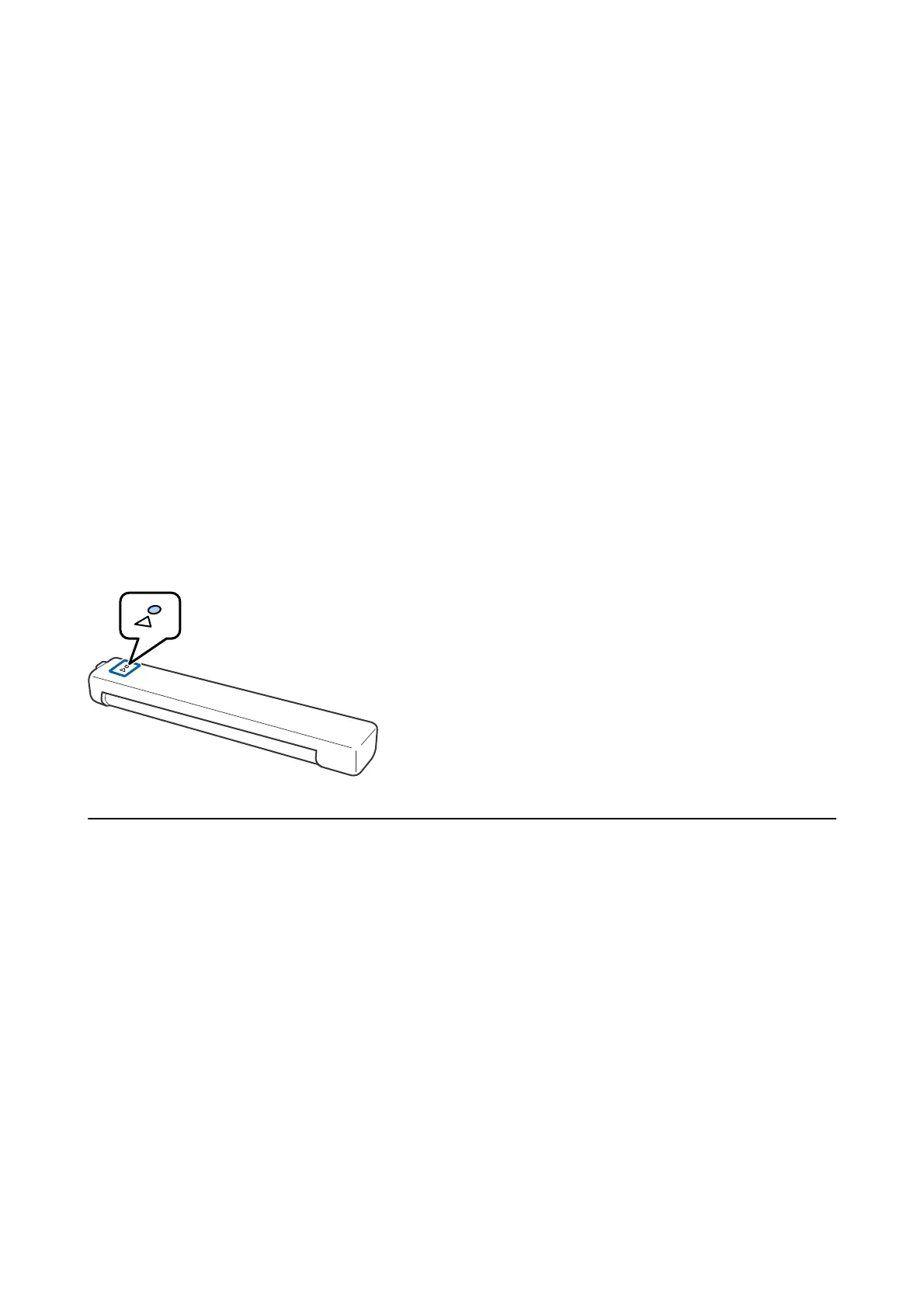
Make sure the USB cable is disconnected. en press the reset button on the bottom of the scanner.
Problems Starting Scanning
Cannot Start Document Capture Pro (Windows) or Document
Capture (Mac OS)
❏ Make sure the following
soware
is installed:
❏ Document Capture Pro (Windows) or Document Capture (Mac OS)
❏ Epson Scan 2
❏ Epson Event Manager
If the soware is not installed, reinstall it again.
❏ Document Capture Pro does not support Windows Vista, Windows XP, and Windows Server. Use Epson Scan 2
instead.
❏ Check the correct setting is assigned to the scanner button in Document Capture Pro (Windows) or Document
Capture (Mac OS).
User's Guide
Solving Problems
75



 To Next Page