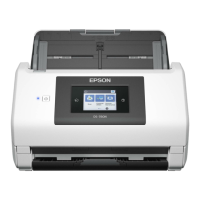
8. Aer
you have scanned all originals, press the
button on the scanner to close Automatic Feeding Mode.
Note:
❏ You can also close Automatic Feeding Mode by pressing Finish on the Automatic Feeding Mode window displayed
on your computer.
❏ You can make timeout settings to nish Automatic Feeding Mode.
Select Settings on the Document Source list to open the Document Source Settings window. Set Automatic
Feeding Mode Timeout (minutes) on the window.
e scanned image is saved to the folder you specied.
Related Information
& “Specications of Originals and Placing Originals” on page 26
Scan Text Documents and Convert them to Text Data
(OCR)
Saving as a Searchable PDF
You can save the scanned image as a Searchable PDF. is is a PDF in which searchable text data is embedded.
Note:
❏ Text on the originals is recognized using Optical Character Recognition (OCR), and then embedded in the scanned
image.
❏ is feature is only available when the EPSON Scan OCR component (Windows) or Epson Scan 2 OCR component (Mac
OS) is installed.
❏ Document Capture Pro does not support Windows Vista, Windows XP, and Windows Server. Use Epson Scan 2 instead.
1. Place the original.
2.
Start Document Capture Pro.
User's Guide
Advanced Scanning
55



 To Next Page