EasyManua.ls Logo

Epson LQ-570e - User Manual

Epson LQ-570e
248 pages
Print Icon
To Next Page IconTo Next Page
Loading...
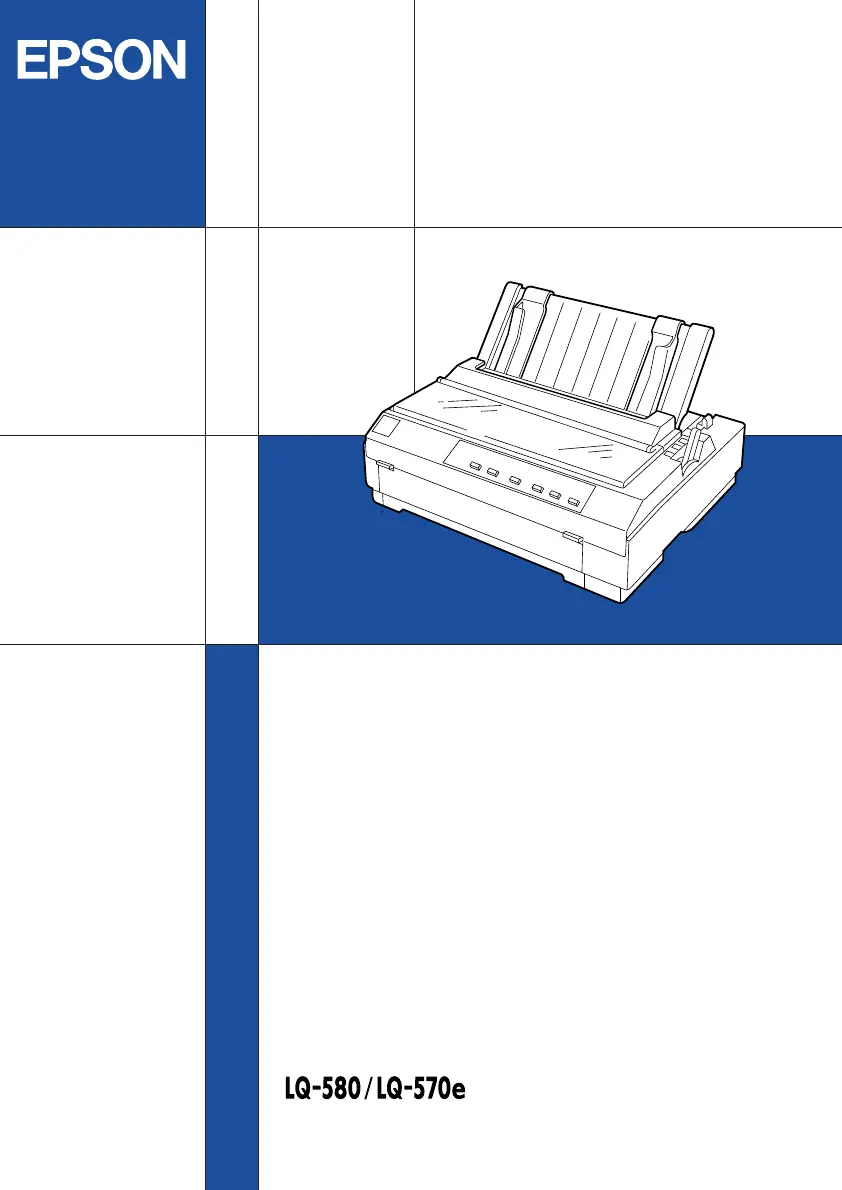
24-Pin Dot
Matrix Printer
User's Guide
4011804
XXX-00

Table of Contents

Other manuals for Epson LQ-570e

Questions and Answers

  • J
    joseph04Sep 23, 2025
    Why Epson LQ-570e Printer all the text is printed on the same line?
    • H
      harrelllisaSep 23, 2025
      If all the text is printed on the same line by your Epson printer, no line feed command is being sent at the end of each line of text. Turn on the auto line feed setting using the printer’s default-setting mode or the EPSON Remote! utility.
  • C
    Cindy TurnerAug 23, 2025
    What to do if Epson Printer does not load single-sheet paper?
    • M
      mark08Aug 23, 2025
      If your Epson printer isn't loading single-sheet paper, it might be due to several reasons. The paper release lever could be set to a tractor position; set it to the single-sheet position. Continuous paper might be in the paper path; set the paper release lever to the tractor position, press the Load/Eject button, and then return the lever to the single-sheet position. The paper on the paper guide might be too far to the right; move it slightly to the left. Also, ensure that the paper thickness lever is correctly set to match the thickness of your paper. Lastly, the paper could be creased, old, too thin, or too thick; use new, clean sheets of paper that meet the specifications.
  • A
    Alexander HoodAug 25, 2025
    What to do if Epson Printer unknown printer error has occurred?
    • K
      kwagnerAug 25, 2025
      Turn off the Epson printer and leave it off for several minutes; then turn it on again.
  • J
    Jeanne HughesAug 26, 2025
    How to fix faint printout on Epson LQ-570e?
    • D
      Danny ArmstrongAug 26, 2025
      If the printout from your Epson printer is faint, the paper thickness lever might be set incorrectly for your paper; try moving it to a lower setting. Also, the ribbon could be worn out, in which case you should replace the ribbon cartridge.
  • J
    Jennifer BakerAug 27, 2025
    Why Epson LQ-570e Printer printout has gaps?
    • K
      Kimberly WeissAug 27, 2025
      If your Epson printer's printout has gaps, the paper thickness lever might not be set correctly. Make sure to set the paper thickness lever to match the thickness of your paper.
  • S
    smithtimothySep 16, 2025
    What to do if Epson LQ-570e a single sheet of paper is not fully ejected?
    • T
      Todd SantiagoSep 16, 2025
      Press the Load/Eject button to eject the sheet. Then press the Pause button to turn off the Pause light, if necessary.
  • M
    Mary GatesSep 13, 2025
    What to do if Epson Printer does not work and control panel lights are off?
    • D
      Danielle HensonSep 13, 2025
      If your Epson printer doesn't work and the control panel lights are off, ensure the power cord is firmly plugged into the electrical outlet and the printer. If necessary, turn off the printer before checking. Then turn the printer on. If the outlet doesn't work, try using a different one.
  • B
    Becky GardnerSep 15, 2025
    What to do if Epson LQ-570e Printer continuous paper is not fed to standby position?
    • E
      Elizabeth CantrellSep 15, 2025
      Tear off the printed document at the perforation; then press the Load/Eject button. The Epson printer feeds the paper to the standby position. Press the Pause button to turn off the Pause light.
  • S
    stacey03Sep 5, 2025
    How to fix if Epson LQ-570e Printer printing starts too high or low on the page?
    • M
      Mr. Derek FosterSep 5, 2025
      If printing on your Epson printer starts too high or low on the page, check the paper size setting in your application or printer driver to ensure it matches the paper you are using. Also, verify the printer’s page length settings for the tractor using the printer’s default-setting mode or the EPSON Remote! utility. Ensure that the top margin or top-of-form position setting in your application software is correct. Verify that the correct printer is selected in your software before printing. If you moved the paper using the knob while the printer was on, adjust the top-of-form position using the micro adjust feature.
  • T
    Tonya MendezSep 3, 2025
    What to do if Epson LQ-570e lines of dots are missing in the printout?
    • J
      Joel BurnettSep 3, 2025
      If lines of dots are missing in the printout from your Epson printer, the print head may be damaged. Stop printing.

Summary

Getting to Know Your Printer

Easy-to-Use Features

Explains printer features for convenience and paper saving.

Available Paper Paths

Details different paper loading and feeding paths for various paper types.

Ribbon Cartridge

Information on the types of ribbon cartridges and their replacement.

Important Safety Instructions

Crucial guidelines for safe printer operation and handling.

Setting Up the Printer

Unpacking the Printer

Steps for removing the printer and its accessories from the packaging.

Installing or Replacing the Ribbon Cartridge

Detailed procedure for installing and replacing the printer's ribbon cartridge.

Connecting the Printer to Your Computer

Guide for establishing the physical connection between printer and computer.

Installing the Printer Software

Steps to install the necessary printer driver and utility software.

Printing on Continuous Paper

Using the Push Tractor

Instructions for utilizing the push tractor paper feeding mechanism.

Using the Tractor in the Pull Position

Guide for operating the printer with the pull tractor for optimal paper handling.

Adjusting the Top-of-Form Position

Procedure for setting the initial print line position on the paper.

Advancing the Paper to the Tear-Off Edge

Method for moving continuous paper to the tear-off position.

Printing on Single Sheets

Available paper types and paper slots

Overview of compatible paper types and their corresponding input slots.

Loading envelopes

Specific instructions for loading and printing envelopes.

Loading Single Sheets in the Top Paper Slot

Step-by-step guide for loading single sheets into the top paper slot.

Using the Printer Software

About Your Printer Software

Introduction to the printer driver and included utility software.

Using the Printer Driver With Windows 95 and 98

Guide to accessing and using the printer driver with Windows 95/98.

Printer driver settings overview

Explanation of available printer driver settings across different menus.

Changing Printer Settings From the Printer’s Control Panel

Selecting a Built-In Font and Pitch

How to select printer fonts and pitch directly from the control panel.

About Your Printer’s Default Settings

Information on the printer's default configuration settings and their functions.

Changing default settings

Procedure for entering default-setting mode and modifying printer configurations.

Troubleshooting

Using the Error Indicators

How to diagnose problems using printer control panel lights and beep patterns.

Problems and Solutions

General guide to identifying and resolving common printer issues.

Clearing Paper Jams

Step-by-step instructions for removing paper jams from the printer.

Enhancing Your Printer With Options

Paper handling options

Description of optional paper handling devices like cut-sheet feeders.

Installing an optional cut-sheet feeder

Guide for installing single-bin and high-capacity cut-sheet feeders.

Using the Roll Paper Holder

Information on installing and using the optional roll paper holder.

Cleaning and Transporting the Printer

Cleaning the Printer

Instructions for maintaining and cleaning the printer's exterior and components.

Transporting the Printer

Guidelines for safely packing and moving the printer for transport.

Specifications

Mechanical

Technical details on the printer's mechanical aspects and performance.

Paper

Specifications related to paper types, sizes, and handling capabilities.

Customer Support Information

Contacting Customer Support

How to contact EPSON support and information required for assistance.

For North American Users

Support contact information and services specific to North American users.

Epson LQ-570e Specifications

General IconGeneral
TypeDot Matrix Printer
Print MethodImpact dot matrix
Print Resolution360 x 360 dpi
Number of Pins24 pins
Paper SizeA4, Letter, Legal
Paper Width4 - 10 inches
InterfacesParallel
Noise Level55 dB
EmulationESC/P 2

Related product manuals