EasyManua.ls Logo

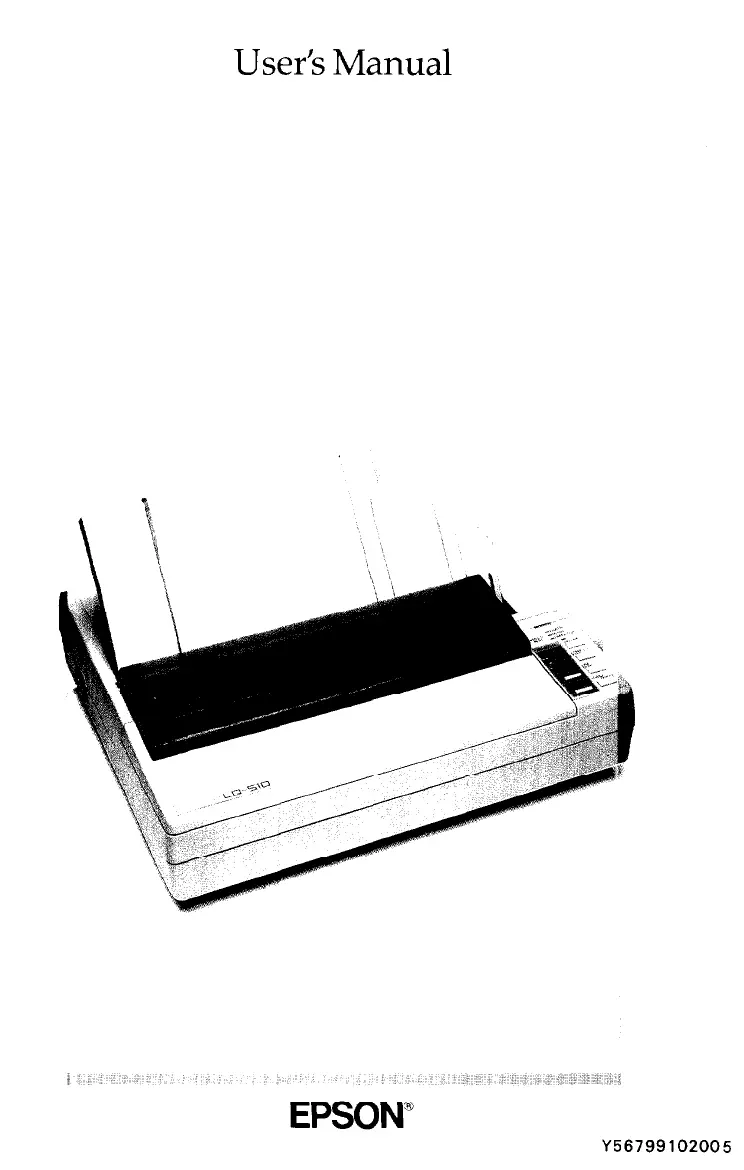
Epson LQ-510 - User Manual

Epson LQ-510
295 pages
Print Icon
To Next Page IconTo Next Page
Loading...

Table of Contents

Other manuals for Epson LQ-510

Questions and Answers

  • S
    Susan ZimmermanAug 16, 2025
    Why is my Epson Printer printing characters I didn't expect?
    • D
      Daniel SmithAug 16, 2025
      If printed characters are not what you expected, the software may not be correctly installed for your printer. Use the program’s setup (or install) procedure to check the printer settings, and reset as needed. The wrong font may be selected. If your program accepts control codes, set the codes to the values below to select the built-in fonts: Roman: ESC k 0 Sans Serif: ESC k 1 Draft: ESC x 0. The wrong character table may be selected. If your application program is capable of sending control codes, specify the Epson Extended Graphics character table using ESC t l. You can also select the graphics character table by changing a DIP switch setting. To do this, turn off the power, set DIP switch 1-7 to on, then turn on the printer.
  • T
    Troy ToddAug 20, 2025
    Why is my Epson LQ-510 Printer print faint or uneven?
    • W
      Willie BrooksAug 20, 2025
      If the printout is faint, or dots are missing in the printed characters or graphics, or a line of dots is missing in the printout, or dots are missing in random positions, the ribbon may be worn out. Install a new ribbon cartridge. The paper thickness lever may not be set correctly for the paper you are using, so set the paper thickness lever to match the thickness of your paper. There is either too much slack in the ribbon or the ribbon has come loose and gotten caught on something. Stop printing, turn off the printer, and reinstall the ribbon cartridge.
  • T
    Troy WilsonAug 28, 2025
    How to troubleshoot if my Epson Printer isn't getting power?
    • K
      kristinagonzalezAug 28, 2025
      If the POWER light does not go on, the power cable may be loose or not properly plugged into the electrical outlet. Turn off the printer and see that the power cable is properly plugged in to the electrical outlet. The power switch may be off, so turn on the switch. Power may not be supplied to the electrical outlet. Plug another electrical device into the outlet to determine whether the outlet is operating properly. If the electrical outlet is controlled by a switch, use an electrical outlet that is not controlled by an outside switch.
  • N
    njamesSep 1, 2025
    What to do if Epson Printer print position is not what I expected?
    • T
      Tiffany HernandezSep 1, 2025
      If printing starts too high or too low on the page, or one line printing has taken up two lines, the loading position may be incorrect. Use micro-adjustment to adjust the loading position. If the problem persists, check the top margin set by your application software and adjust it. Auto line feed may be on, so turn off DIP switch 2-4. The margin setting may not be correct. Use your application program to change the margin.
  • C
    Christopher WheelerSep 8, 2025
    How to troubleshoot Epson LQ-510 issues when using an optional interface?
    • A
      Annette WadeSep 8, 2025
      If the printer does not print or the printout is not what you expected when using an optional interface, the interface board may be loose or not properly connected. Check that the interface board is correctly inserted into the connector on the main board. You may be trying to use a cable with the wrong specification, so make sure that the cable matches the specifications of the interface. The DIP switches or jumpers on the interface board may be set wrong. See the interface manual for the correct settings. The interface settings on the computer may be wrong. See your computer manual for the correct settings. The computer and interface settings may not match; match the settings for each condition. Two cables may be installed on the printer; only one cable may be attached at any time.
  • C
    Carlos GarciaNov 12, 2025
    How to fix if my Epson Printer is not feeding single sheets properly?
    • N
      Nicole BallardNov 12, 2025
      If the LOAD/EJECT button was pressed, but the platen did not move and paper was not fed, you may be trying to feed paper using one of the control panel buttons while the printer is on line (ON LINE light is on). Press the ON LINE button once to set the printer off line; then feed the paper. After feeding the paper, press the ON LINE button again to set the printer on line. The left edge guide may be set too far to the right so that the paper detector cannot sense it. Move the paper a little to the left. The PAPER OUT light should go off. If the LOAD/EJECT button was pressed and the platen rotated, but paper was not fed, the paper release lever may be set in the wrong position. Push paper release lever back to the single-sheet position. The left and right edge guides may be too close togeth...
  • H
    harrismichelleNov 23, 2025
    How to solve Epson LQ-510 Printer's page length problem?
    • C
      Caroline WatsonNov 23, 2025
      If the page length does not match the length of paper, or regular gaps occur in the printout, or skip over perforation is set, but the perforation does not fall in the center of the skip, check the page length set by your application software and adjust it if necessary. If you are using the cut sheet feeder, the self test function prints the number of printable lines that can fit on a single sheet. Use this feature to determine the correct page length setting. One-inch skip over perforation may be set. Set DIP switch 2-3 to off. The loading position of the paper may be too high or too low. Use the micro-adjustment feature to reset the loading position so that the perforation is centered within the skip area. Your application program may be setting the top and bottom margins. If this is the...

Summary

Introduction

Printer Features

Details the key capabilities and functions of the LQ-510 printer, including paper handling and print speed.

Printer Options Overview

Lists and briefly describes available optional hardware for the printer such as the cut sheet feeder and pull tractor.

Chapter 1: Setting Up the Printer

Unpacking and Initial Checks

Instructions for unboxing the printer and verifying all components are present and undamaged.

Printer Assembly

Step-by-step guide for physically setting up the printer, including installing the platen knob and ribbon cartridge.

Printer Testing and Operation Check

Procedures to verify printer functionality via self-test before connecting to a computer.

Connecting Printer to Computer

Steps for establishing a physical connection between the printer and the host computer system.

Application Software Setup

Instructions for configuring the printer within user application programs for optimal performance.

Chapter 4: Software and Graphics

Graphics Printing

Instructions on creating pictorial output, understanding print head operation, and dot patterns.

Chapter 5: Using Printer Options

Chapter 7: Troubleshooting

Common Problems and Solutions Overview

An overview table categorizing common printer issues and directing to relevant solutions.

Power Supply Troubleshooting

Diagnosing and fixing issues related to the printer not receiving power or the power light not illuminating.

Printing Problems and Solutions

Addressing issues related to print quality, missing dots, incorrect characters, or no printing at all.

Paper Handling Troubleshooting

Resolving problems with single sheets or continuous paper feeding, jamming, or incorrect loading.

Epson LQ-510 Specifications

General IconGeneral
BrandEpson
ModelLQ-510
CategoryPrinter
LanguageEnglish

Related product manuals