Using Memory Cards 22
Creating a New Folder and Copying Files
You can create a folder and copy files to it from a memory
card, USB device, or from Backup Files.
1 To copy items to a new folder, follow the steps in the
previous section.
When you select
Create New Folder and press OK, the
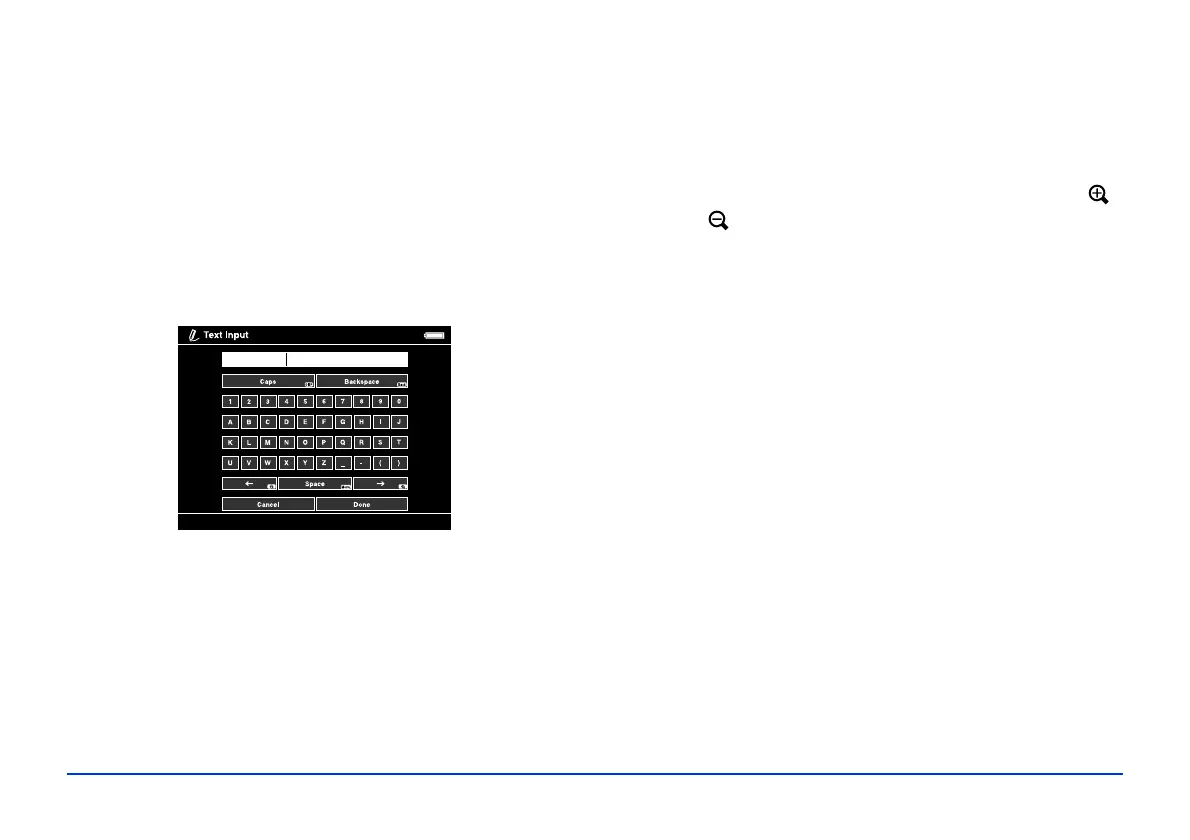
on-screen keyboard appears with the current date
entered as the default name for the folder.
You can either keep the name or enter a new one.
2 To keep the current name, highlight
Done and press
OK. Your files are copied to the new folder.
3 To enter a new name, use the
Back (backspace) button
to clear the current name. Then enter a new name using
the 4-way ring (highlight each character and press
OK to
enter it).
❍ To move the cursor forward or backward, press
or .
❍ To delete the last letter input, press Back.
❍ To enter a space, press Menu.
❍ To switch between upper- and lowercase, press
Display.
❍ To cancel the name, highlight Cancel and press
OK.
4 After entering the name, highlight
Done and press OK.
Your files are copied to the new folder.
07232007.001


 To Next Page