Viewing Photos and Videos 28
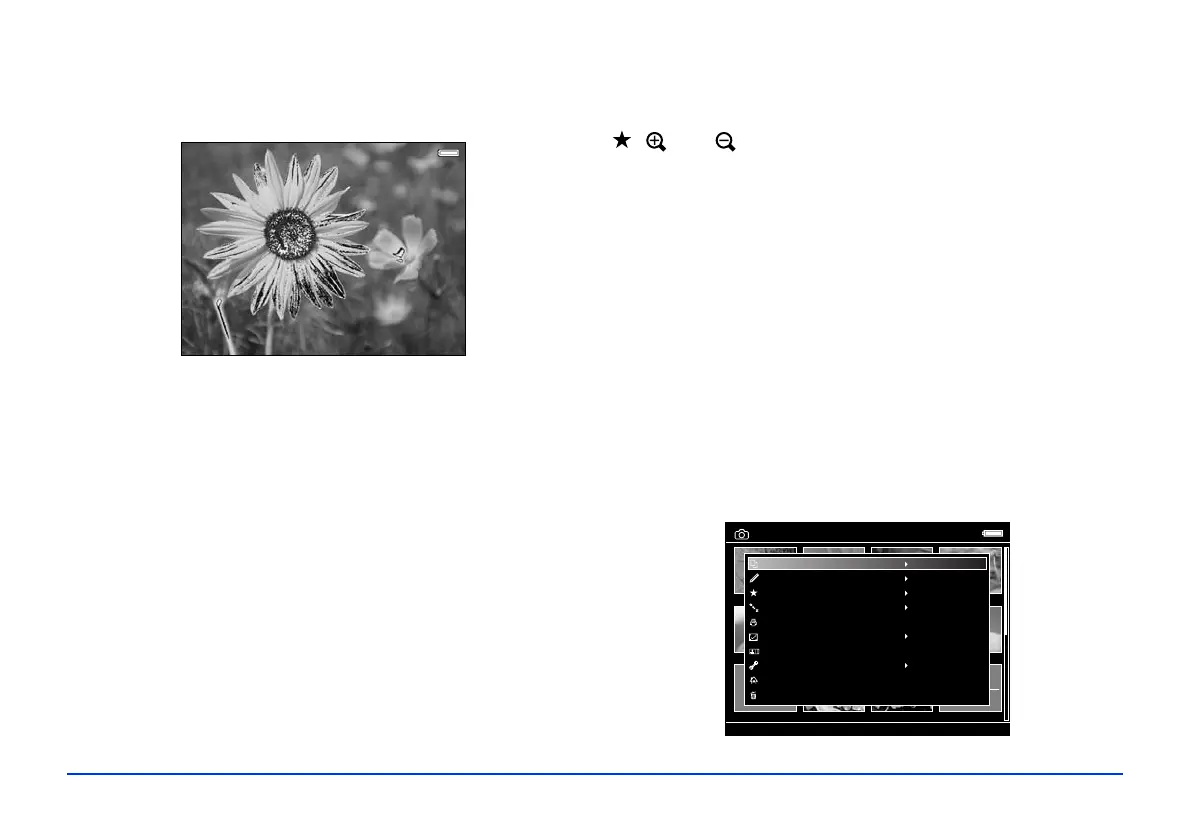
3 To view the over- and under-exposure preview, press
Display a third time:
In the preview, poorly exposed highlight and shadow
areas show graduated tone reversal. The brightest 6% of
the image shows 4 levels of black, and the darkest 6%
shows 4 levels of white.
4 To return to normal display, press the
Display button
again.
Displaying a Wider Color Gamut
Images are displayed in the color space they were captured
in: either sRGB or AdobeRGB. You can also display images
in a wider color gamut and correct color casts, backlighting,
underexposure, and low-contrast images with Display Photo
Enhance.
Note:
Display Photo Enhance affects only the image shown on the
viewer, and does not change the file itself. The Menu, Display,
, , and buttons are not available in this mode.
1 When you are viewing a full-screen image, press Menu
and select
Display Photo Enhance. You can use the
4-way ring to view the next or previous photo in Display
Photo Enhance.
2 To return to the normal display, press
Back.
Displaying Images as a Slide Show
You can display images in My Photos as a slide show and
select transition effects, timing, and background music.
1 Select a folder you want to display as a slide show.
2 Press the
Menu button to display the pop-up menu:
My Photos/2006.1205
EPV2014.JPG EPV2171.JPG EPV2242.JPG EPV2269.JPG
EPV2273.JPG EPV2279.JPG EPV2283.JPG EPV2314.JPG
EPV0013.TXT EPV2619.JPG EPV2620.JPG EPV0480.MP3
Down the Black
Beaches
Copy/Move
Edit
Rate
Sort
Photo Print
Wallpaper and Icon Settings
Slide Show
Settings
Return to HOME
Delete



 To Next Page