Using the Remote Control 39
Displaying Patterns
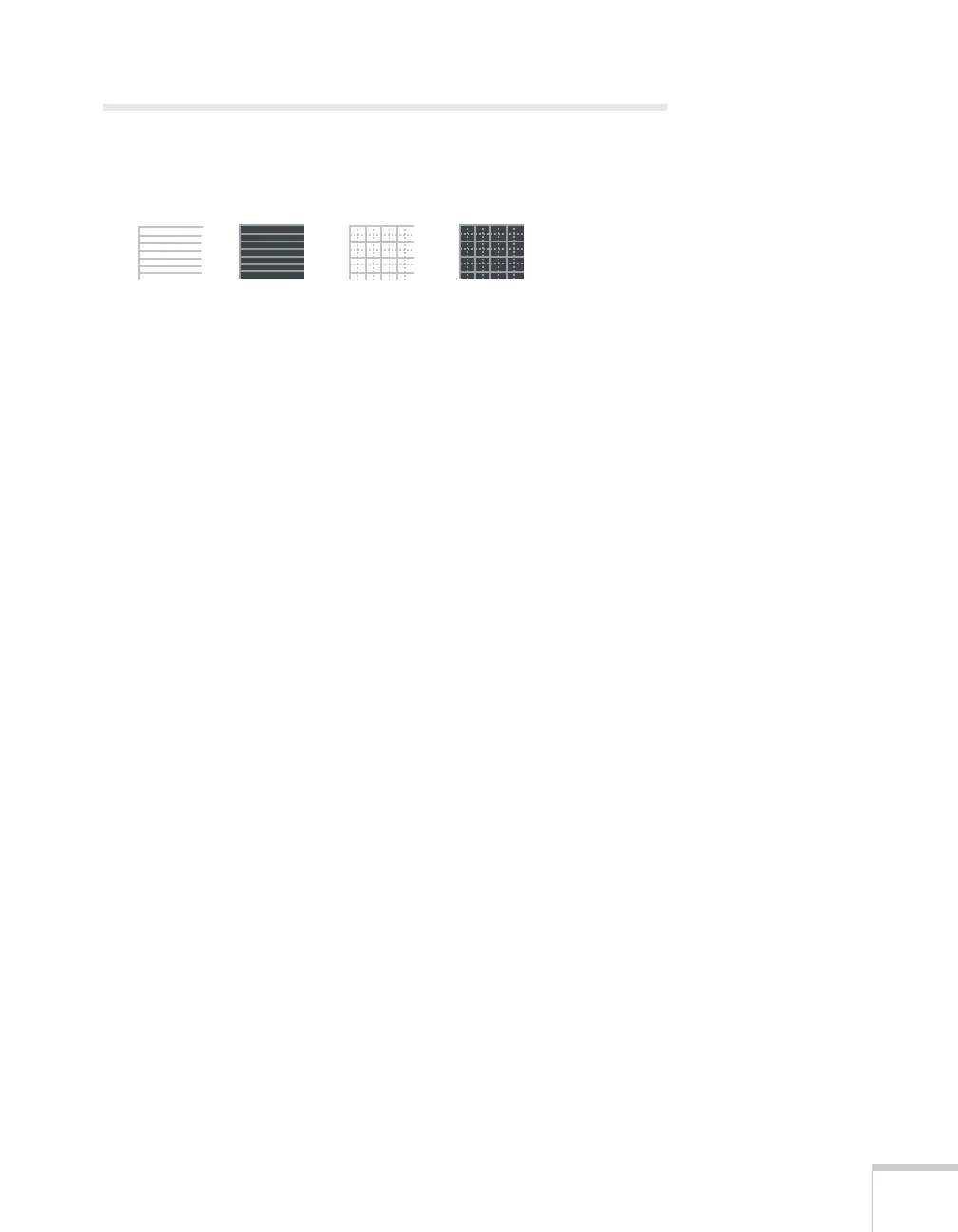
You can display a test pattern or one of the following 4 patterns for
use on a whiteboard or chalkboard:
1. Press the
Menu button on the remote control, then select the
Settings menu and press
Enter.
2. Highlight
Pattern and press Enter.
3. Highlight
Pattern Type and select one of the patterns shown
above, or choose
Test Pattern. If you want to create your own
pattern, choose
User Pattern. See page 40 for more information.
4. Press
Enter to select the pattern you want, then press Esc.
5. Choose
Pattern Display to display the pattern.
6. Press
Esc when you’re finished displaying the pattern.
Assigning a Pattern to the User Button
You can assign any of the available patterns to the User button on the
remote control, and then display it by simply pressing the
User
button.
1. In the Settings menu, select the
Pattern Type as described above.
2. Highlight
User Button and press Enter.
3. Highlight
Pattern Display and press Enter.
4. Press
Menu to exit.
Pattern 2Pattern 1
Pattern 3
Pattern 4



 To Next Page