44 Using the Remote Control
Starting a Slideshow
1. Connect a USB device to the projector’s USB TypeA port (see
page 58).
2. If you are connected to another image source, press the
USB
button on the remote control to go to the Slideshow program.
If you are not connected to another image source, the Slideshow
program appears automatically.
If necessary, press the arrow buttons on the remote control to
highlight the device you want to present from, then press the
Enter button.
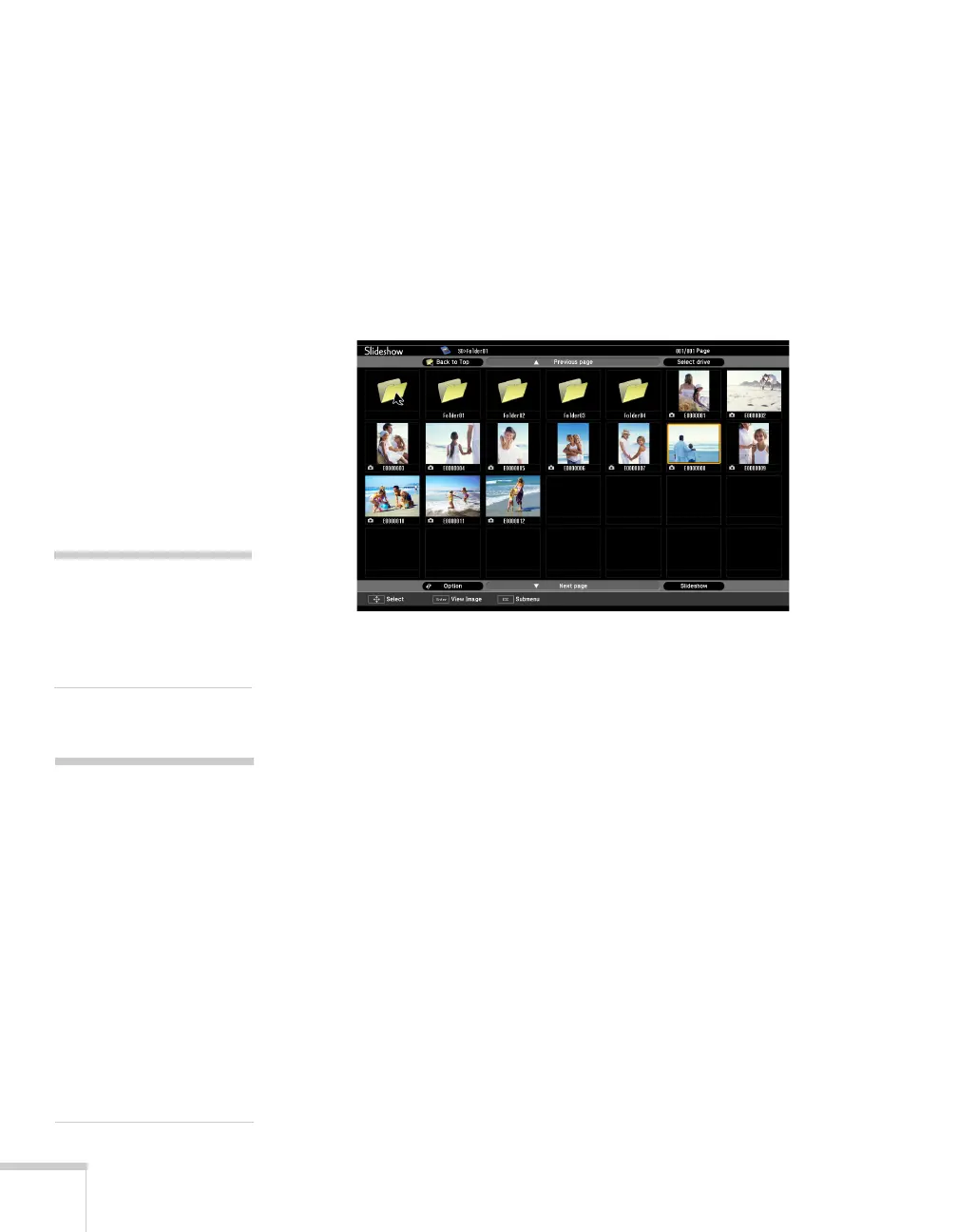
3. If you need to select a subfolder on your device, press the arrow
buttons to highlight the folder and press
Enter.
4. To display an individual image, press the arrow buttons to
highlight it and press
Enter. To display additional image files,
press the l or r arrow button.
5. To display a slideshow of all the images in the current folder, use
the arrow buttons to highlight
Slideshow on the bottom of the
Slideshow screen and press
Enter. The images display sequentially
one time through. At the end, you see the folder display again.
note
To rotate a displayed image,
press the u or d button on
the remote control until it is
displayed correctly.
note
To display a slideshow from
a folder that is not open,
highlight the folder and press
the
Esc button on the
remote control. Then select
Slideshow from the menu
that appears and press
Enter.
To begin a slideshow from a
particular image, use the
arrow buttons to highlight
that image, press
Enter,
then press Enter again.



 To Next Page