F
Remove the cut paper.
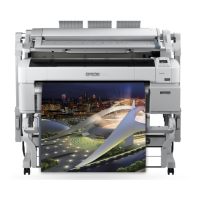
When using SC-T7200 Series/SC-T5200
Series/SC-T3200 Series
When roll paper loaded on Roll 1 is jammed on
the SC-T7200D Series/SC-T5200D Series
Remove the jammed paper via the paper feed slot
or the eject slot.
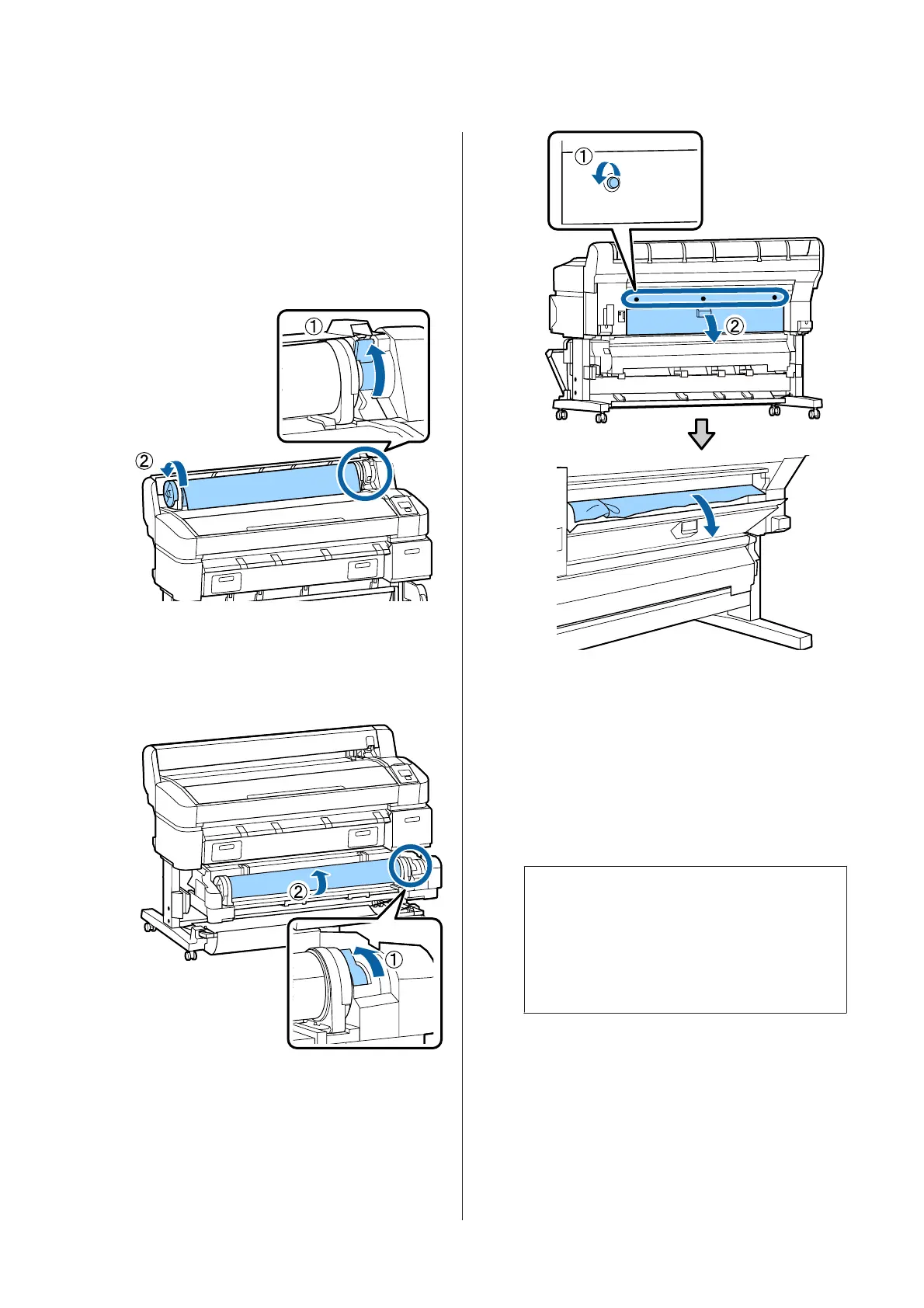
When roll paper loaded on Roll 2 is jammed on
the SC-T7200D Series/SC-T5200D Series
(1) Pull out the Roll 2 unit, and then rewind the roll
paper with your hand.
(2) When paper is jammed at the rear side, open
the rear cover, and then remove the jammed
paper.
(3) Close the rear cover, and then tighten the three
fixing screws.
G
After removing the paper, press the Z button.
Reload the paper and resume printing.
U “Attaching the Roll Paper Adapter” on
page 27
c
Important:
Before you reload the roll paper, cut the edge
straight horizontally. Cut any wavy or
creased sections.
If there is a problem at the edge, decreased
print quality and paper jams may occur.
Cut sheets jam
To remove jammed paper, follow the steps below:
SC-T7200 Series/SC-T5200 Series/SC-T3200 Series/SC-T7200D Series/SC-T5200D Series User's Guide
Problem Solver
189


 To Next Page
 Loading...