Copying
Copying Documents
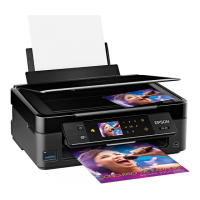
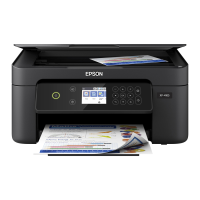
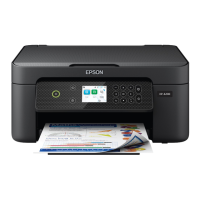
Basic copying for XP-310 Series/XP-410 Series
Follow the steps below to copy documents.
Note for XP-410 Series:
To copy photos, select More Functions from the Home menu, and select Copy/Restore Photos, then follow the on-screen
instructions.You can copy one photo or multiple photos of different sizes at the same time, as long as they are larger than 30 x
40 mm.
A
Load paper.
& “Loading Paper and Envelopes” on page 23
B
Place your original(s) on the scanner glass.
& “Placing Originals” on page 28
C
Enter the Copy mode from the Home menu.
D
Set the number of copies using the + or - button (use u or d for XP-310 Series).
E
Select Color or B&W.
F
Press OK to display the copy setting menus. For XP-310 Series, press OK and then press d.
G
Select the appropriate copy settings such as layout, paper size, paper type, and copy quality. Use u or d to select
a setting item and use l or r to change the setting. For XP-310 Series, press OK to save the changes.
H
Press x to start copying.
Basic copying for XP-210 Series
Follow the steps below to copy documents.
A
Load paper.
& “Loading Paper and Envelopes” on page 23
B
Place your original(s) on the scanner glass.
& “Placing Originals” on page 28
User’s Guide
Copying
29


 To Next Page
 Loading...