8. SCREEN DISPLAY SETTING
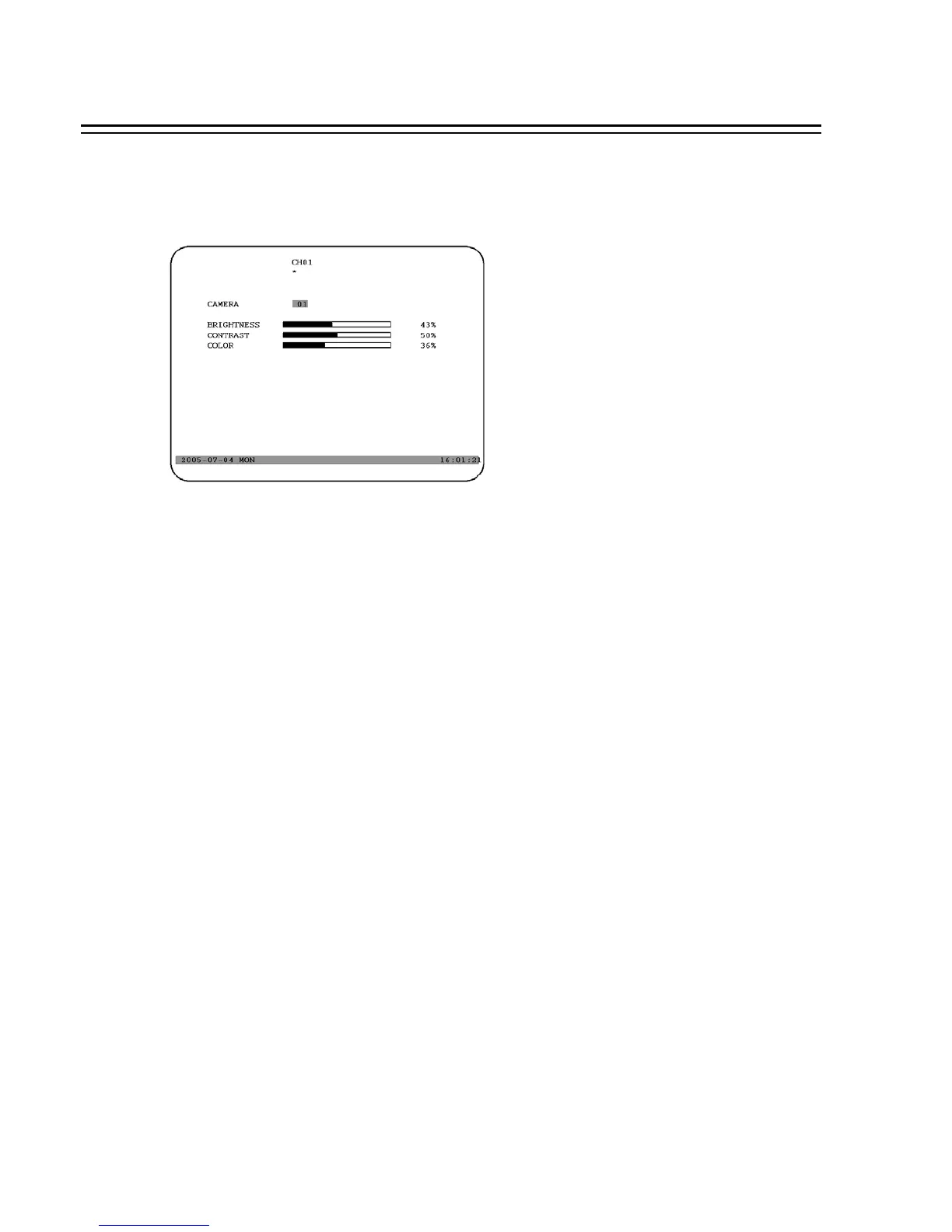
In a full screen display, press SELECT key to pop up the display adjustment window as below:
In the screen display setting menu, we define:
(1) CAMERA: The display setting of the current camera.
(2) BRIGHTNESS: The bright percentage of the current camera; from 0% to 100%.
(3) CONTRAST: The contrast percentage of the current camera; from 0% to 100%.
(4) COLOR: The color percentage of the current camera; from 0% to 100%.
The selected item will show in red color bar. Use Jog to increase or decrease the value. Press ENTER to
confirm the setting value and move to next item. After finished setting, press SELECT or MENU key to
save and exit the dialog. Total of 8 channels are adjustable.
68




 To Next Page