CP-2272E
Revision 1.0 Page 13
2. Using the Browse… button, navigate to the .img firmware file that you wish to update
(Example: up-1.1.0.img).
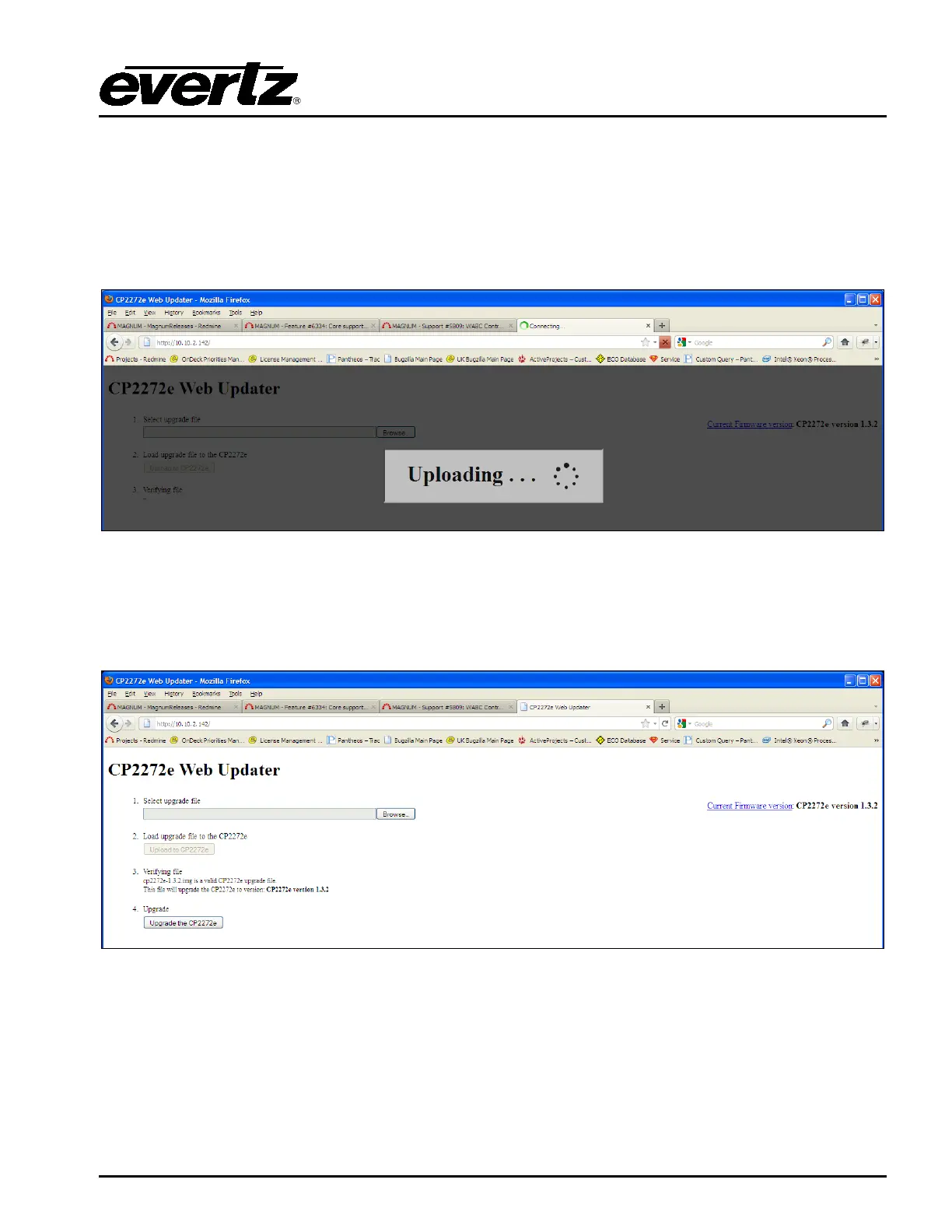
3. The user can load the upgrade file to the CP-2272E control panel by pressing the Upload to
CP2272e button that appears once the file is selected. The firmware on the panel will now be
updated and an uploading message will be displayed in the window as shown in Figure 5-2.
Please be patient as this process may take several minutes.
Figure 5-2: Uploading Progress Window
4. When the firmware has been successfully uploaded, click on the Upgrade the CP2272e button,
as shown in Figure 5-3. Selecting this button will upgrade the firmware file using the .img file
you previously loaded.
Figure 5-3: Upgrade the CP2272e



 To Next Page