CP-2272E
Revision 1.0 Page 19
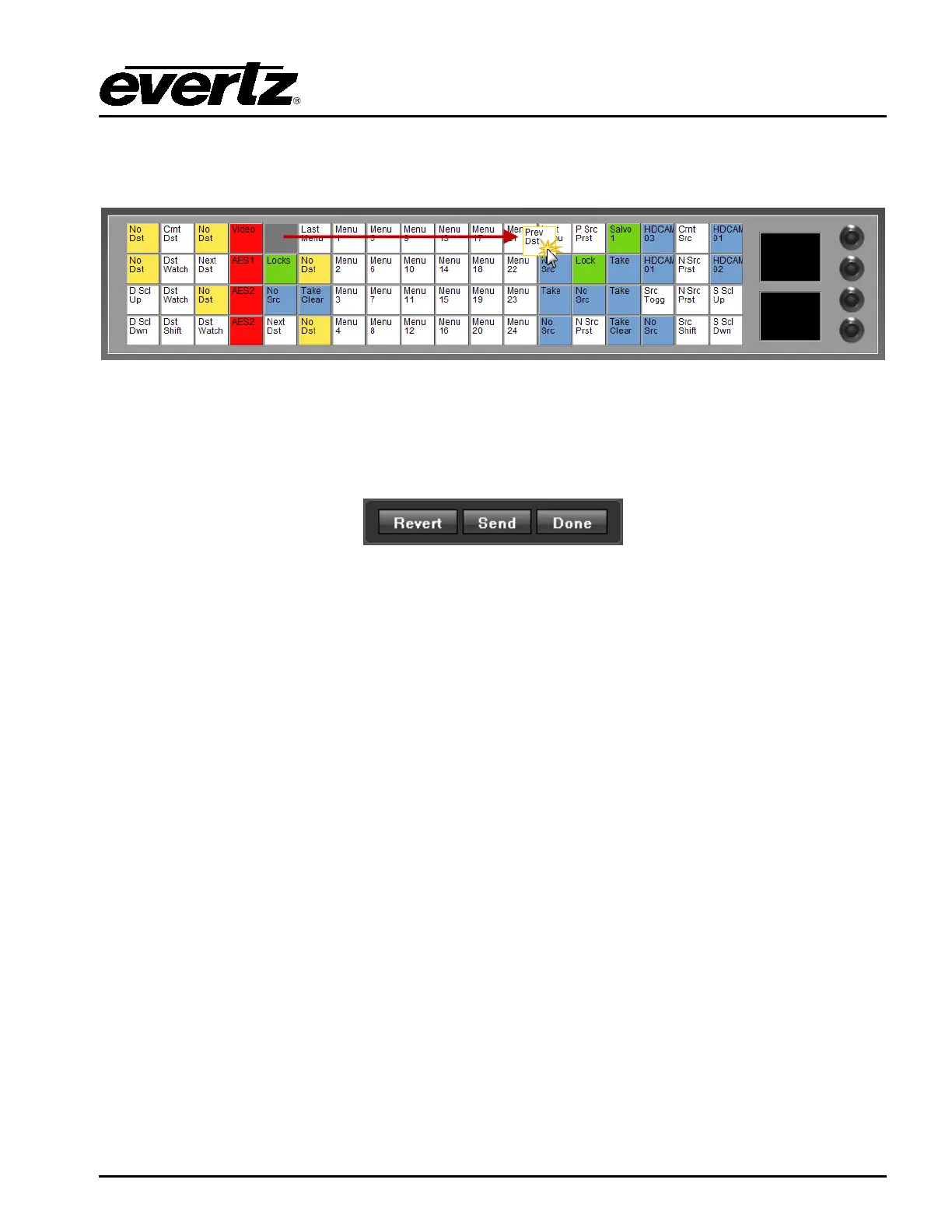
9. The user can move the location of the buttons by selecting a button and holding the mouse
down, then dragging the button to the desired location and releasing the mouse button to drop
the button into place. Please refer to Figure 5-9.
Figure 5-9: Moving Buttons using Drag and Drop
10. In order to save and send the changes made on the interface to the actual CP-2272E panel, the
user must select the Send button. When the Send button is selected, the button assignments
will be transferred to the physical CP-2272E control panel.
Figure 5-10: Control Buttons
11. If the user has made changes and wishes to revert to the original panel layout, select the
Revert button to clear the panel and switch back to its original configuration.
12. Once all the changes are complete and have been sent to the physical CP-2272E control panel,
the user can select the Done button to save the configuration and return to the main interface
page.
13. The CP2272E will display “Loading Configuration” on the buttons when the configuration has
been sent to the panel.



 To Next Page