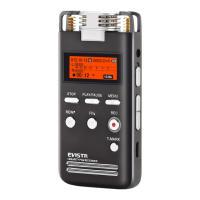
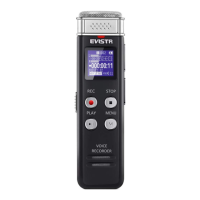
EVISTR VOICE RECORDER
http://blog.evistr.com support-us@evistr.com
Page - 19 - of -28 -
During recording, if no voice detected, the time will not counting, that means the recorder was
automatically paused recording, when voice detected again, it will resume recording
automatically
Select desired AVR level according to demanding
1.4 Record Monitor
Select and turn on record monitor, during recording, plug earphone, it can hear what it is
recording.
1.5 Led_ON/OFF
At this option, it can select ON/OFF, when selected OFF, and press PLAY to confirm, it will close
the record led light, so during recording, the red light will not flash
1.6 Record Subsection
When enter Record Subsection, it can select Half hour, One half, Two hour, CLOSE, and press
PLAY to confirm selection
What is subsection recording?
When select desired time length, and press PLAY to confirm settings, now push up REC to
recording, when time reached desired time length, it will automatically save recording, and
start a new recording again.
e.g. When select Half hour, each time, recording time length reached 30minutes, it will
automatically save the recording, and then start a new recording.
If want to close this function, select CLOSE, and press PLAY to confirm & save settings.
1.7 Auto Record
What is Auto Record?
Select Auto Record ON, set start time, end time, record cycle, and Keep the POWER button at
ON position, so the recorder will automatically boot on and start to recording at specified time.
Record on/off: turn on / off the auto record function
Start Time: Start to recording
End Time: end to recording and save recording
Auto Record Cycle:
Once: only work 1 time
Daily: Auto recording everyday at specified time
Work Day: Auto recording work day at specified time
1.8 Recordings Library
View all recordings on the devices


 To Next Page