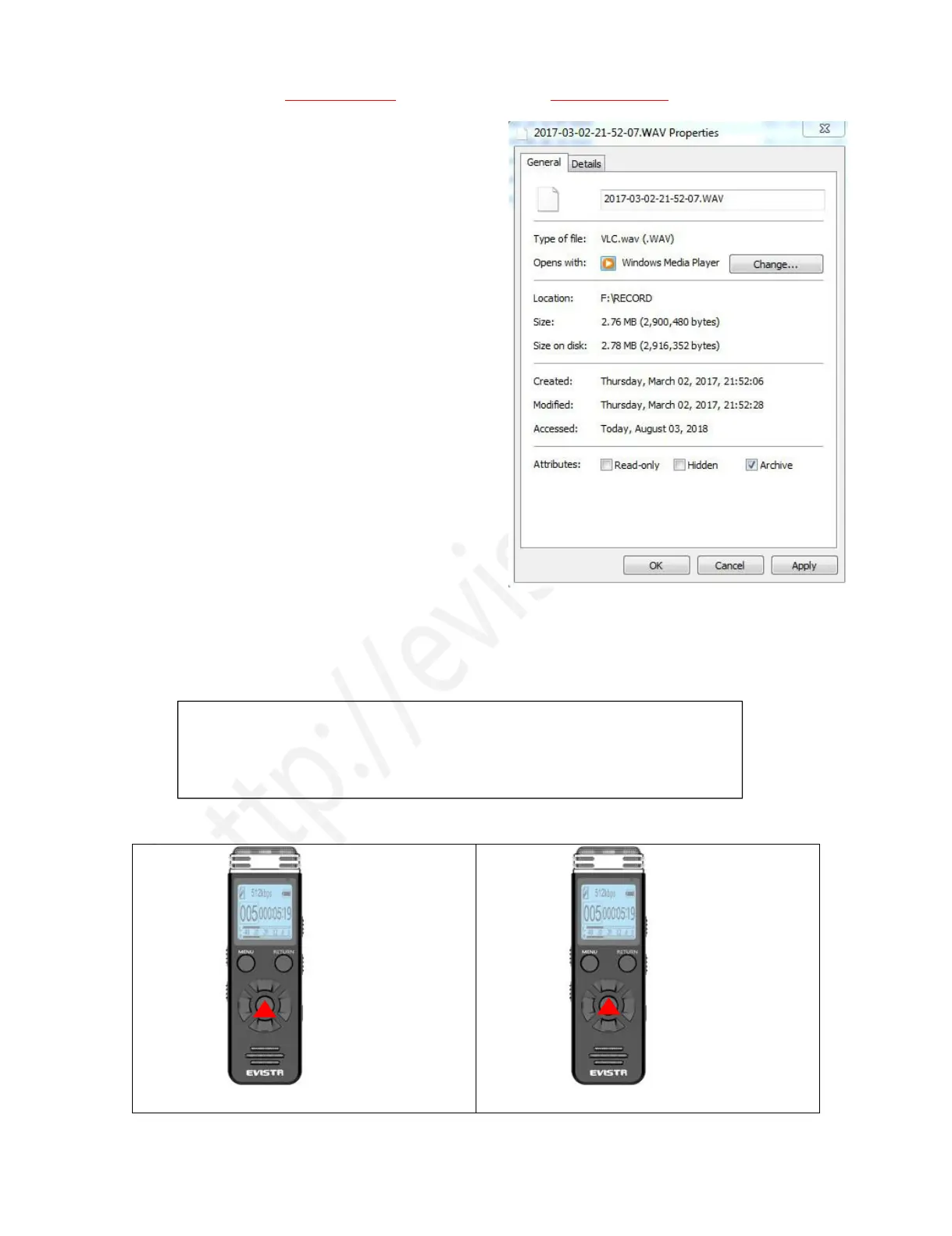
Each recordings will be saved a file names with date
in sequence, but it has a time stamp
If we want to see the recorded date of file
“2017-03-02-21-52-07.WAV”, we could click right
button and view file properties, we will see the
recordings file time
File Name Format:
Year-Month-Day-Hour-Minute-Seconds
See the right side picture shows:
3) How to Pause and Resume Recording
During recording, press PLAY pause recording
Press PLAY again, resume your recording
4) How to Playback Recording
NOTE: If we cannot find the recordings, please kindly check whether we have
switched to music folder or not. We can press and hold M button(and wait a
moment) to switch between MUSIC and RECORD folder


 To Next Page