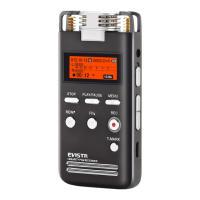
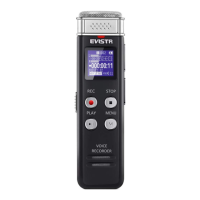
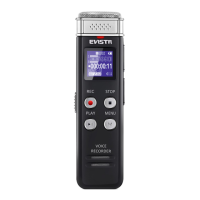
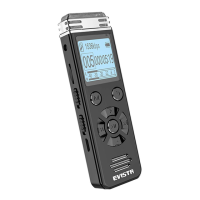
EVISTR VOICE RECORDER
http://blog.evistr.com support-us@evistr.com
Page - 5 - of -28 -
2) Quick Start to Using
How to Record?
Turn on the device, Push Up REC directly start to record, push down to
save recording
How to Play?
Press PLAY to play recording
How Adjust Speaker Volume?
Press +/- to adjust speaker volume
How to Fast Forward / Rewind?
When it is playing, Press down and hold or to Fast forward or rewind
How to Select Previous / Next Audio Track?
Press or to select
How to Delete Recordings?
Press Delete button (at right side trash icon), Go to delete options -> Delete -> Delete One
And press PLAY button to select Yes, confirm, it will delete one recording
If we select delete all, all recordings will be deleted.
3) Quick Menu Options Guide
Save file on TF card:
Push Up the TF Card button (left side) to TF position, so we can save file on TF card (when inserted
TF card). If not, recordings will still save on built-in memory.
Notices: device built-in 16GB, don’t include TF card
Change Recording Format:
Menu options -> Record Settings -> Record Format -> WAV REC or MP3 REC, press PLAY to confirm
Set Recording Format (MP3/WAV):
Press to
to Main Menu
options -> Record Settings -> Record Format, press PLAY to confirm
selection
Set Recording Quality ( Bit Rate):
Press to
to Main Menu
options -> Record Settings -> Set Rec Bitrate, press PLAY to confirm
selection


 To Next Page